Blog

PWM Module Guide
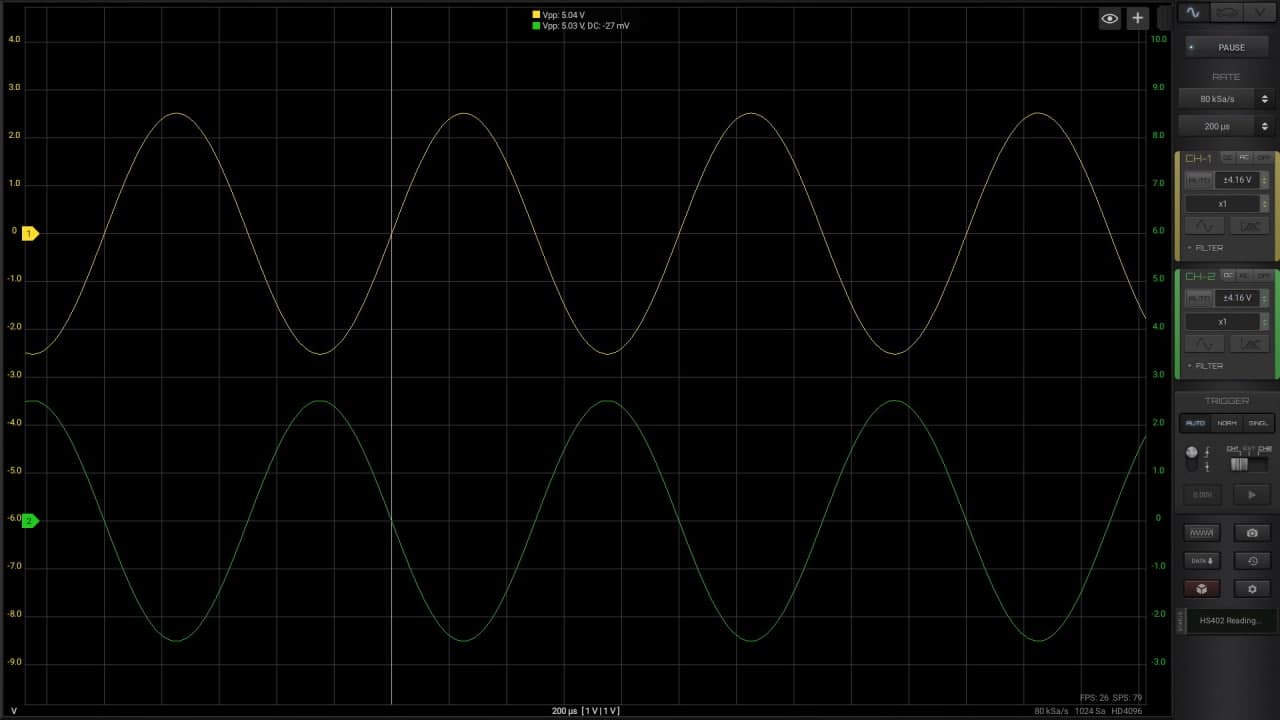
PWM Module

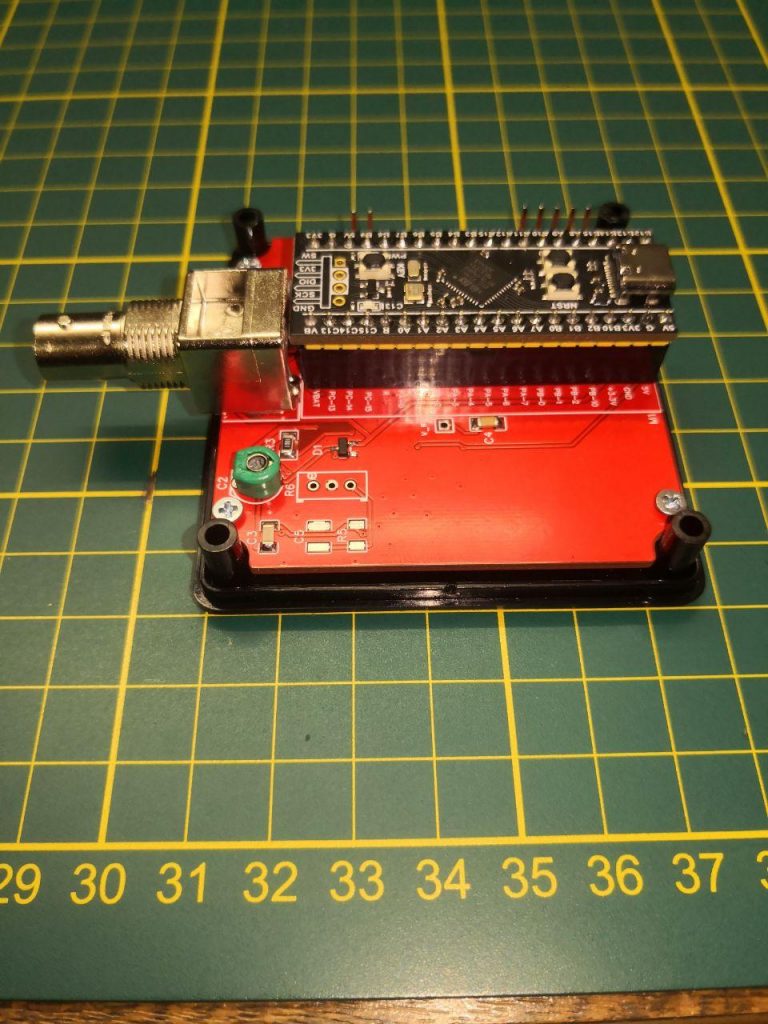
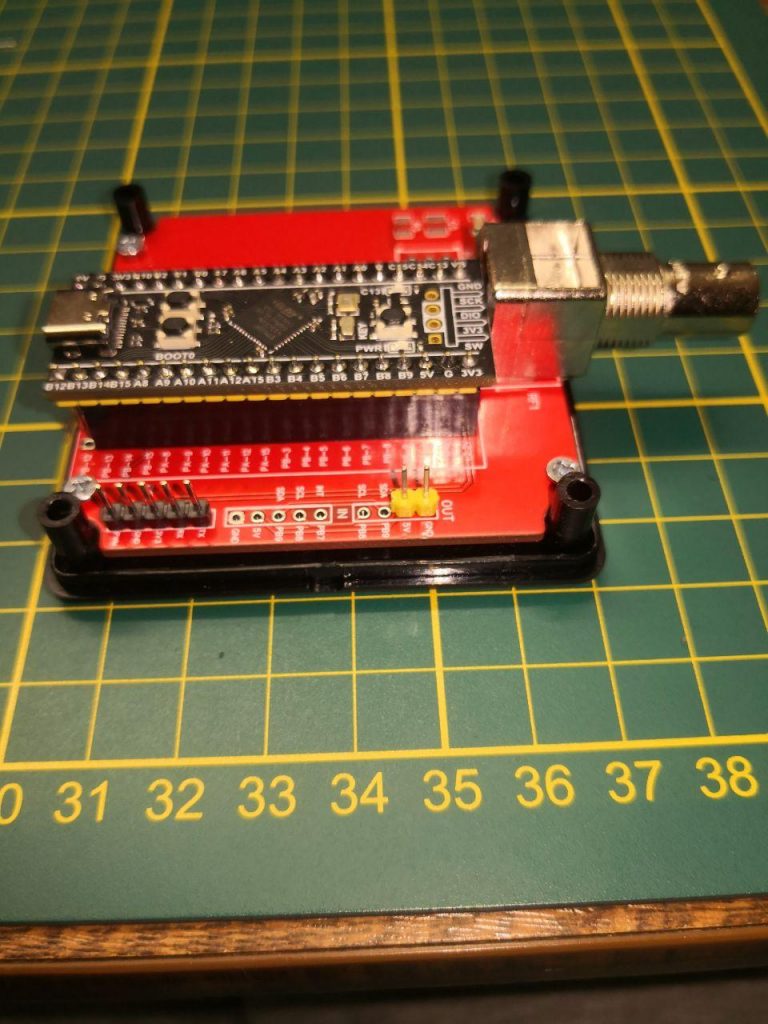
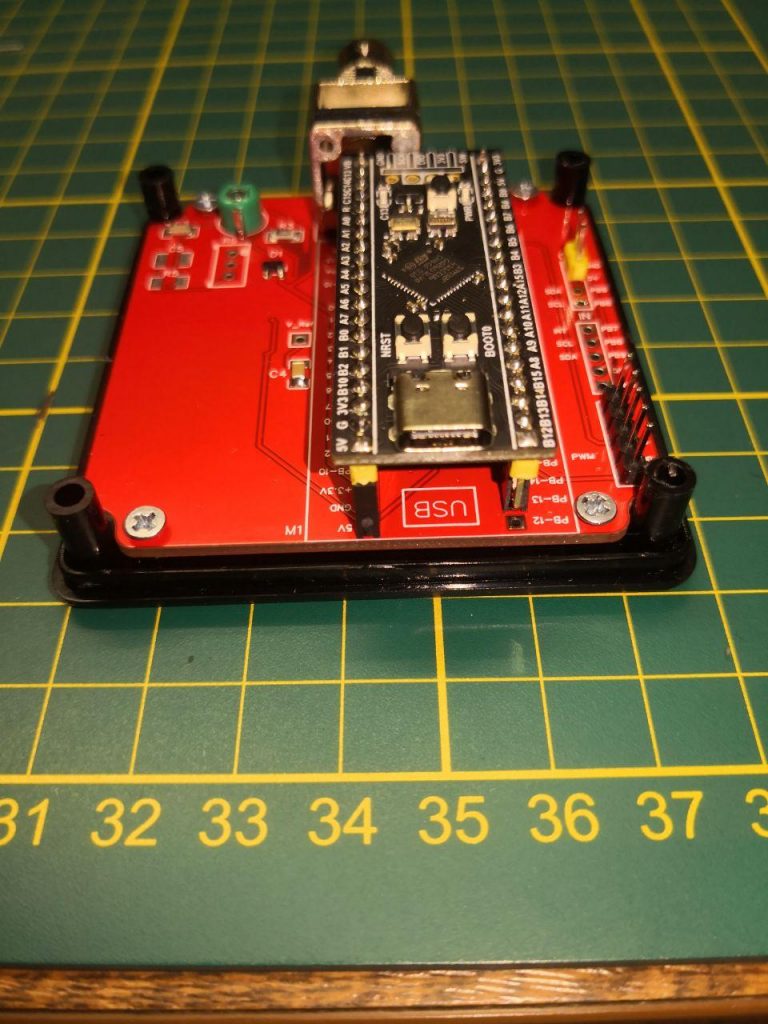
This module is available just for few oscilloscopes as:

  • Loto Oscilloscopes (OSC 482, OSC 802, OSC A02)
  • Hantek 6022 (BE & BL)
  • HS10X & H40X DIY Oscilloscopes
  • HS502

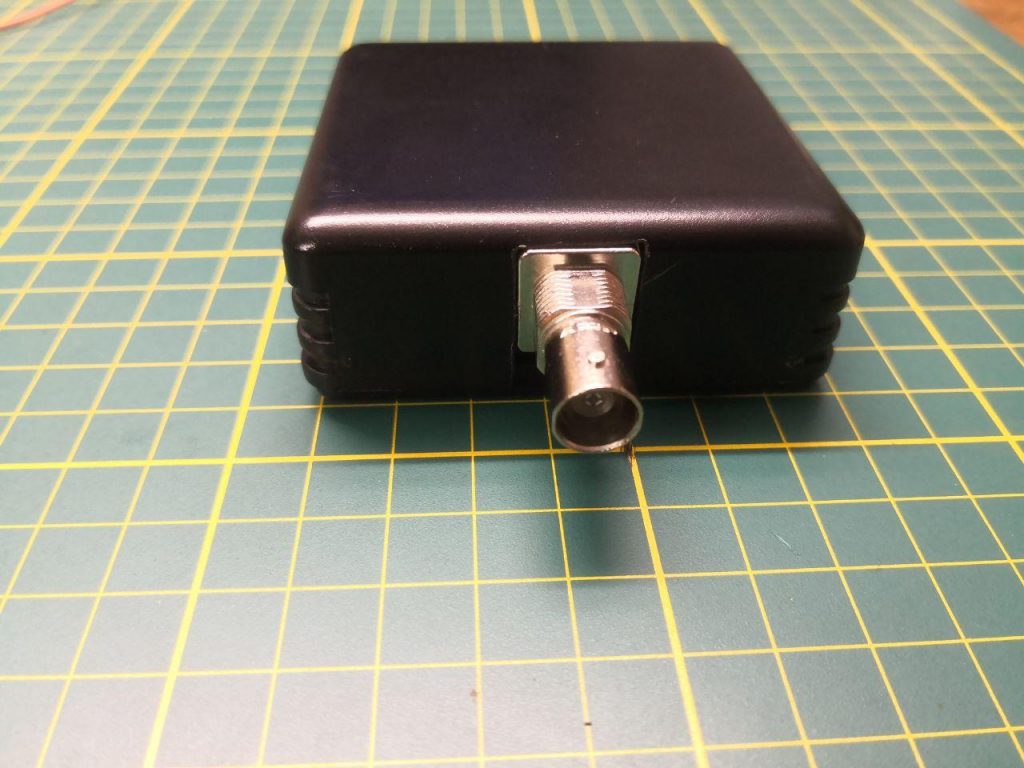
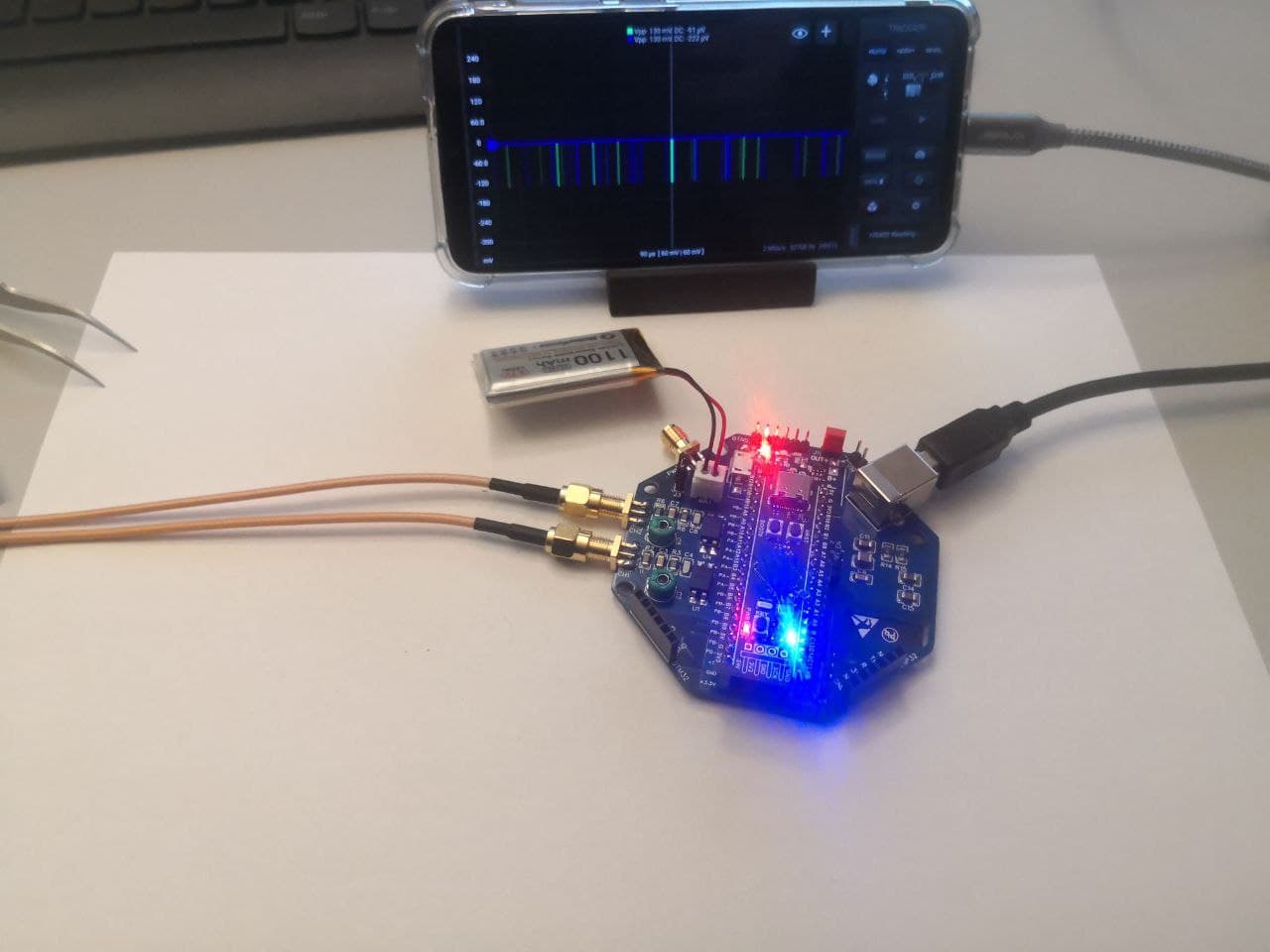
It allow to use the output calibration pin (generally set to 1KHz square wave) to generate a PWM output signal. Max frequency and duty cycle range depends on the device (detail are in each oscilloscope page).

Example of usage as this video.

XY Plot Guide
XY Plot

You can use this module only when the first 2 channels are active.
Channel-1 → plotted on X axis
Channel-2 → plotted on Y axis

Features

  • Real-time processing
  • Fading graphic effect
  • Big graph space

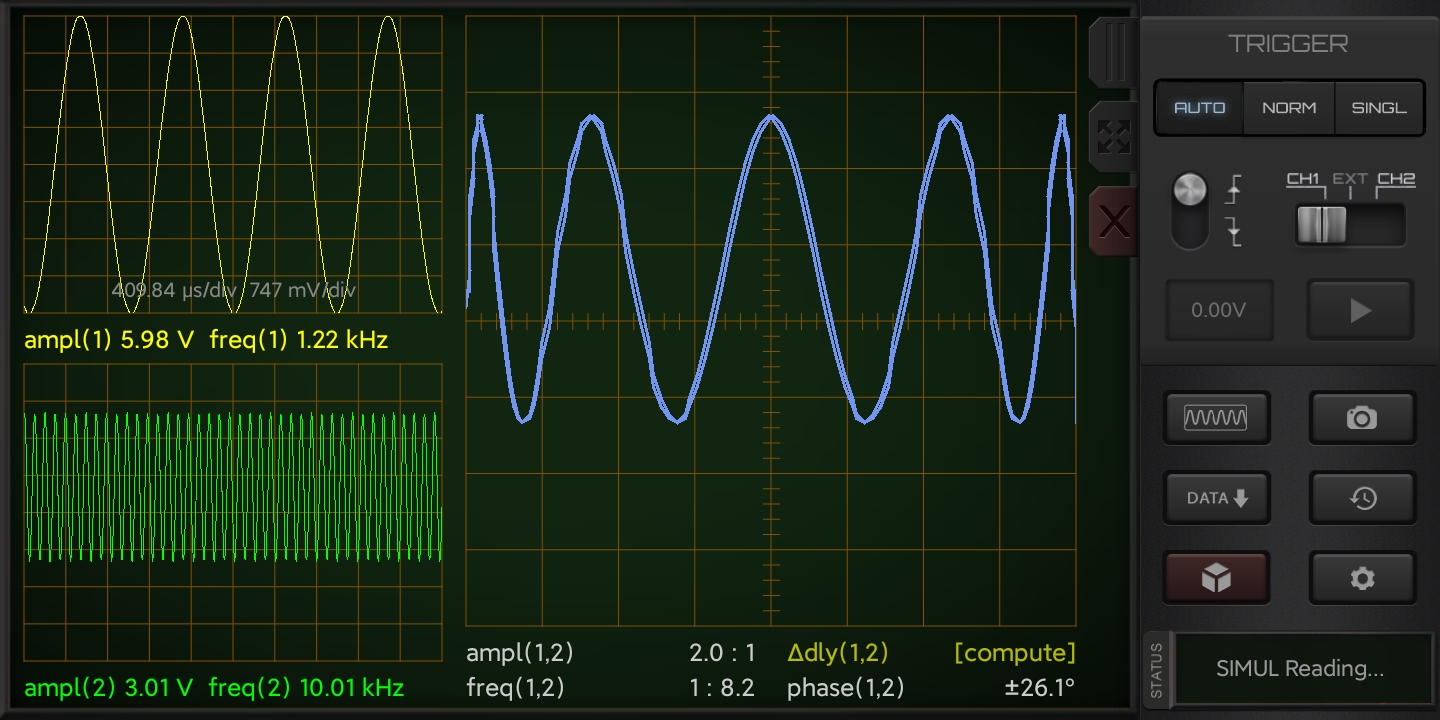
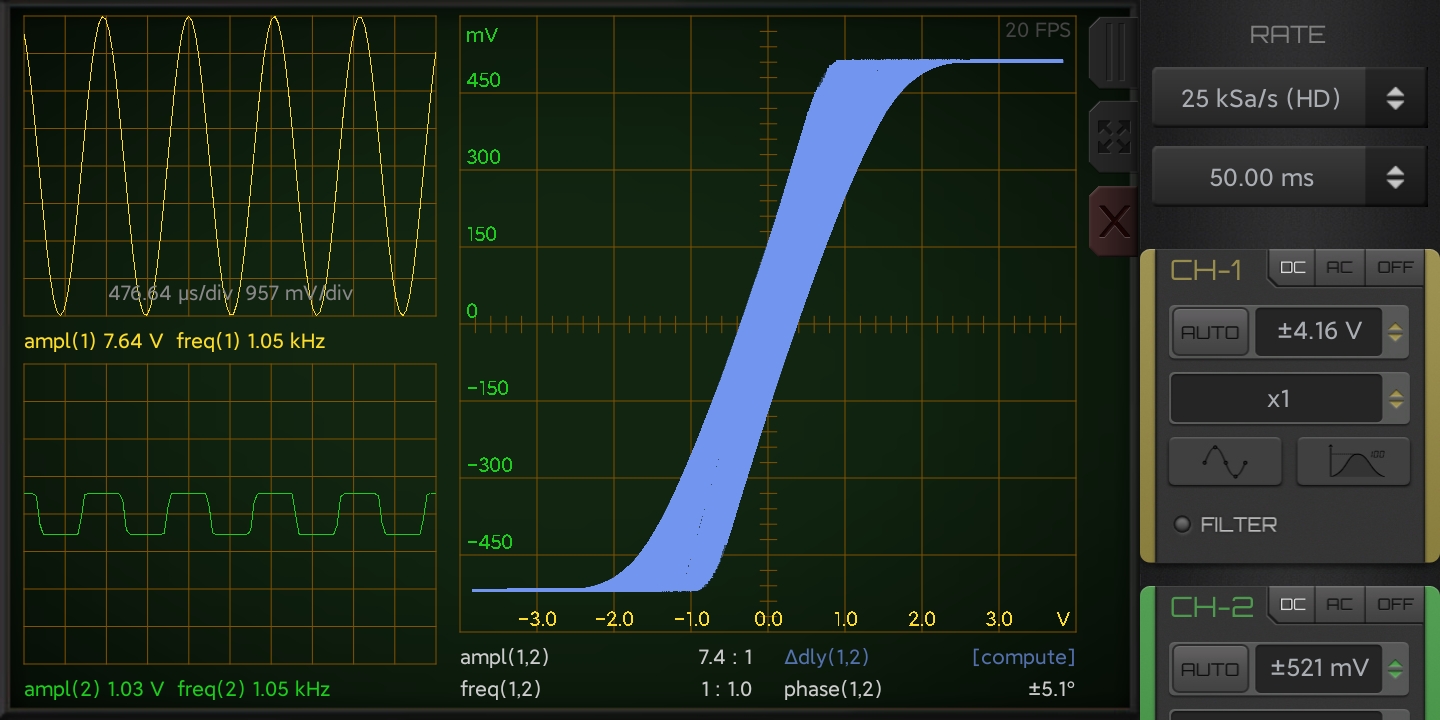
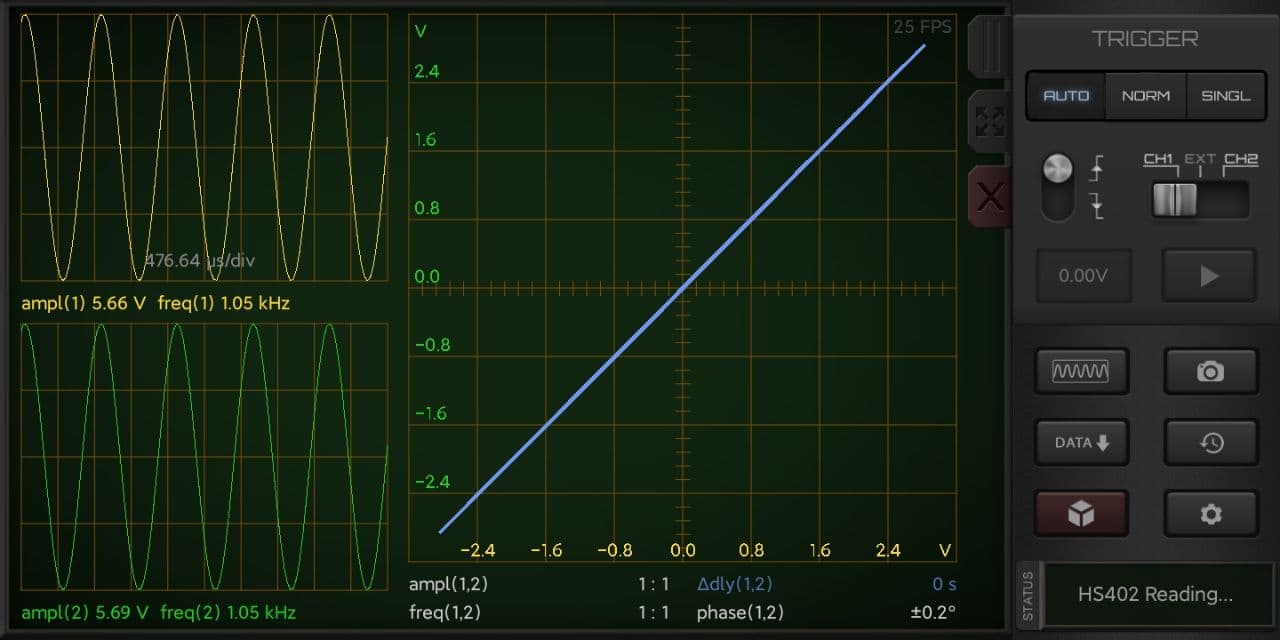
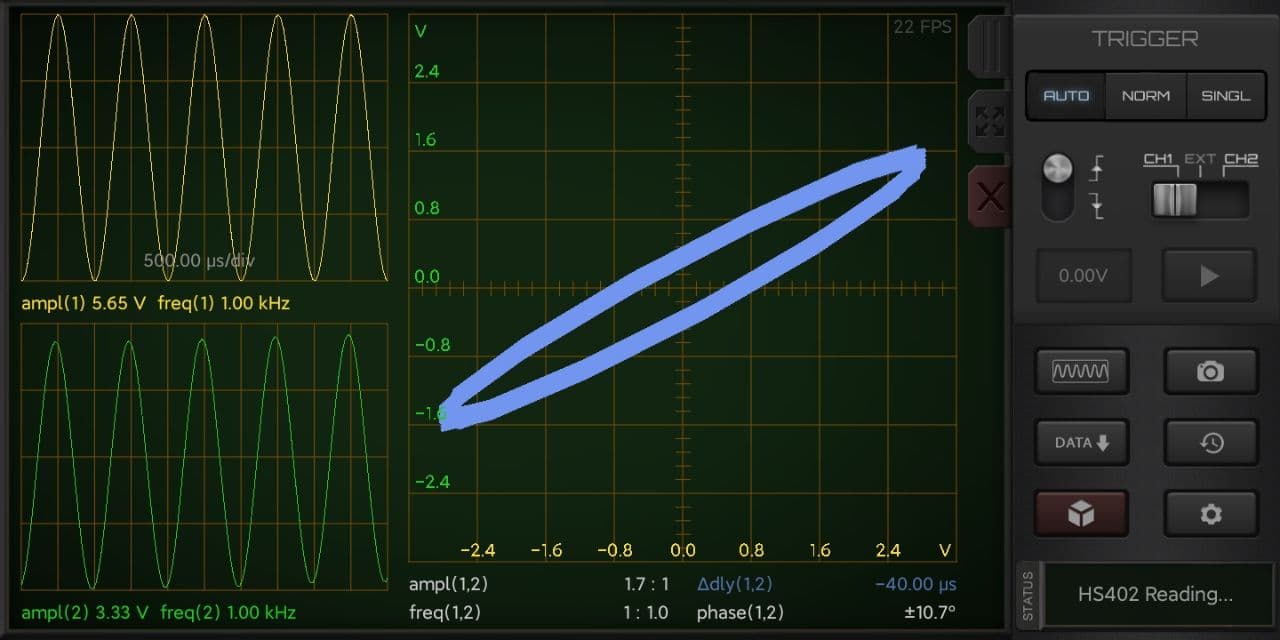
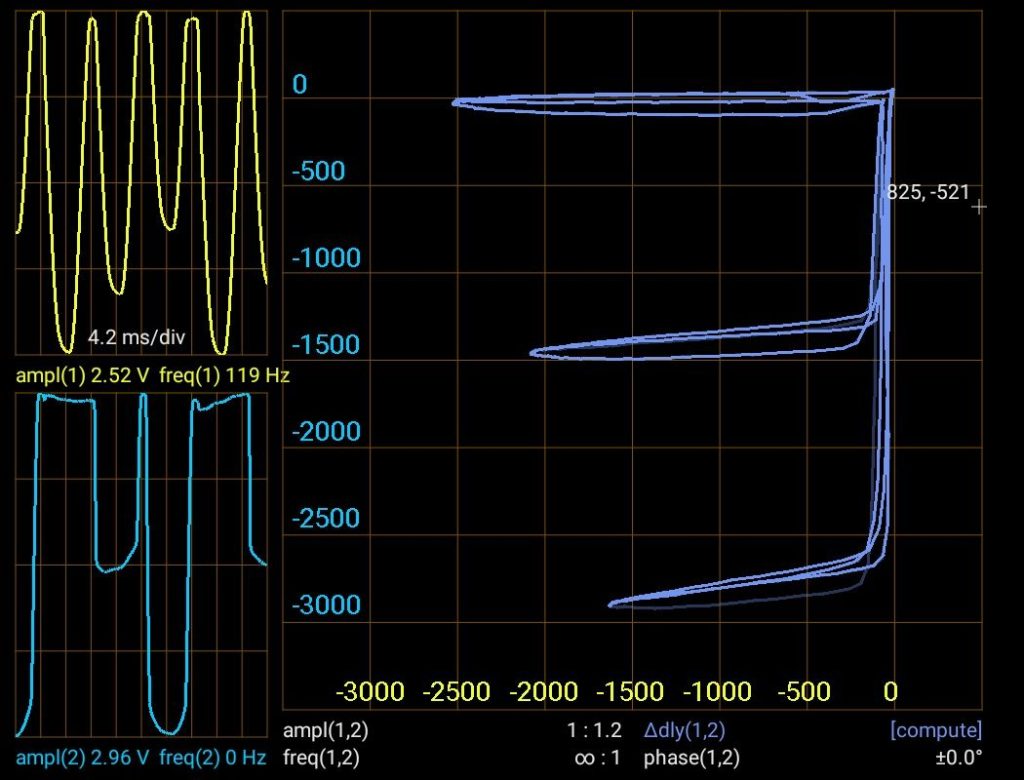
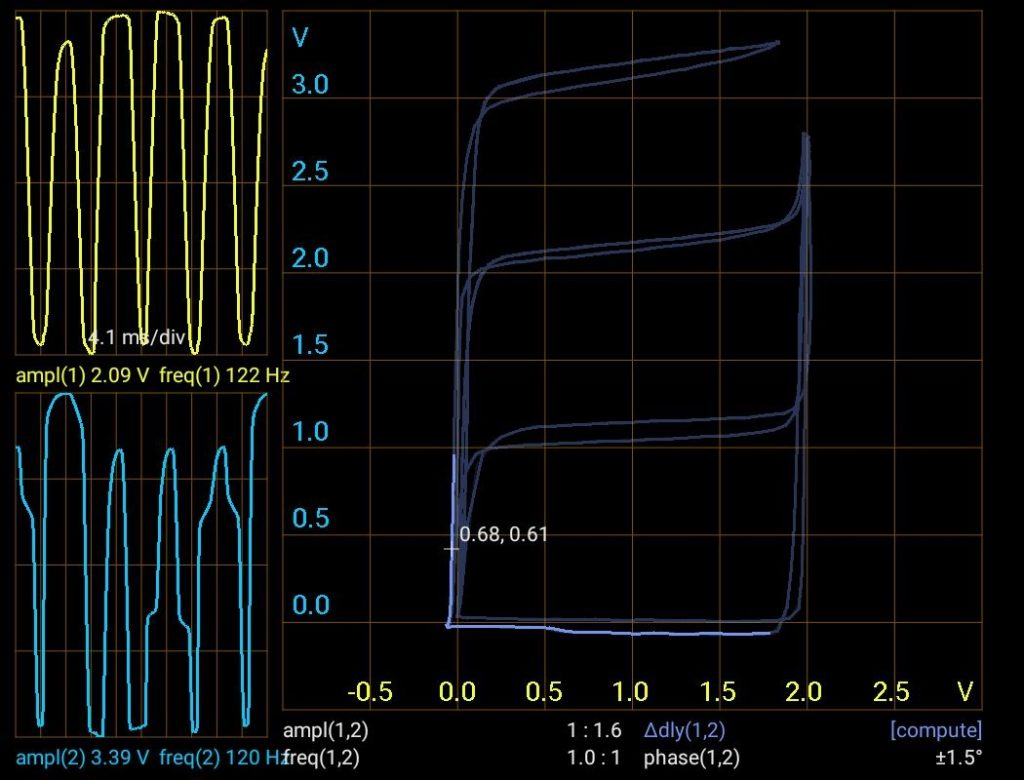
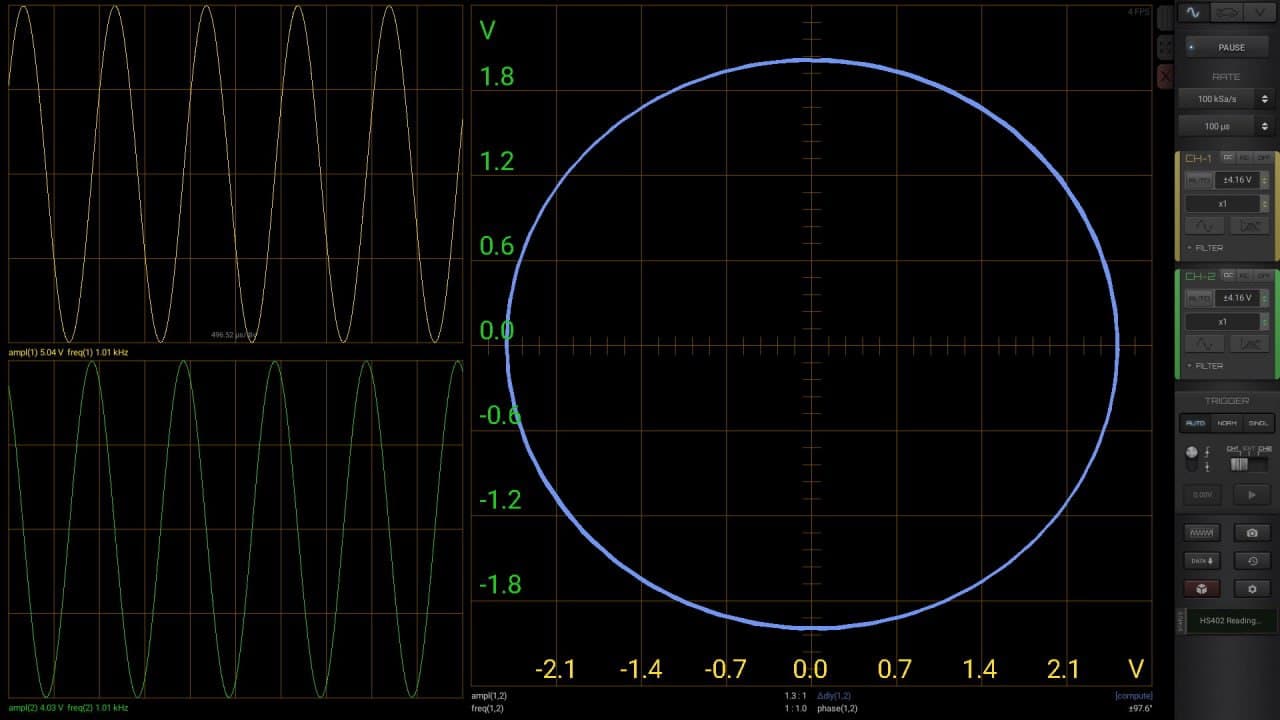
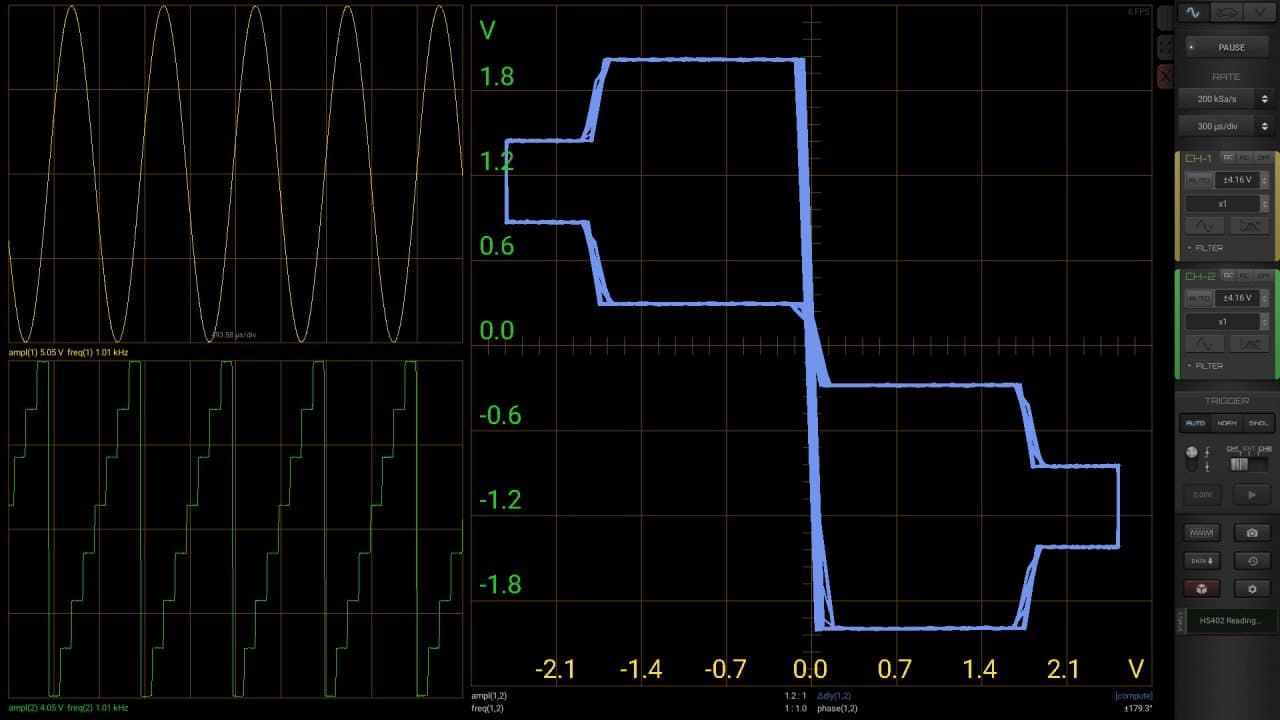
On the left you can see 5 periods of both channel signals with the information about amplitude and frequency.

On the right there is the XY Plot with comparison information of the two signals. The phase shift is calculated with the Lissajous method and it is valid just for Sinusoidal Waveforms with same frequency.

Calculation of Time Delay

If you want to calculate the time delay for an arbitrary signal from 2 points of a circuit under analysis, just press the yellow/blue text and you will see this value obtained from the Cross-Correlation of the two signals.

Invert the Signals

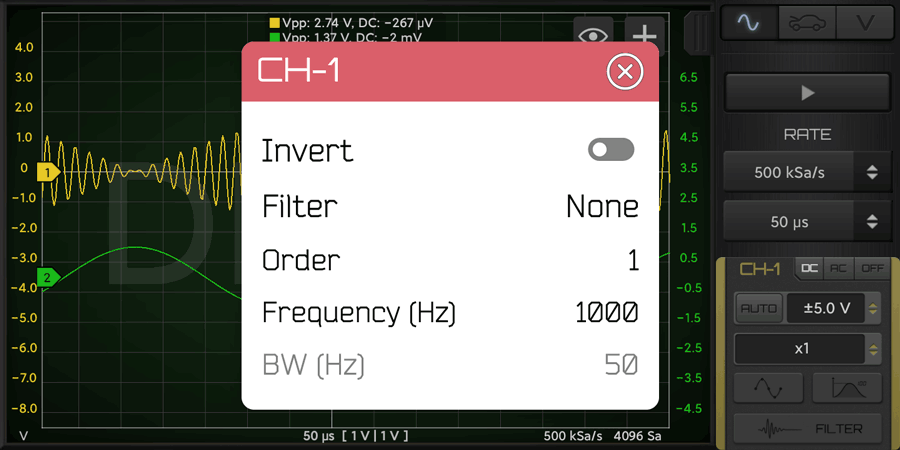
If you want to invert one or both the signals, just Invert it in the Filter panel available for each channel.

Proof of Concept

The following video show the real-time capacity of this module.

Screenshots

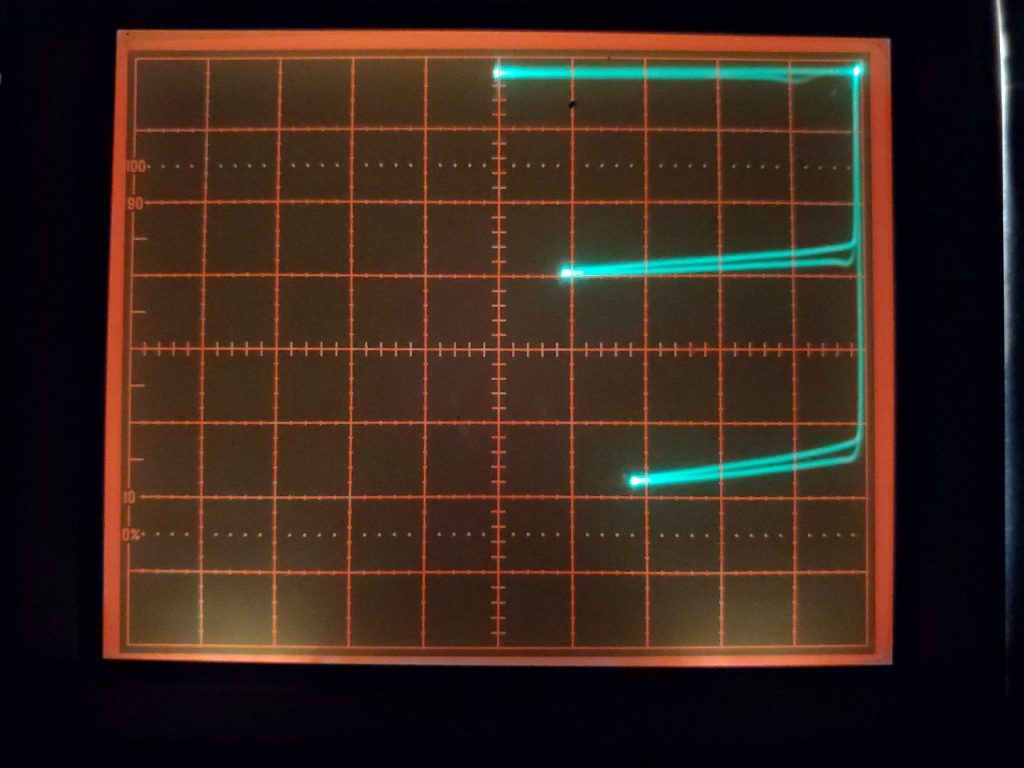
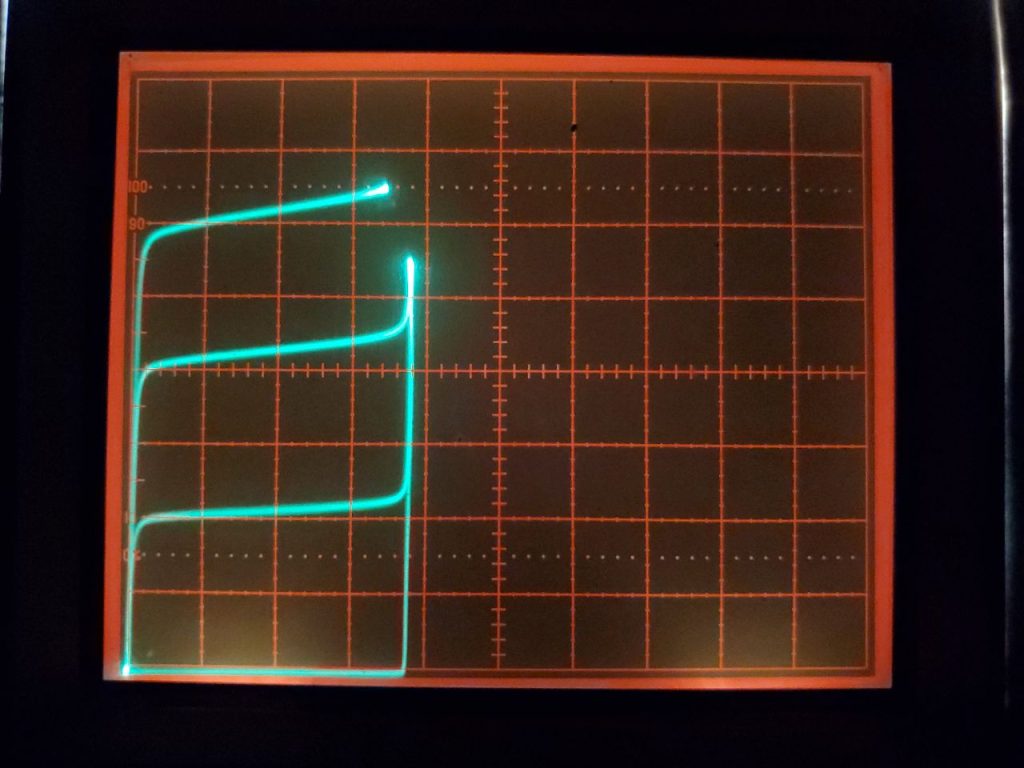
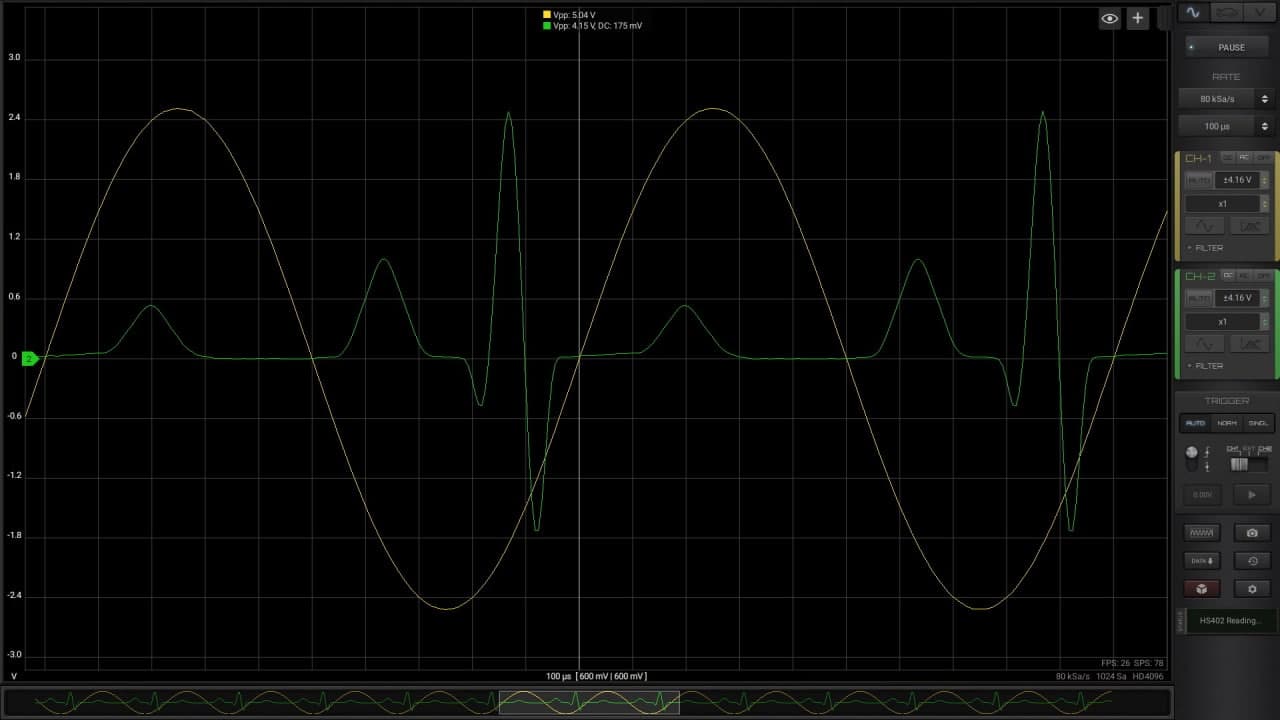
Comparison test between HS-402 and Tektronix-465 oscilloscopes with PNP and NPN transistors.

FFT Guide
FFT

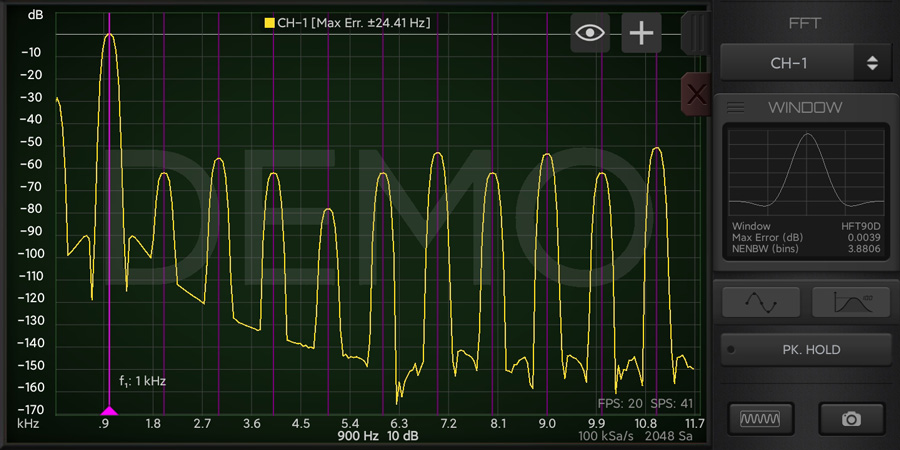
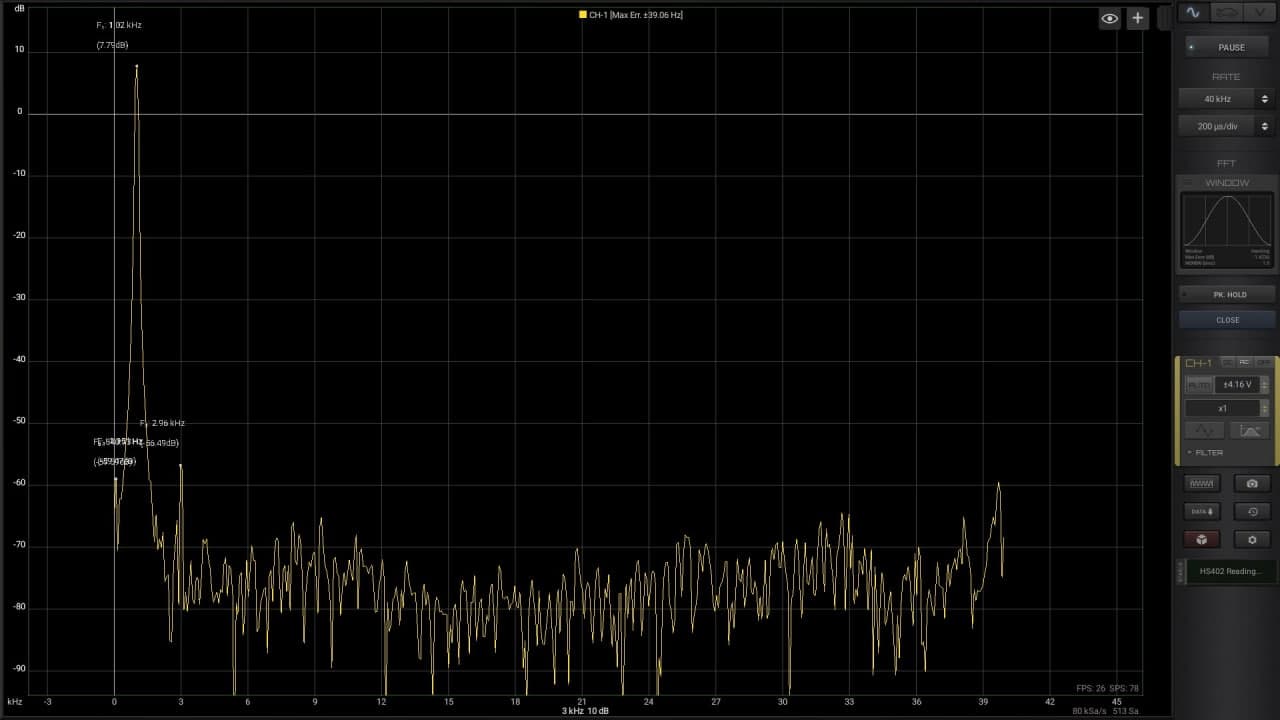
Clicking on FFT button is possible to see the rapresentation of the signal in the Frequency Domain only for the first Channel. The range of visible frequencies on screen can be selecting zooming-in or out with the fingers on the screen.

Activating the STATS button is possible to see the top 3 frequencies in the selected frequencies range. These values are corresponding to the computed FFT values and not to the real values that can be checked better with the ruler.

FFT Windows

It is possible to select between standard windows and Flat Top windows for the FFT. Flat Top windows (HFT90D and HFT248D) are used when is required to determine the exact amplitude of a sinusoidal component in the input signal. They have bandwidths W3dB of about 3 . . . 5 bins, roughly twice as wide as non-flat-top windows with comparable sidelobe suppression, but very low maximum amplitude error emax.

WINDOWS SUMMARY
BartlettW3dB = 1.2736 bins
emax = −1.8242 dB = −18.9430 %
HanningW3dB = 1.4382 bins
emax = −1.4236 dB = −15.1174 %
HFT90DW3dB = 3.8320 bins
emax = −0.0039 dB = 0.0450 %
HFT248DW3dB = 5.5567 bins
emax = 0.0009 dB = 0.0104 %
Sample FFT Windows

Harmonic Cursor

When you use one single Vertical Cursor in the FFT module, it will show also the Harmonics of the selected frequency, up to the 10th harmonic.

Math Channel Guide
Math Channel

To add a math channel, just click select MATH in the modules and you will see the Math configuration panel. You can quickly select one of the built-in functions, such as inversion or addition. All the standard arithmetic functions are supported along with more complex functions like demodulation and instant frequency of the signal.

With HScope currently you have available only 1 math channel.

List of functions

Basic functions:– A (invert)
A + B (sum)
A – B
(difference)
A x B
(multiply)
A : B
(divide)
Advanced functions:demod (demodulation)
freq
(instant frequency)

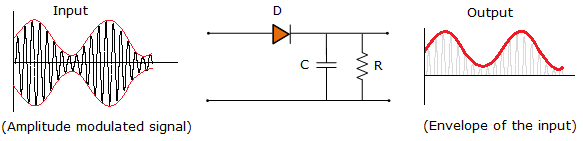
Amplitude Demodulation

For some signals (for example from vibrations sensors), the information is carried by the amplitude (or envelope) of the signal. The demod() function allow to do this operation. Following is the equivalent circuit of this operation.

Envelope Detector

Instant Frequency

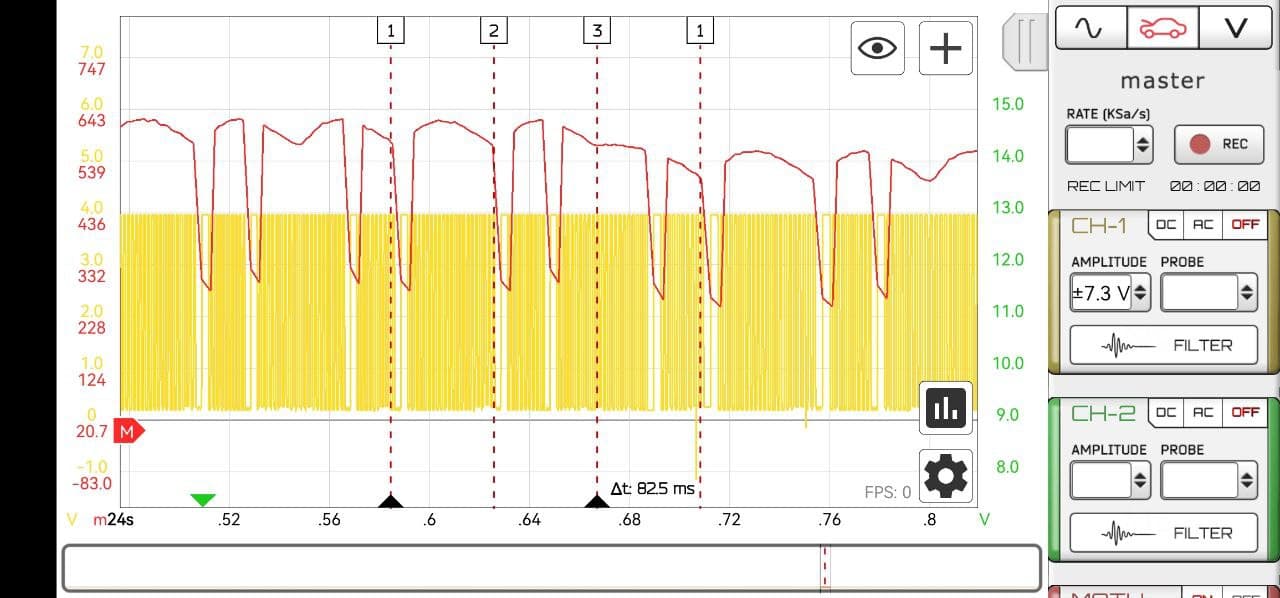
Visualize the instant frequency variation of the signal along time. The freq() function is useful for signal where frequency variation bring the useful information.

Sample application of this function to detect missfire with Automotive Module (detected 1 missfire event during long period recording):

Credits

  • freq() function (or Instant Frequency) has been developed with the support of: Denis, Ravindra
Introduction – Oscilloscope Modules Guide
Introduction – Oscilloscope Modules

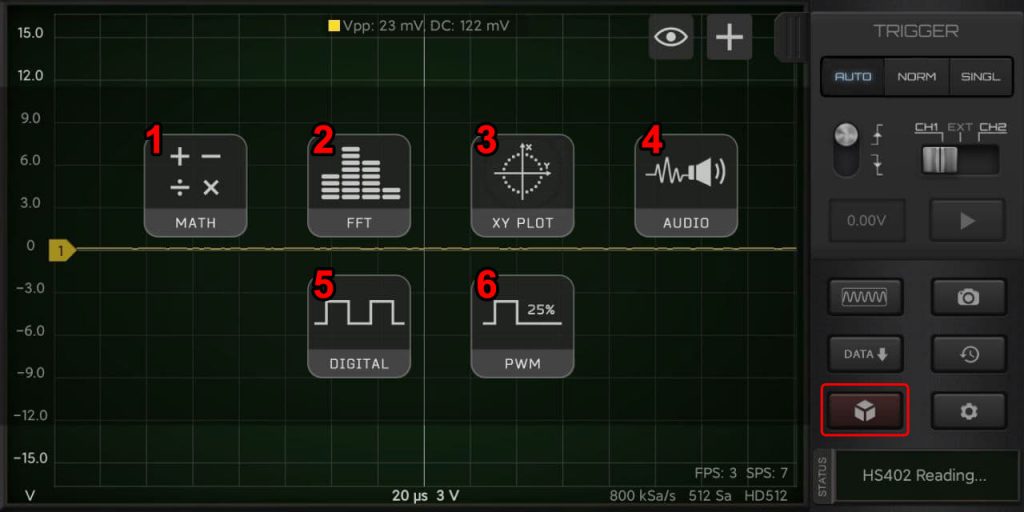
Click on the “red cube” button to access the additional modules for the Oscilloscope.

  1. Math Module: allow to compute Math operations among the first 2 channels.
  2. FFT: allow to compute the FFT operation.
  3. XY Plot: for comparing signals and compute phase shift.
  4. Audio Module: for listening the input signal with the phone speaker and compute Amplifiers Power. Instructions here.
  5. Digital Module: for analize digital signals.
  6. PWM Module: if available in the oscilloscope hardware it control the PWM output.
HScope

HScope on Raspberry Pi

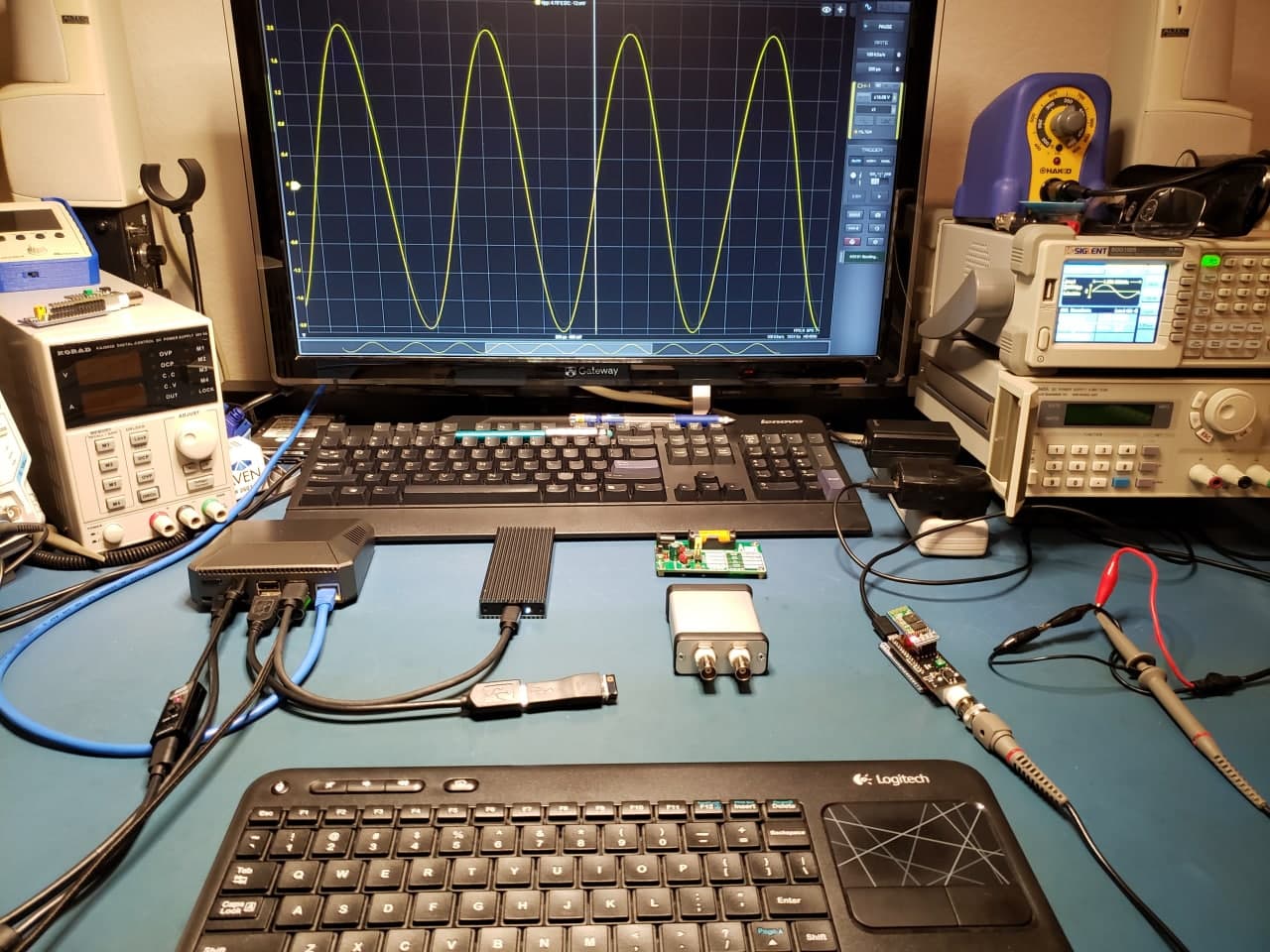
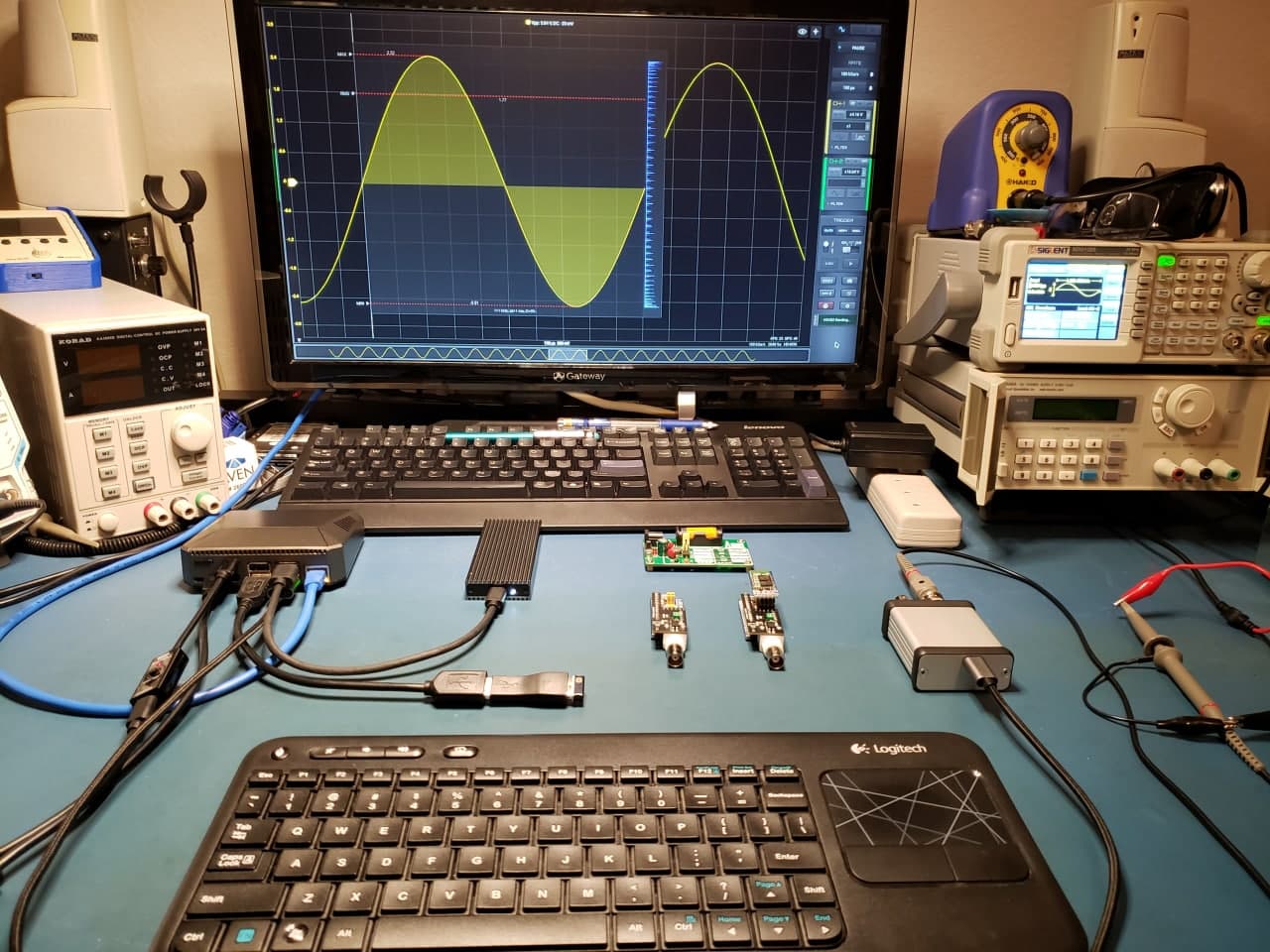
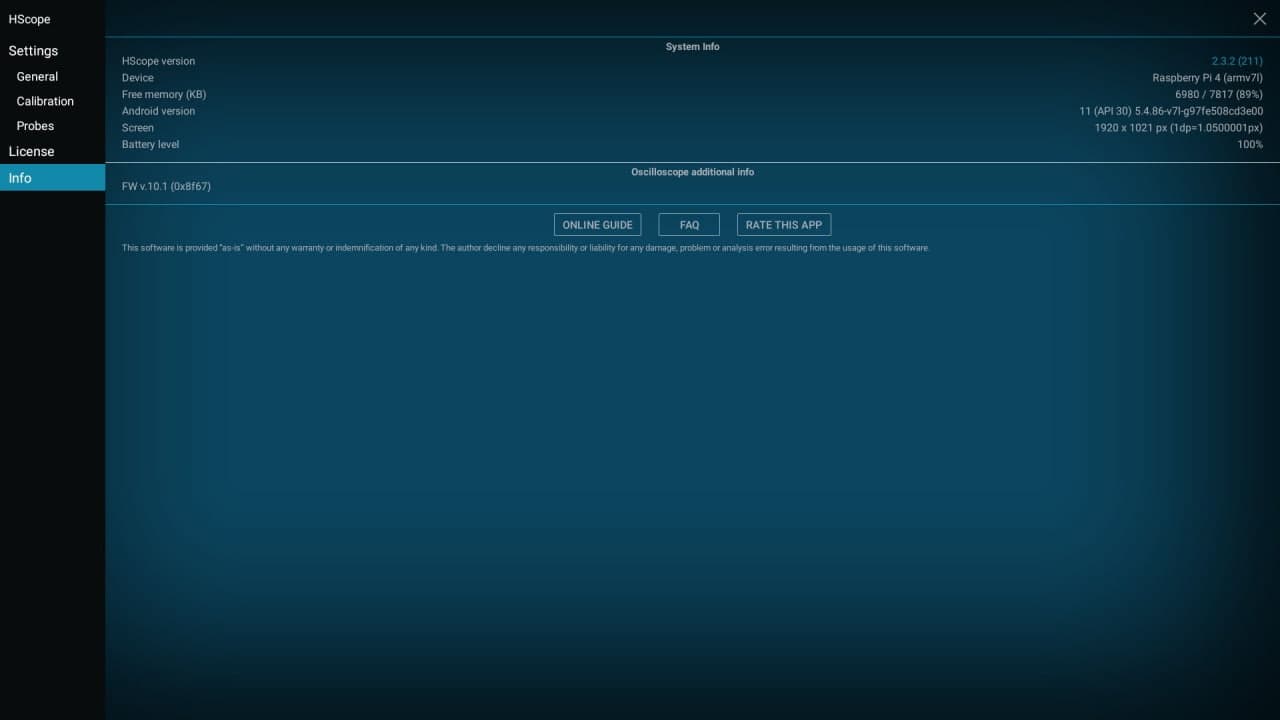
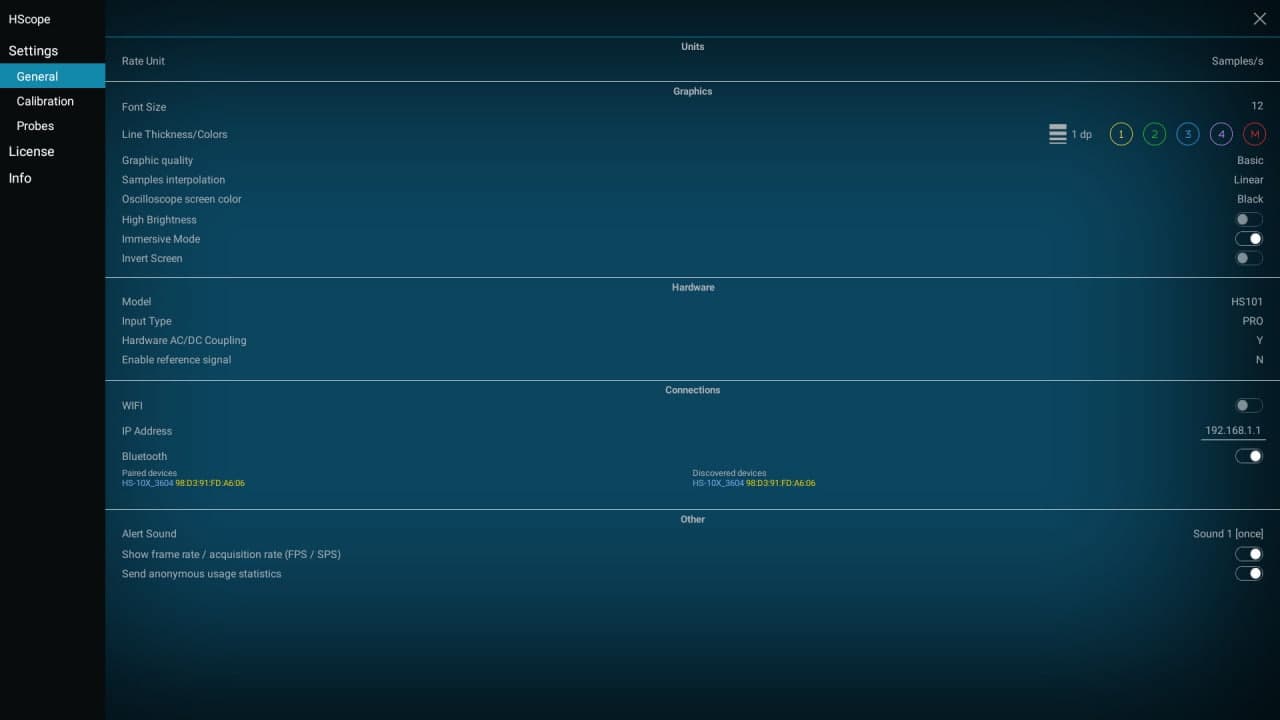
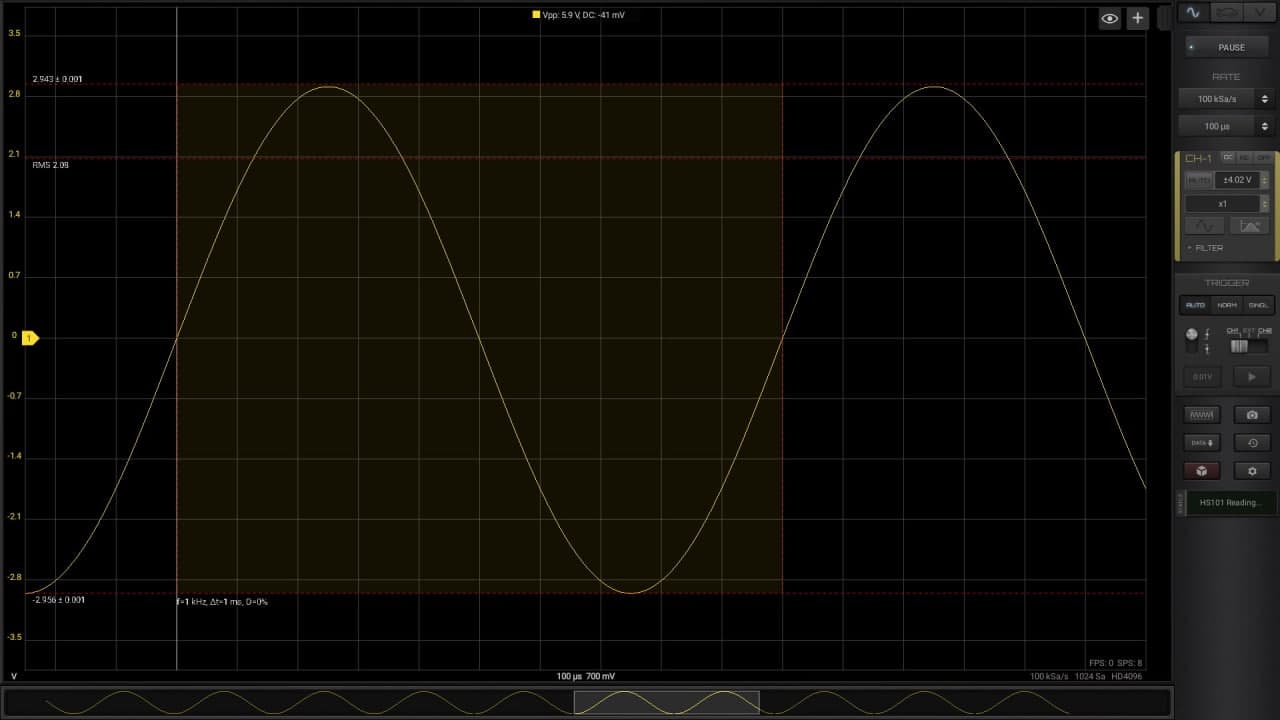
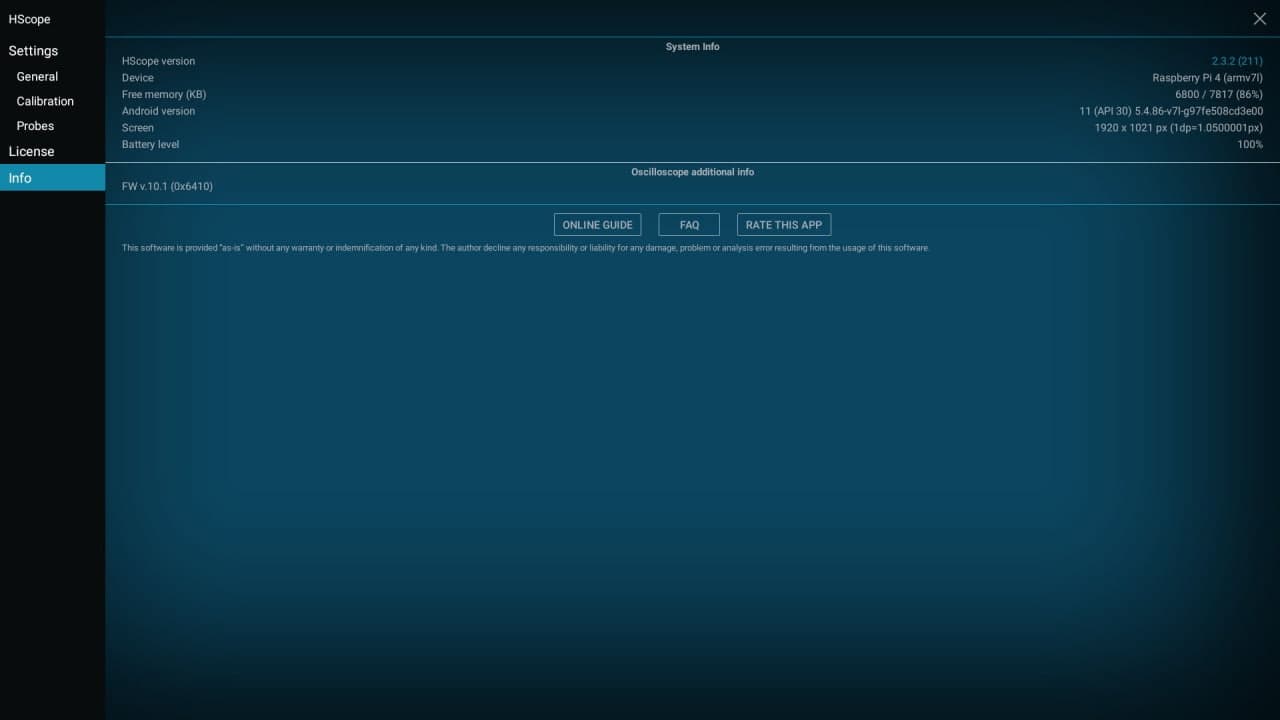
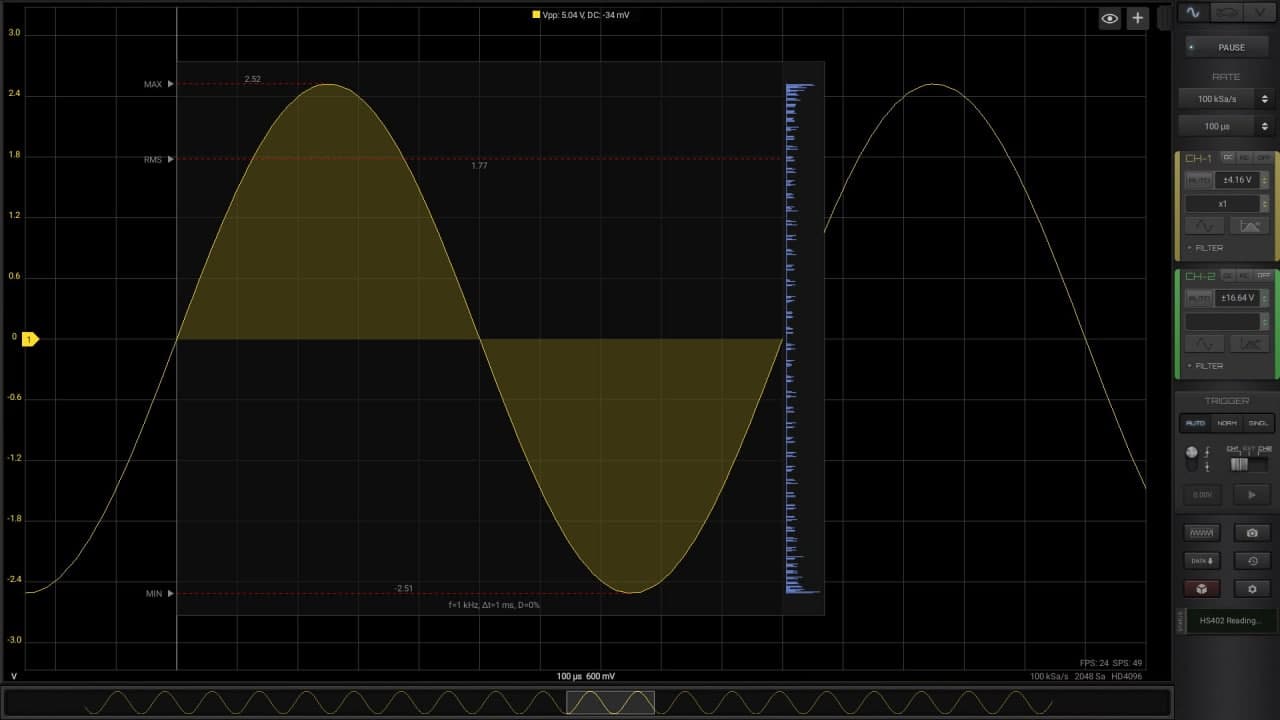
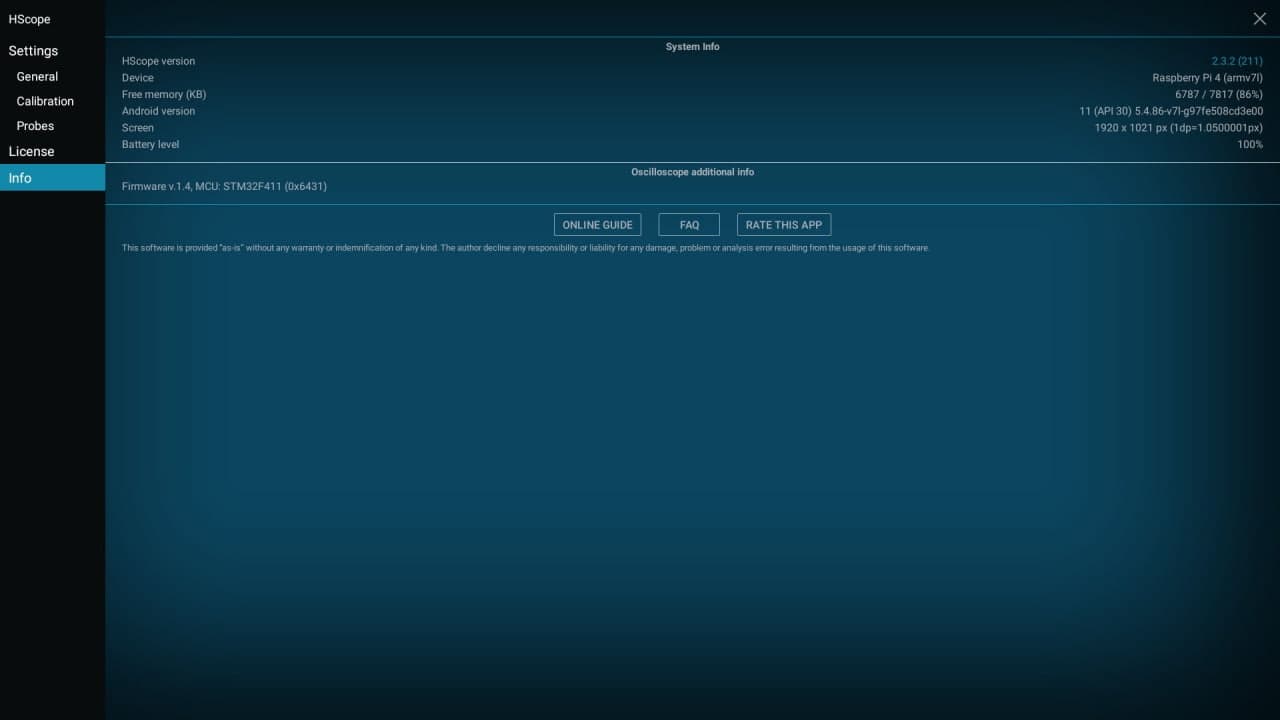
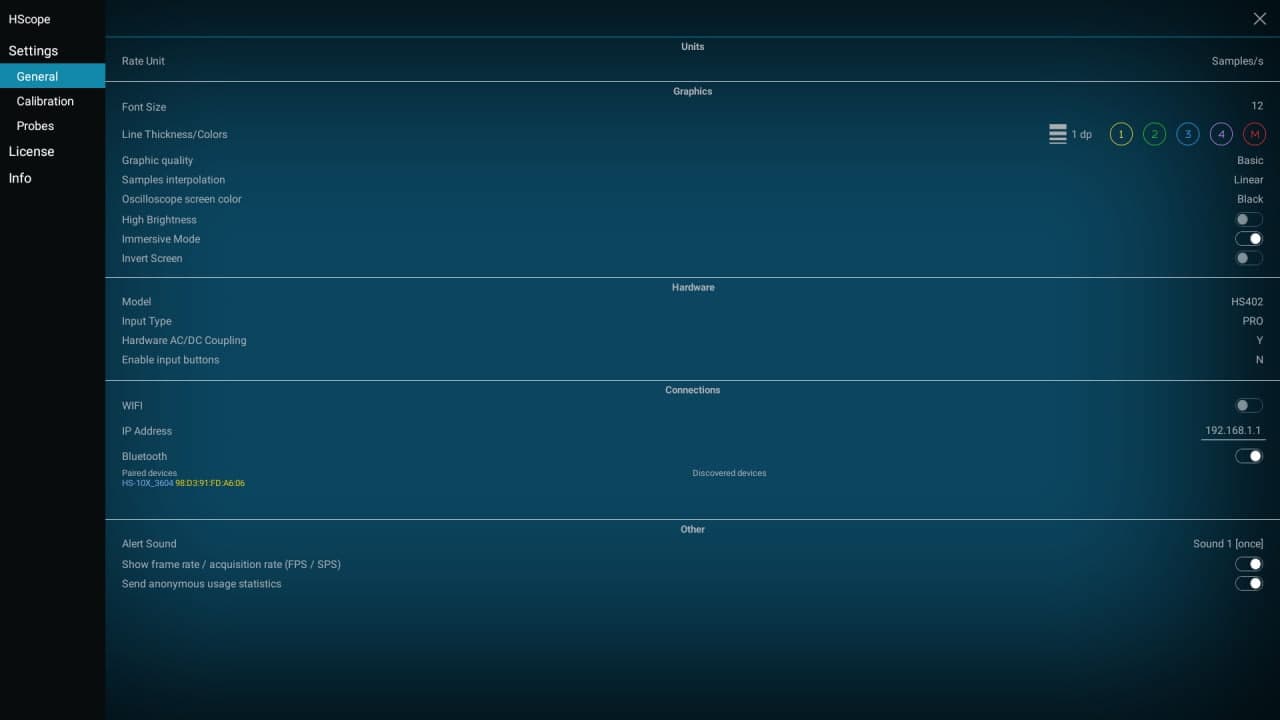
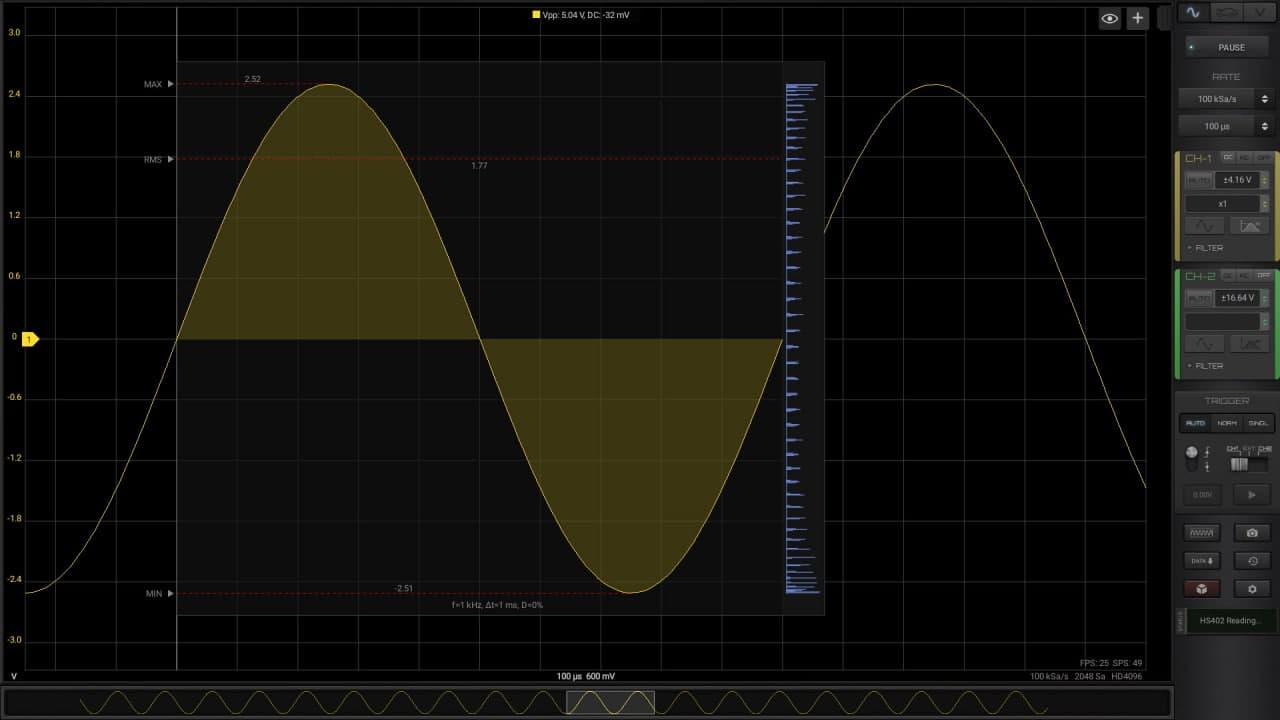
HScope can run on Rasperry Pi with Android system installed on. Following are the example of implementations provided by the users.

HScope on Pi3

By Denis.

HScope on Pi4

By Dave D.

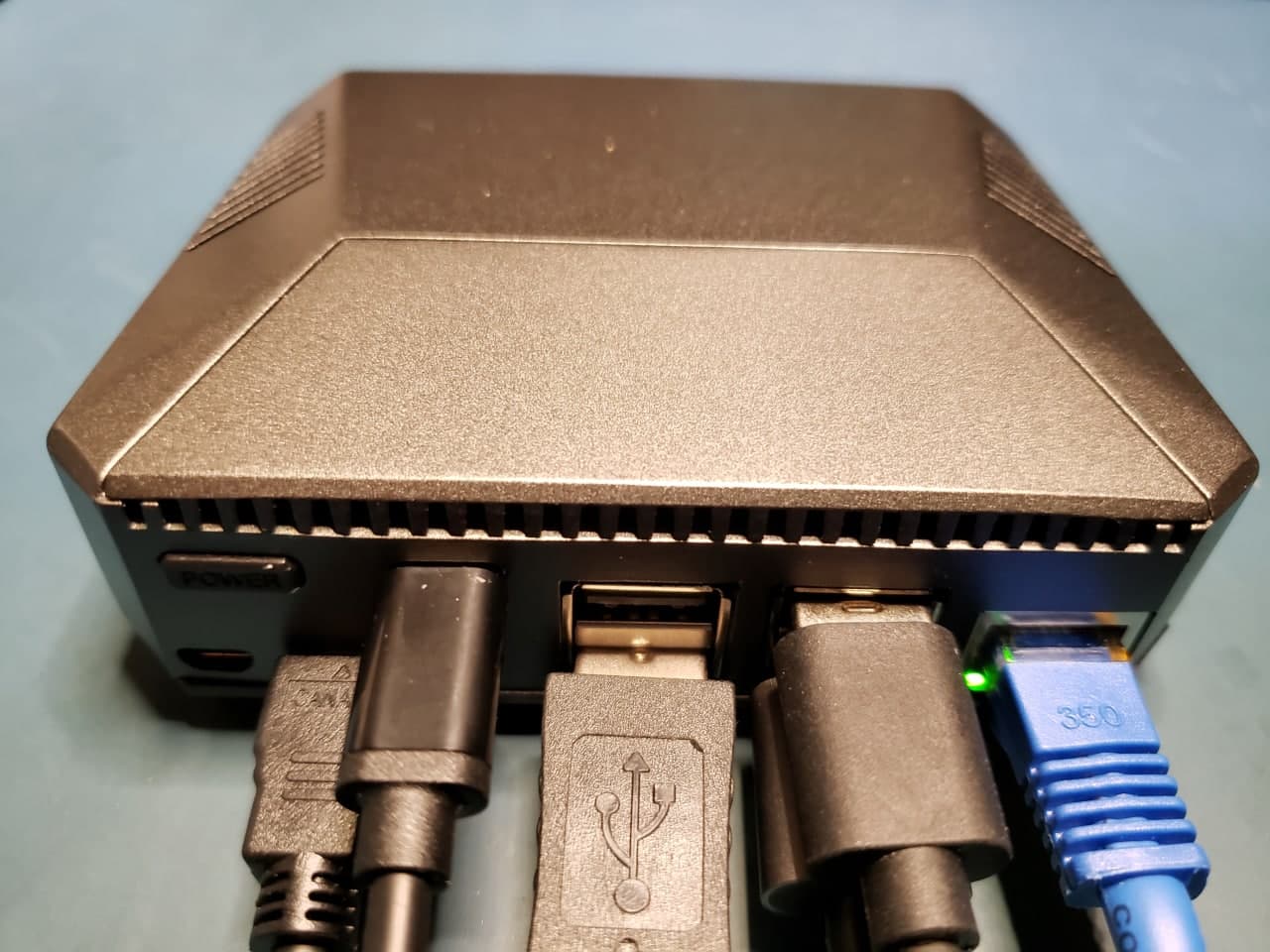
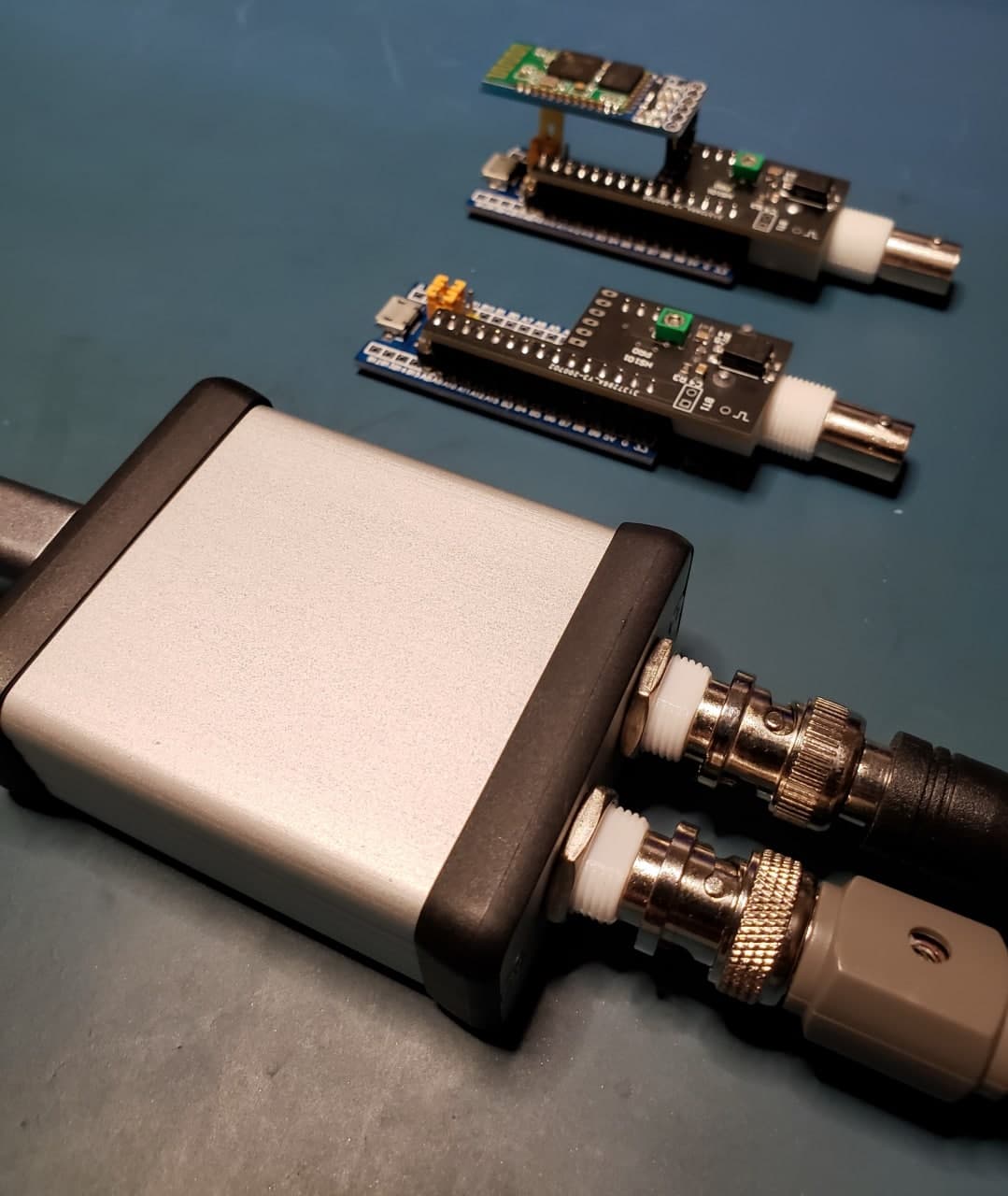
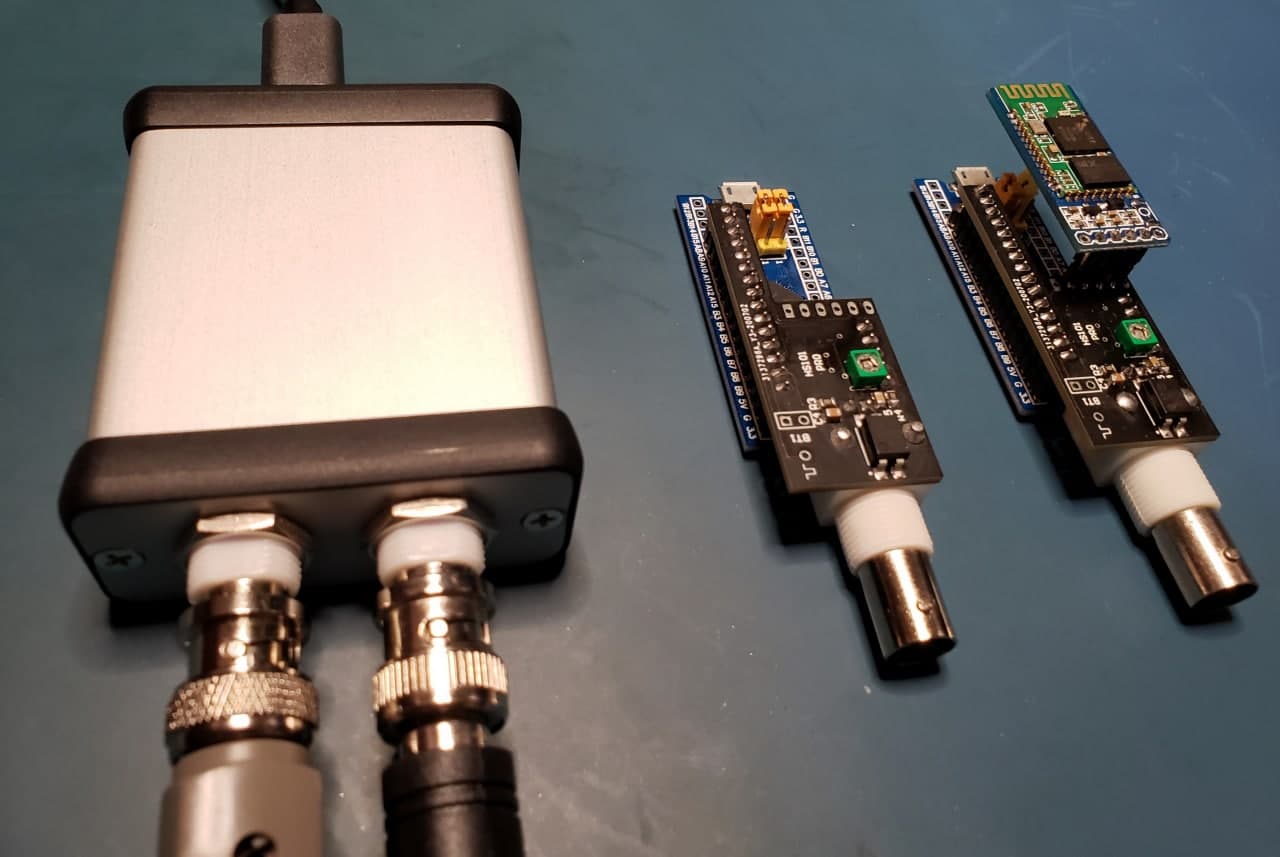
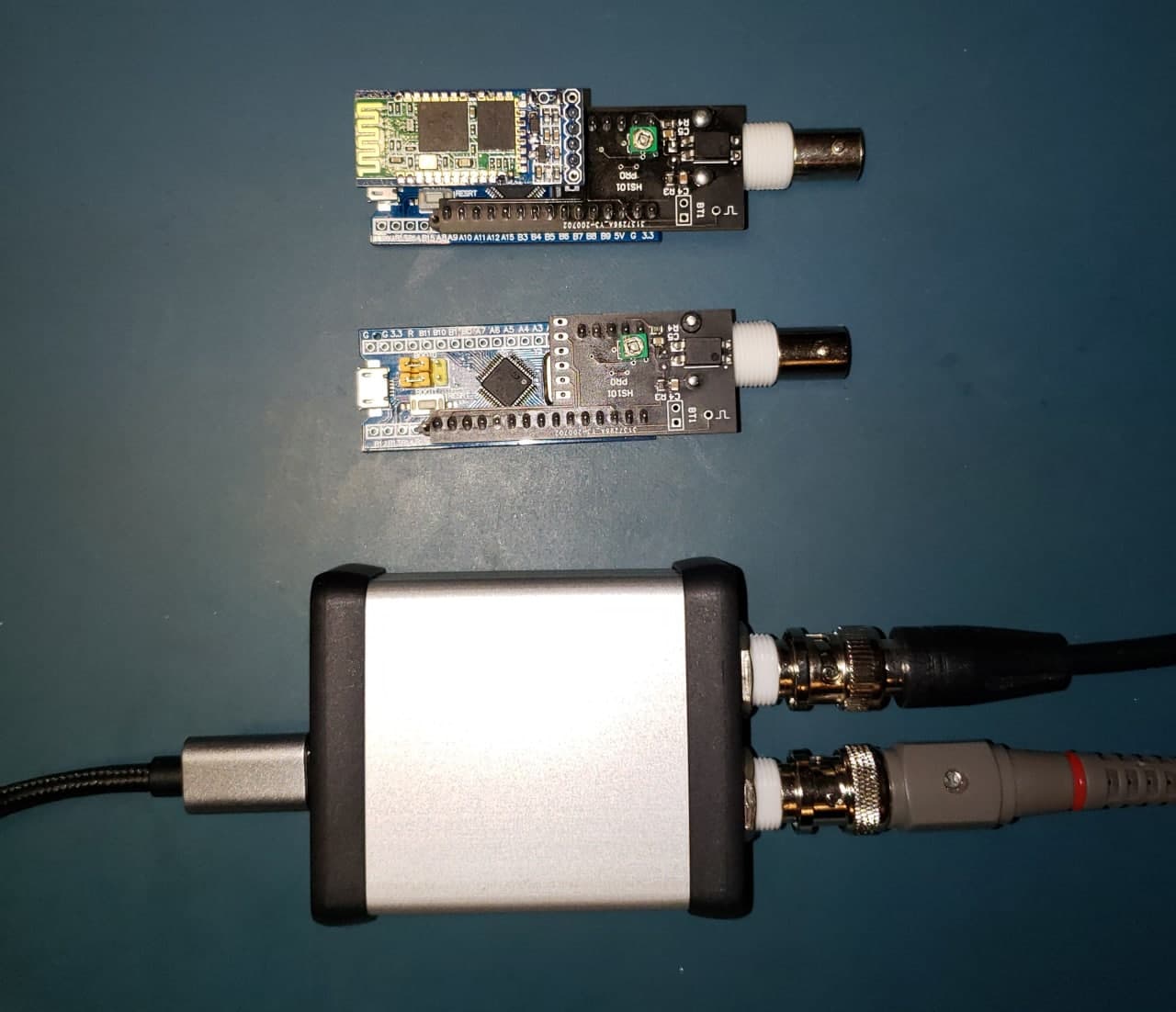
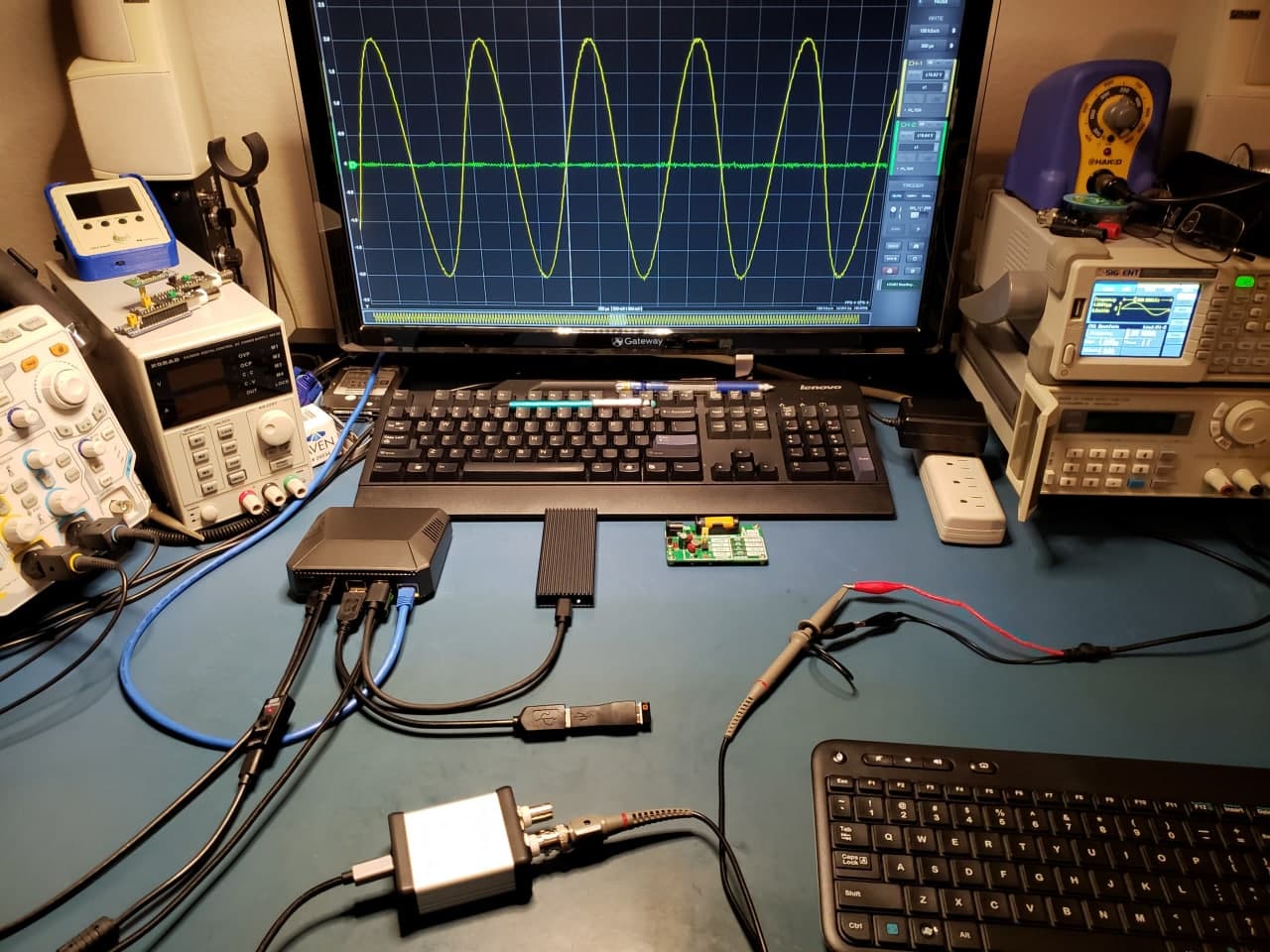
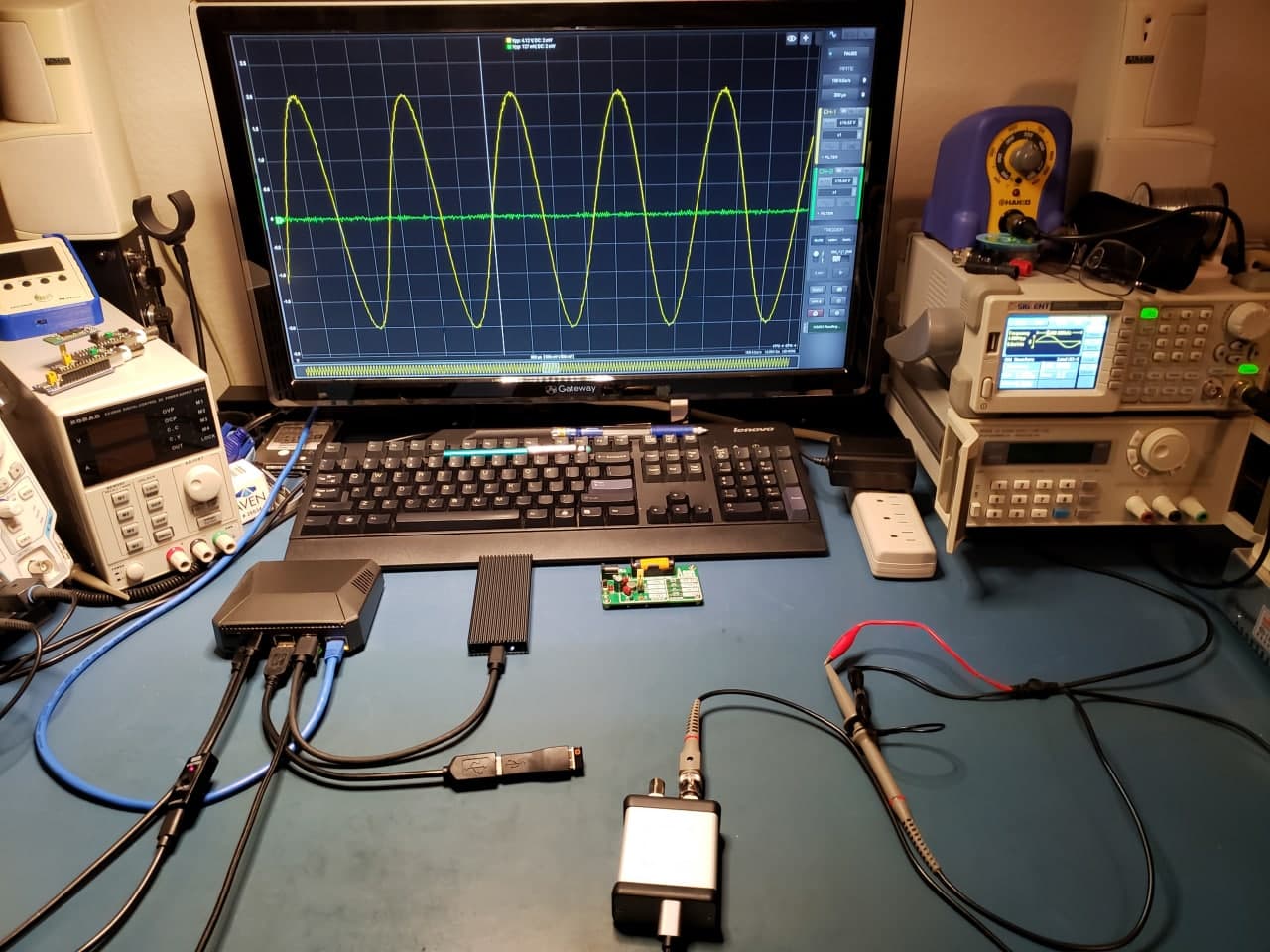
This setup has been made with a Raspberry Pi 4B inside a Argon ONE case. Attached are several pictures of a HS101 BLT, HS101 and HS402 all in action. The PI 4B has built in Bluetooth so it is possible to connect up the HS101 BLT.
Install Android 11 on Pi4

Here is the link to the Lineage OS 18.1 which is android version 11.

Here is link to google play store that will need to be installed. Dave found it easier to put the file on a USB drive and recommend putting this file on a separate USB drive for use later in the installation.

Tips

  1. Install Android to microSD or to external SSD that uses USB. I tried a USB stick and android kept locking up.
  2. Put the Google Play store file on a USB stick. I had significant issues trying to download the play store onto the Raspberry. Using a PC to download Google Play store and having it on the USB stick allowed installation per leepspvideo.
  3. I tried separate USB mouse and keyboard. Mouse wouldn’t work. I had to use a logitech K400+ integrated touchpad and keyboard.
  4. There is no pinch zooming. Its android thing. I mention this because you can double left click on the oscilloscope trace and HScope will zoom right in. But you have no way to zoom back out. What I learned to do was to toggle through “Auto/Norm/Single” selection. Then hit the play button. Then the trend zooms back out.
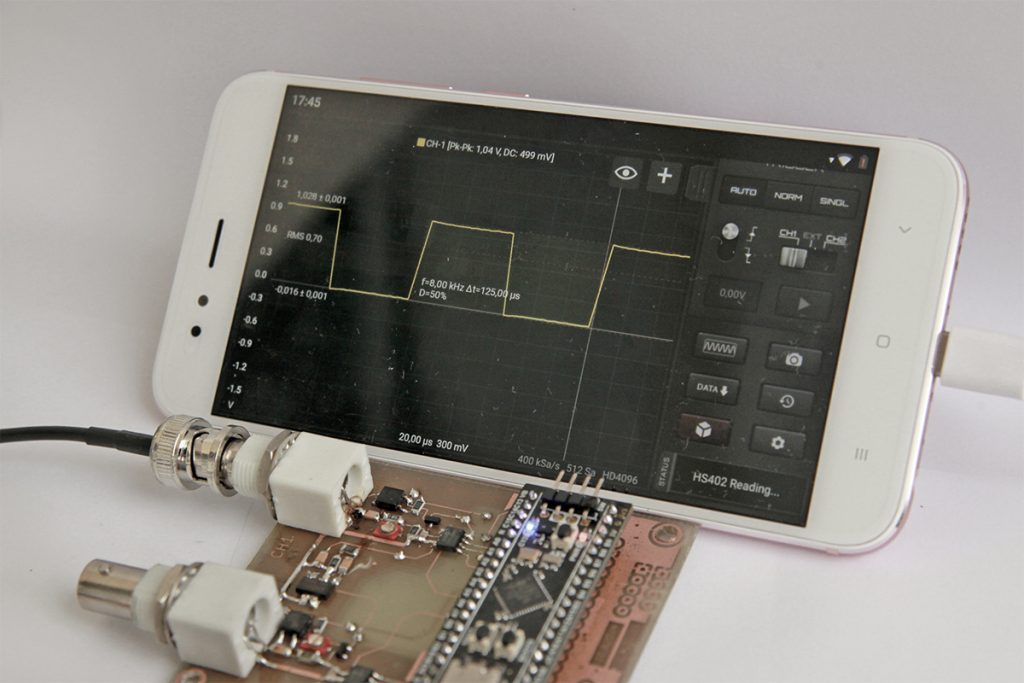
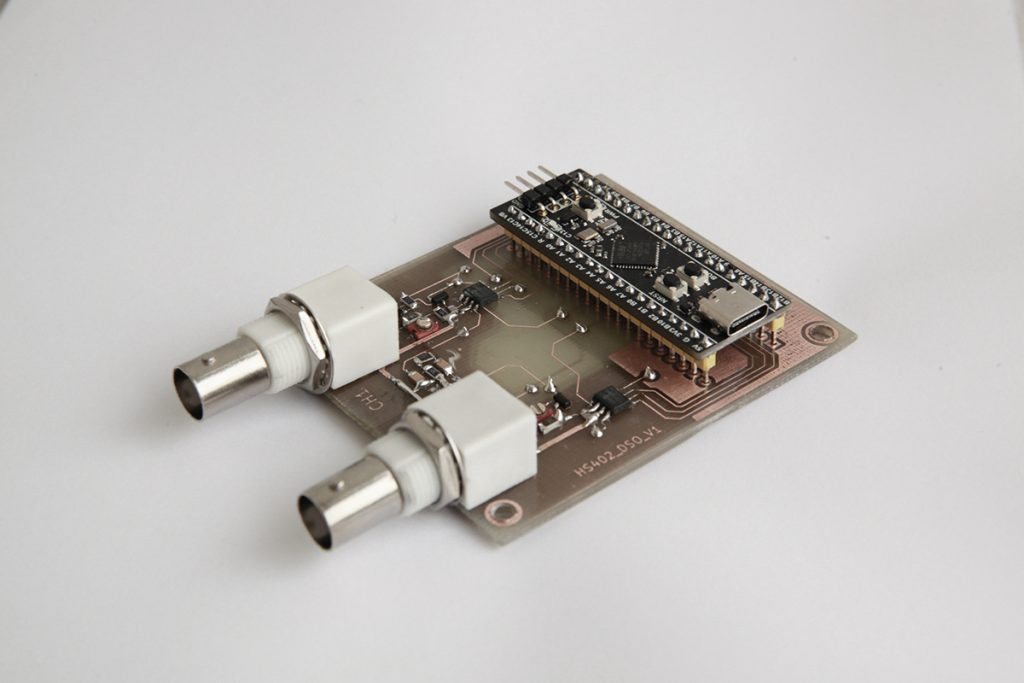
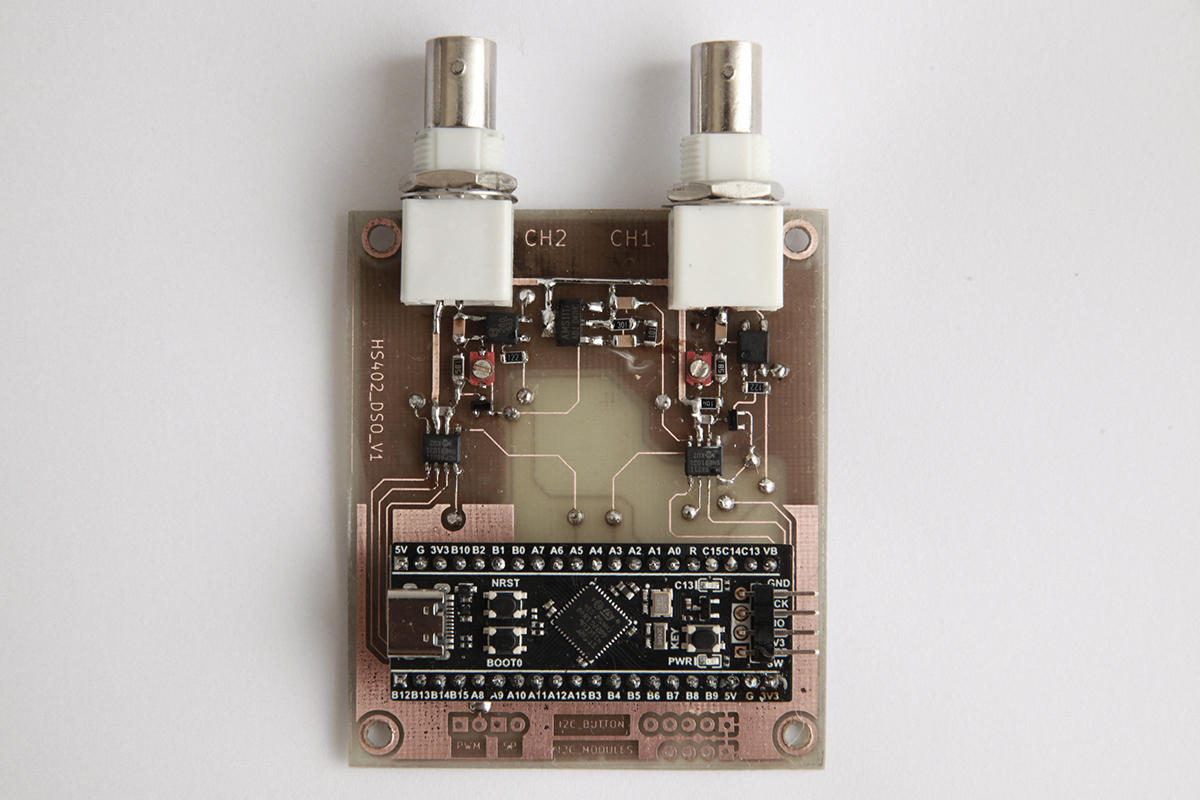
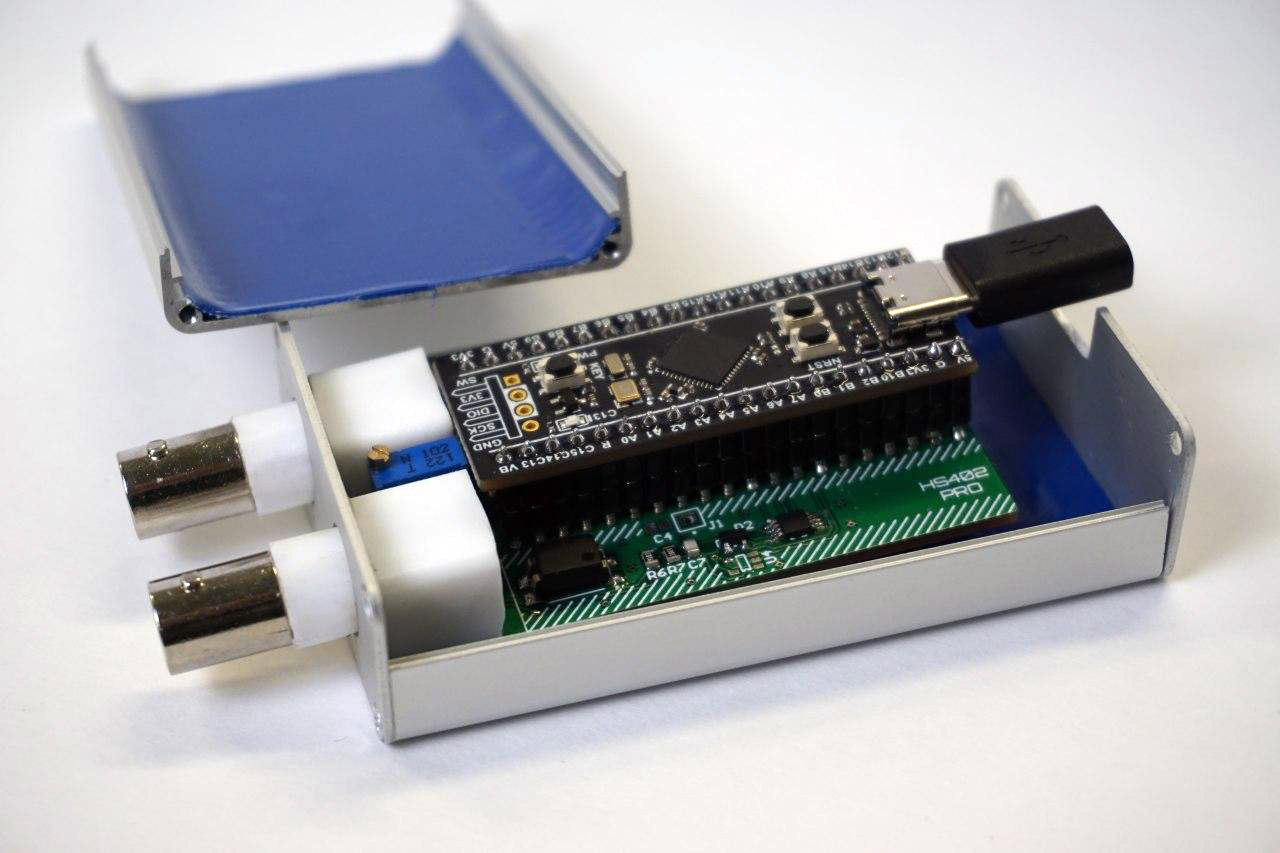
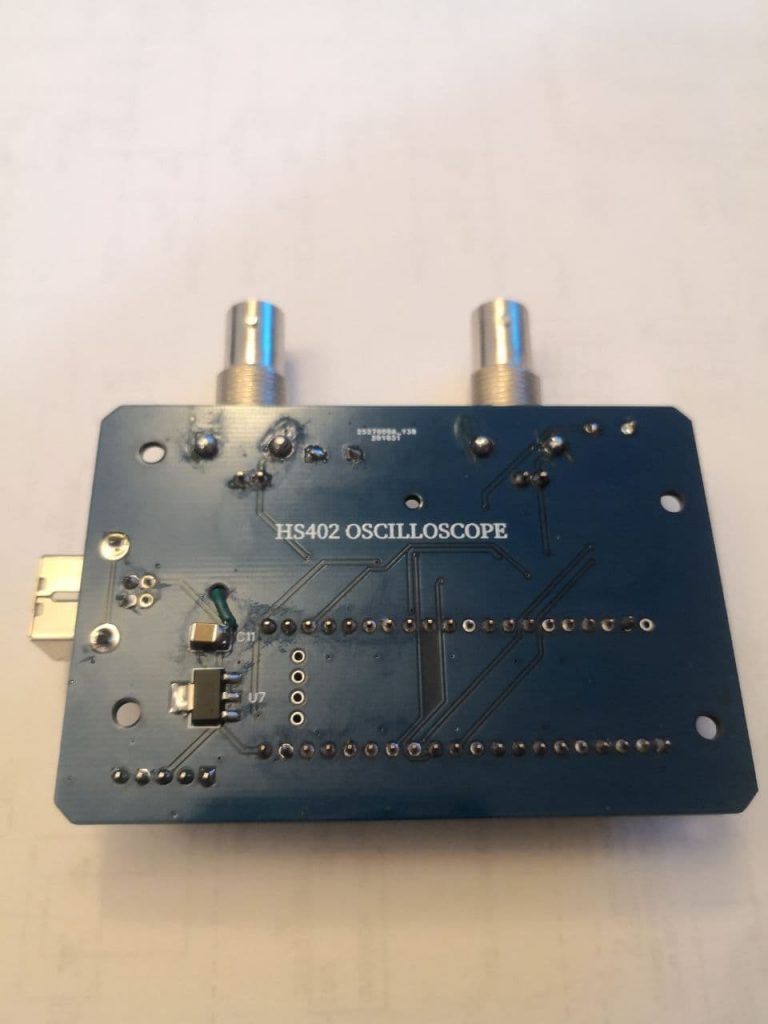
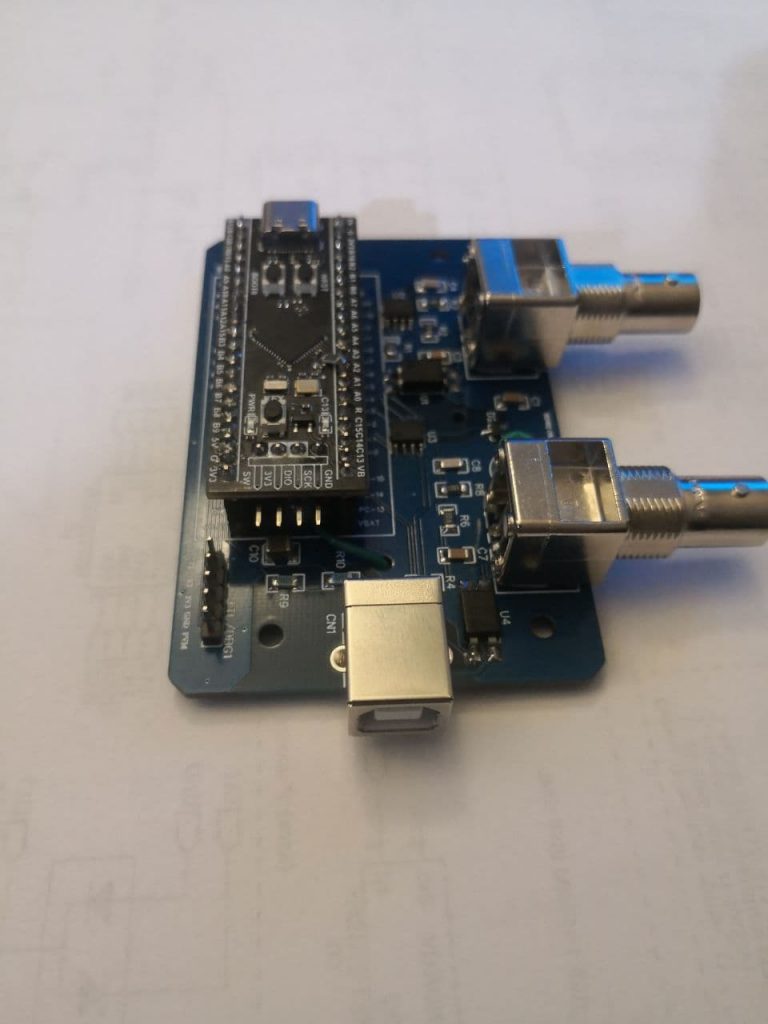
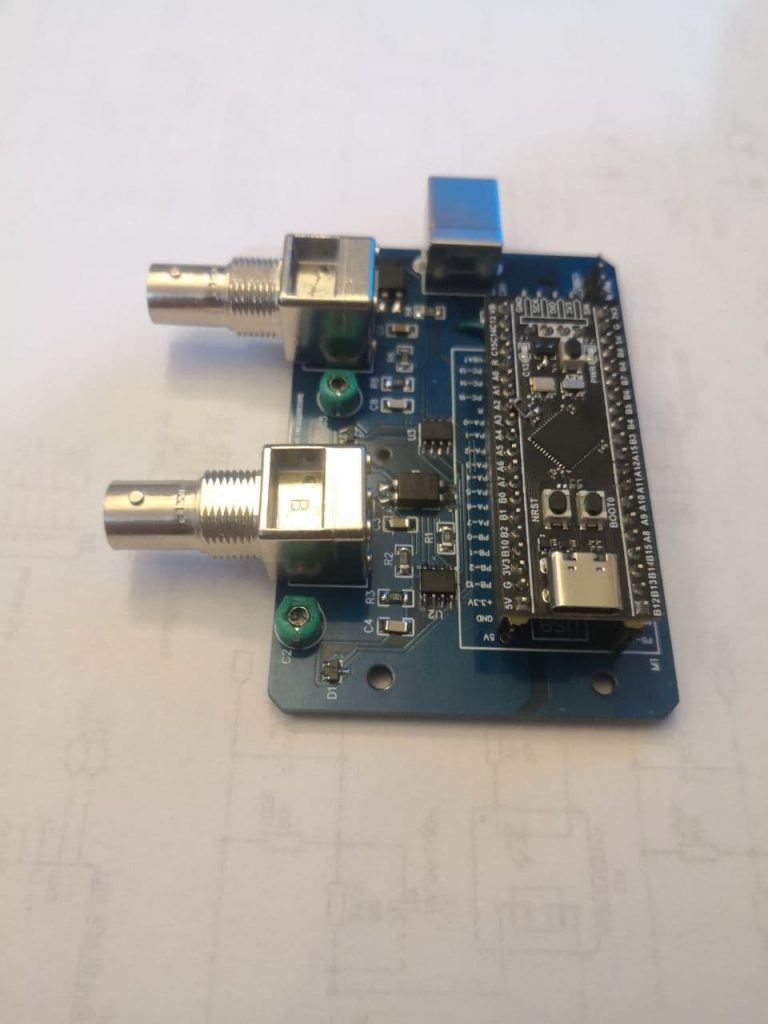
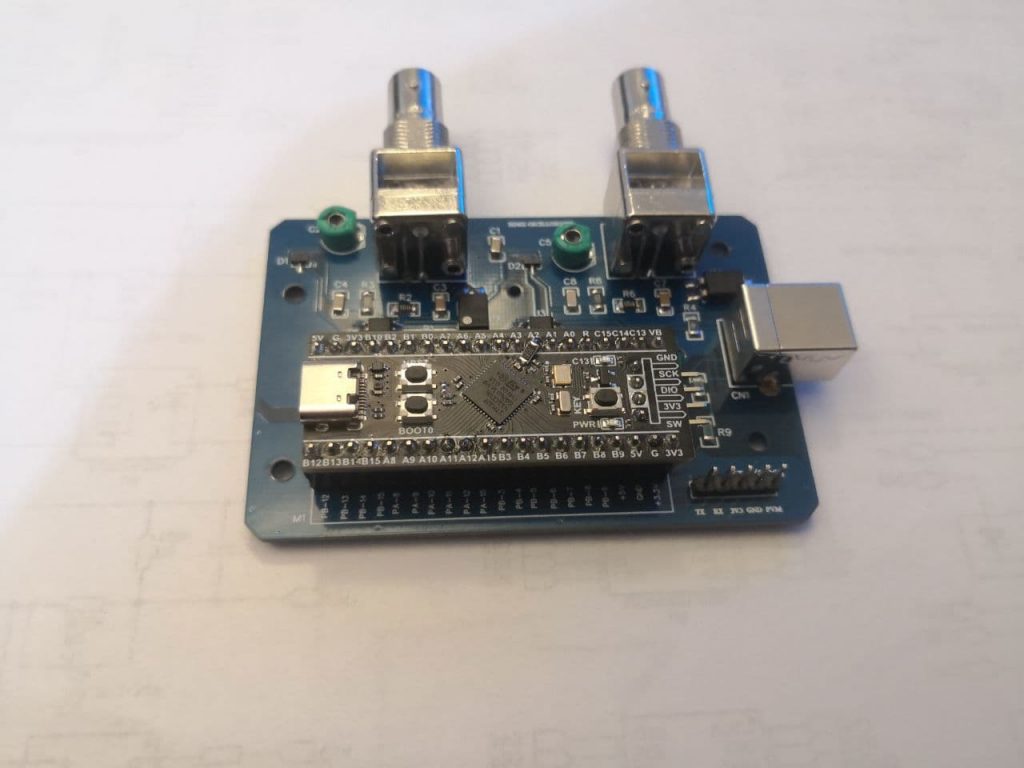
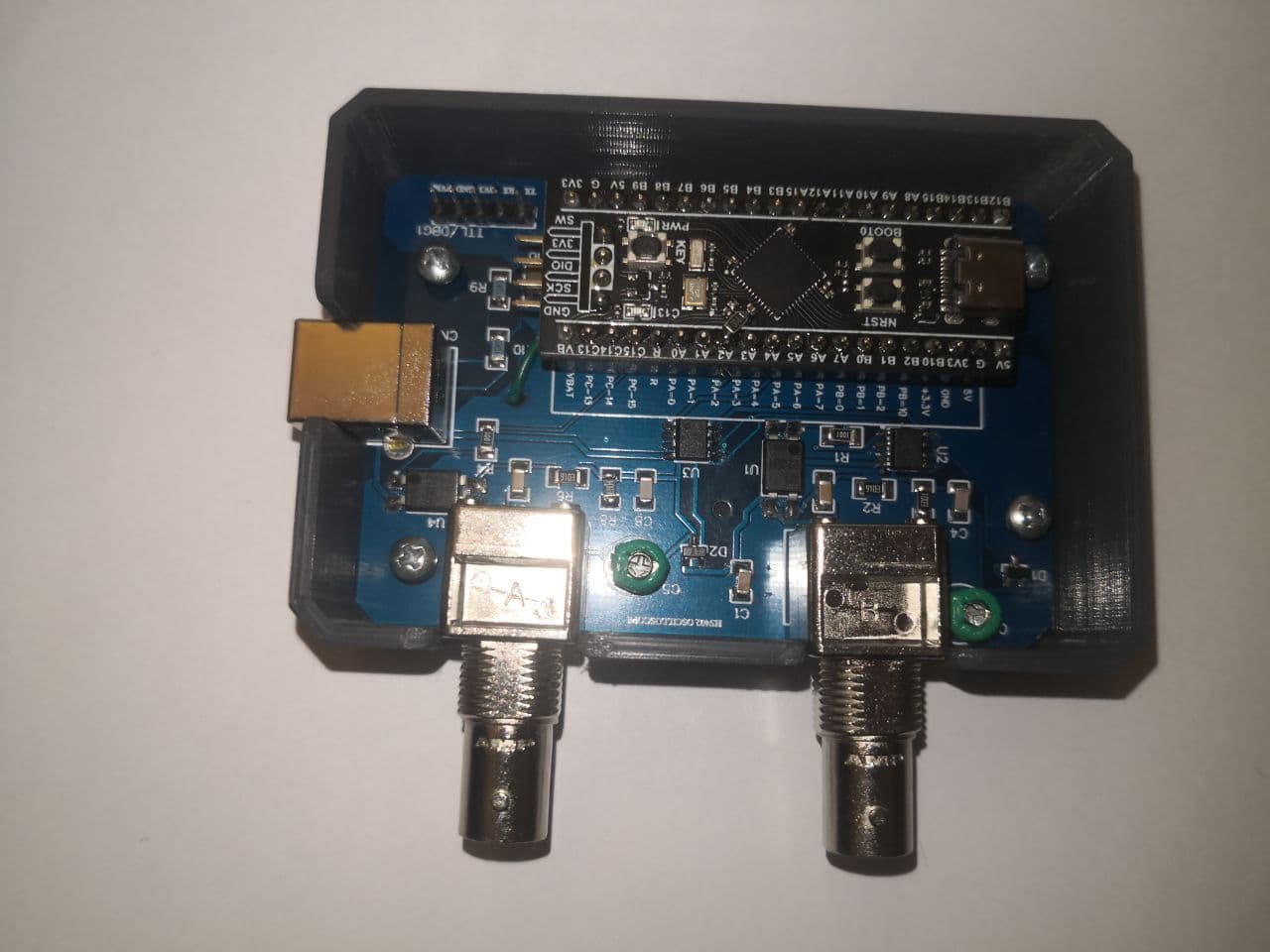
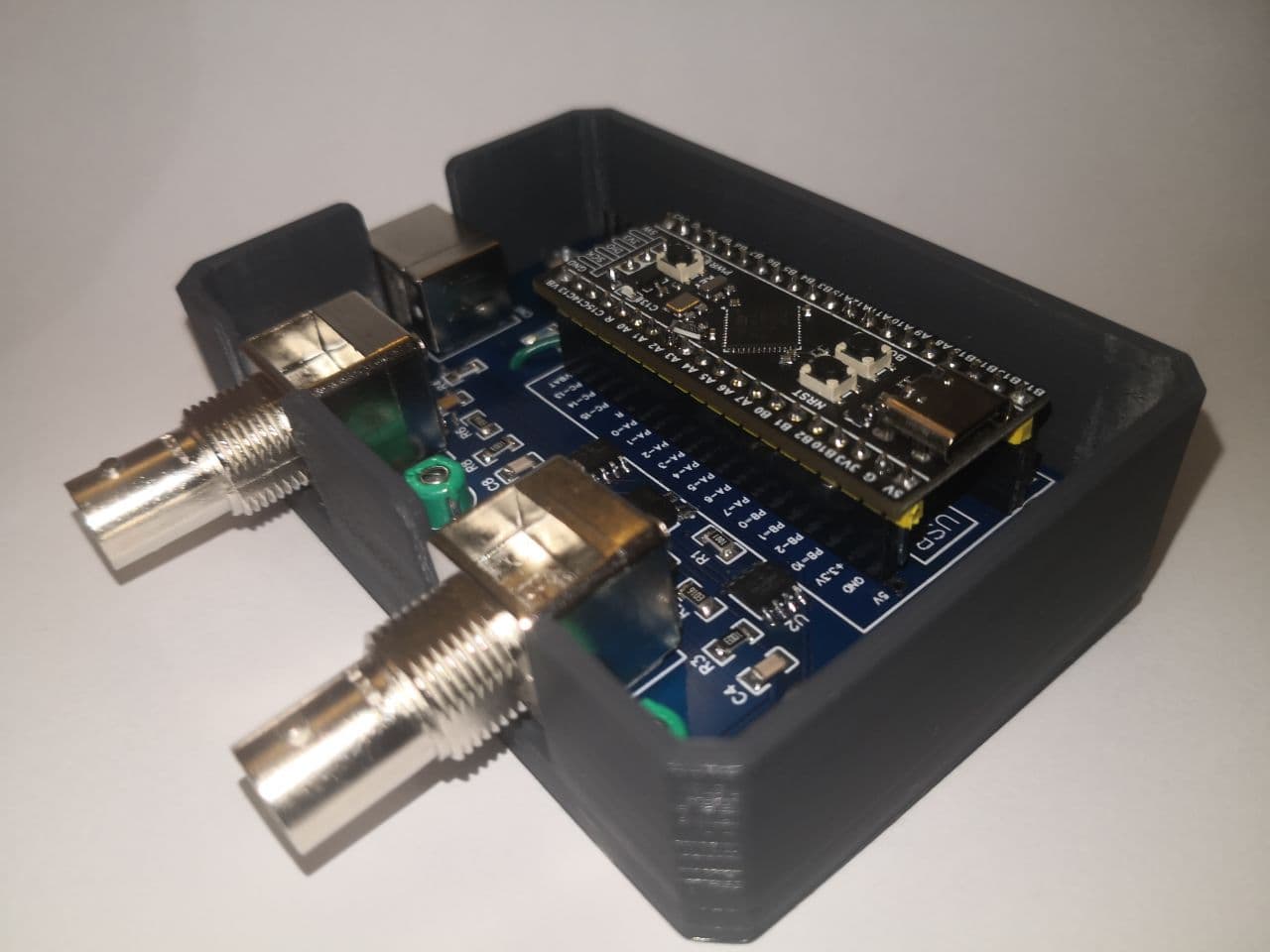
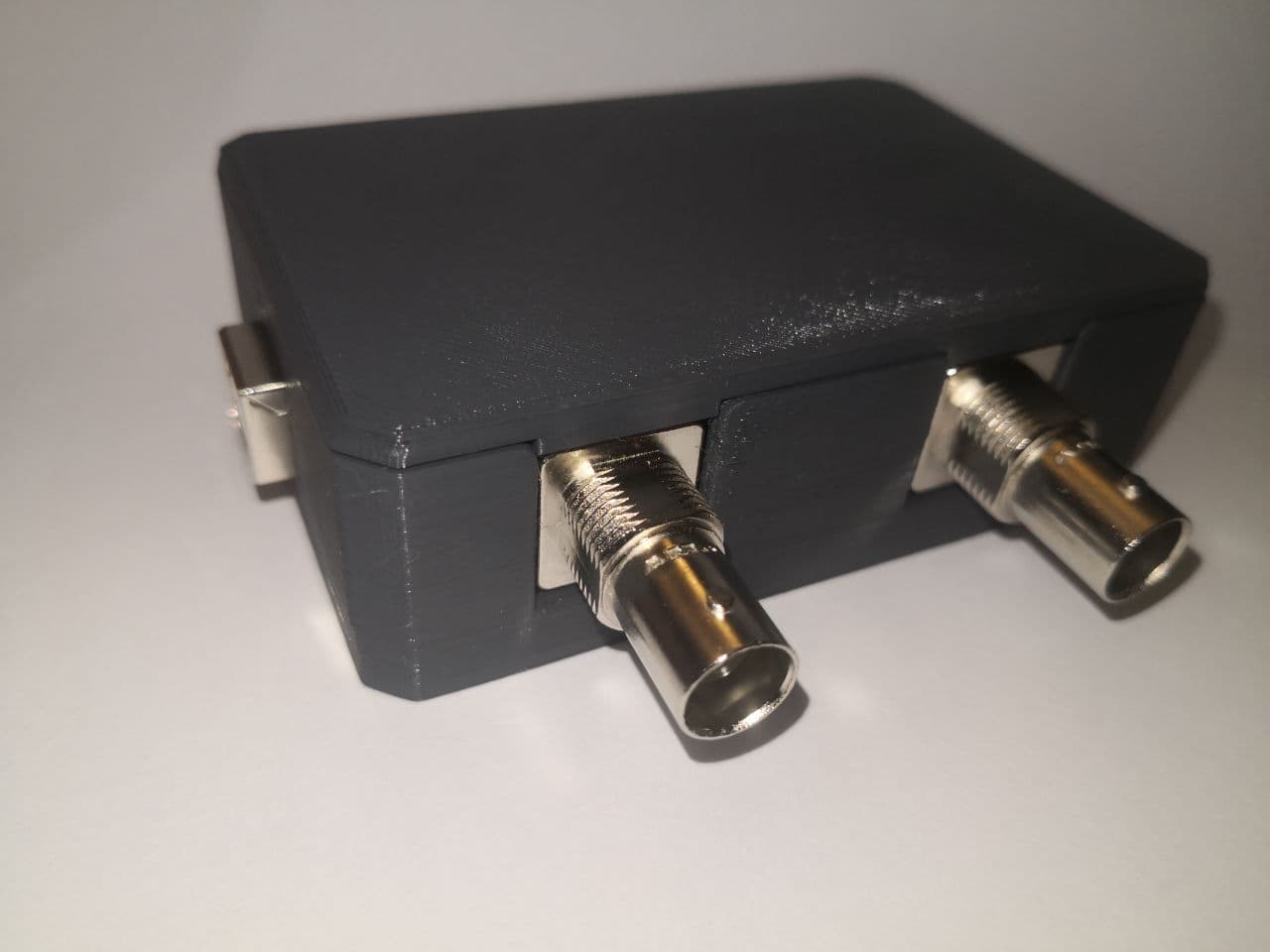
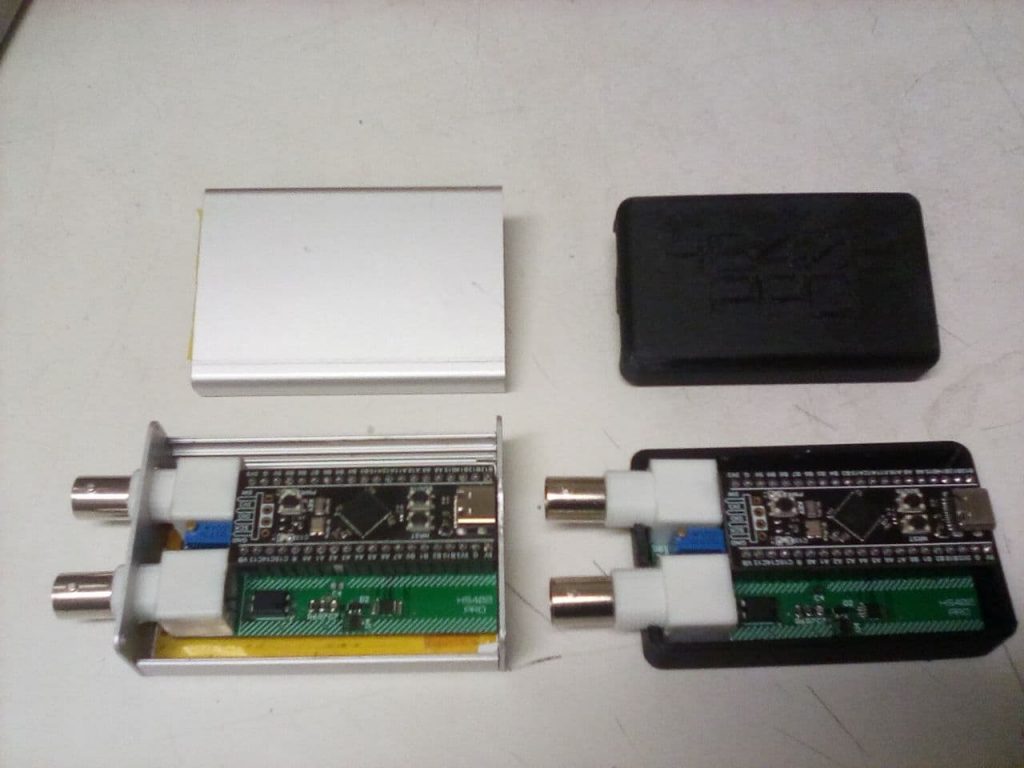
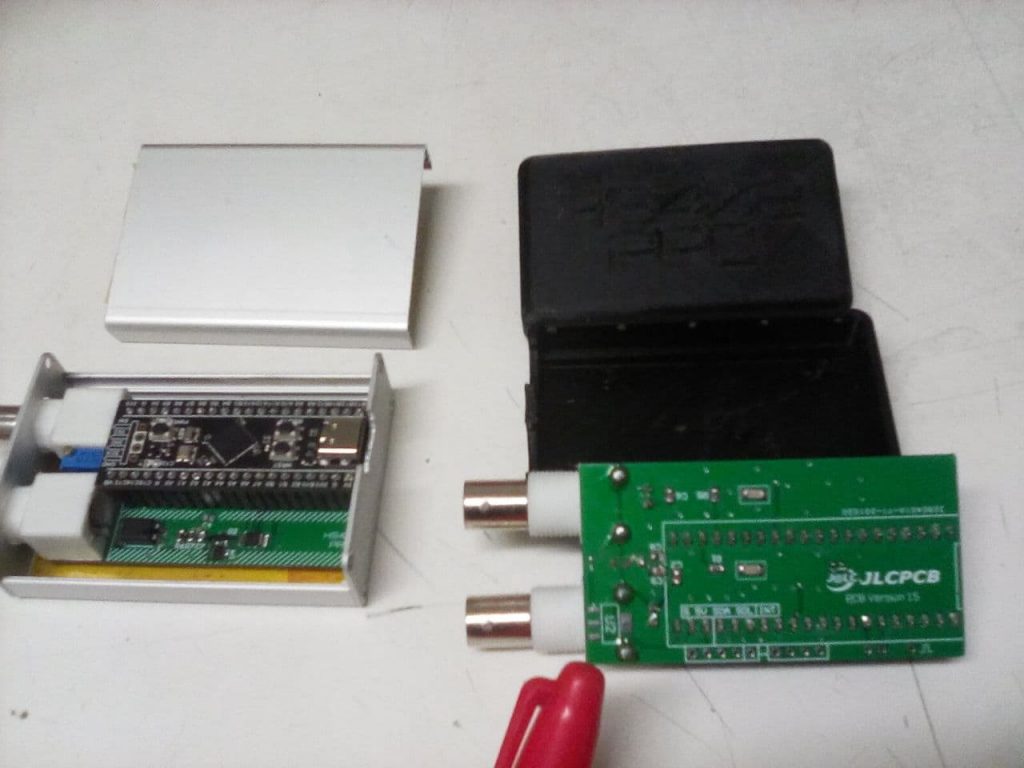
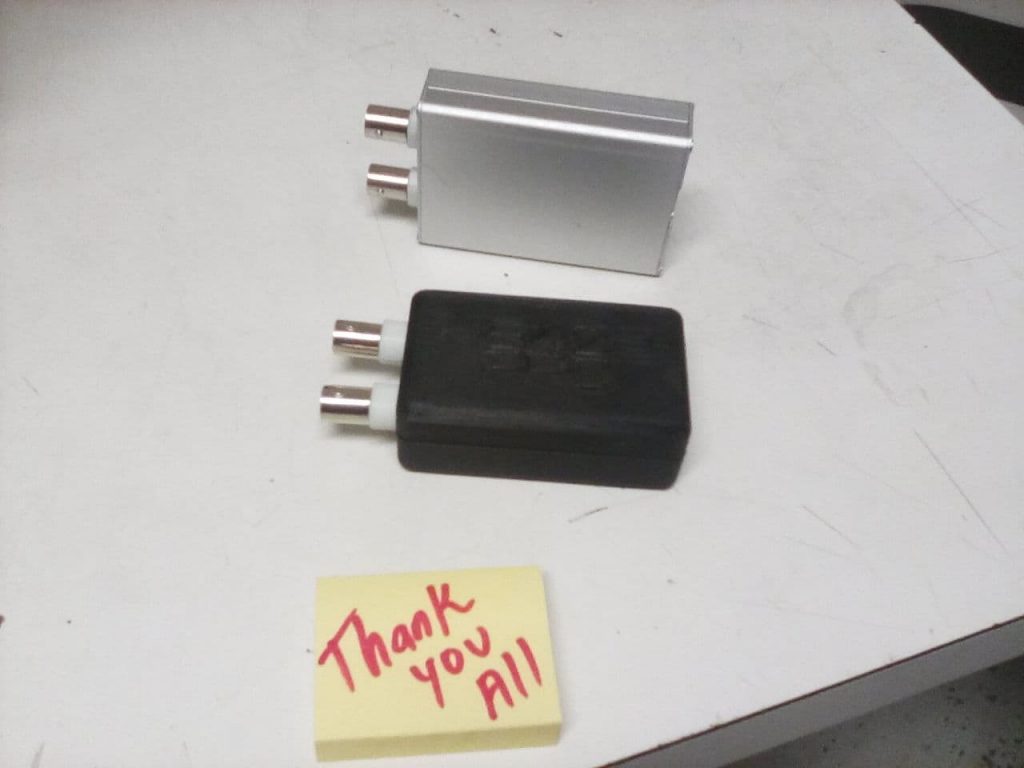
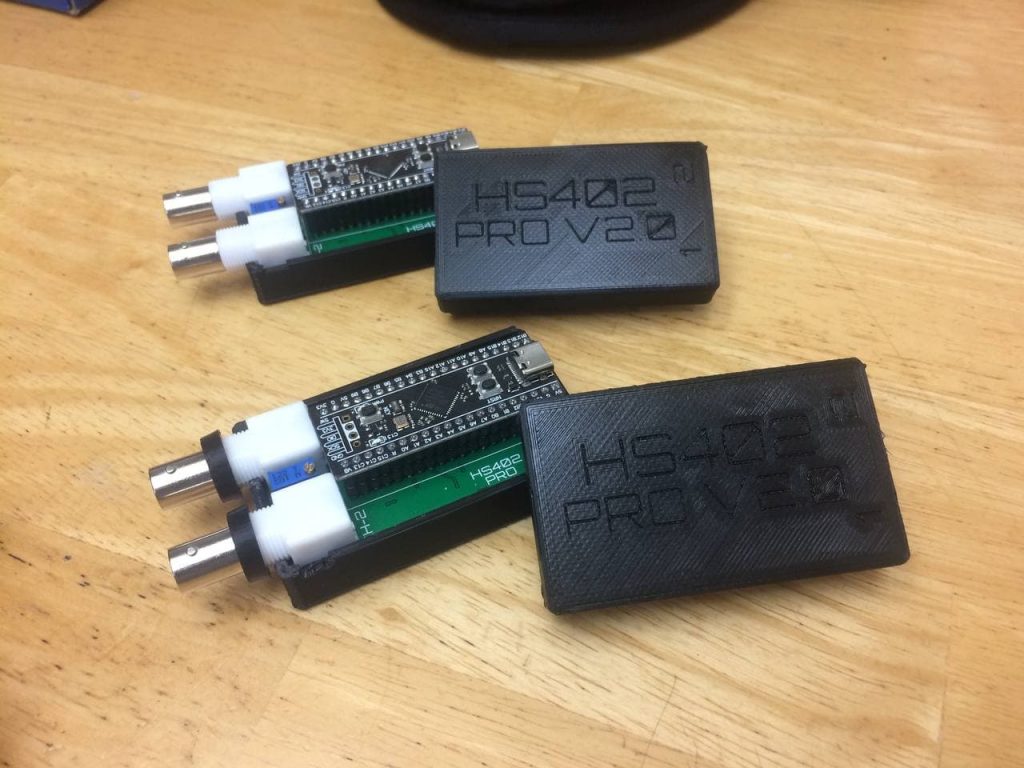
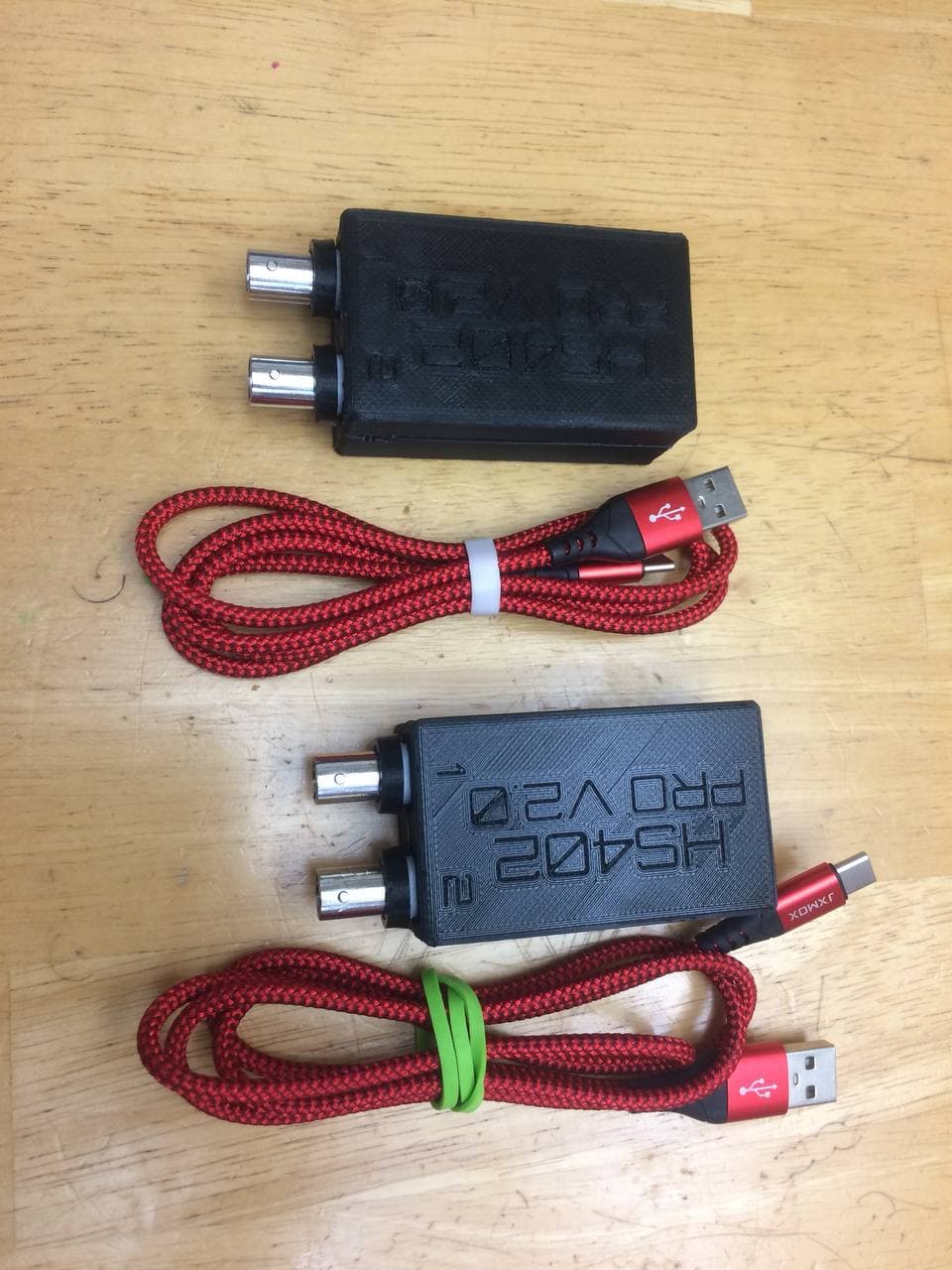
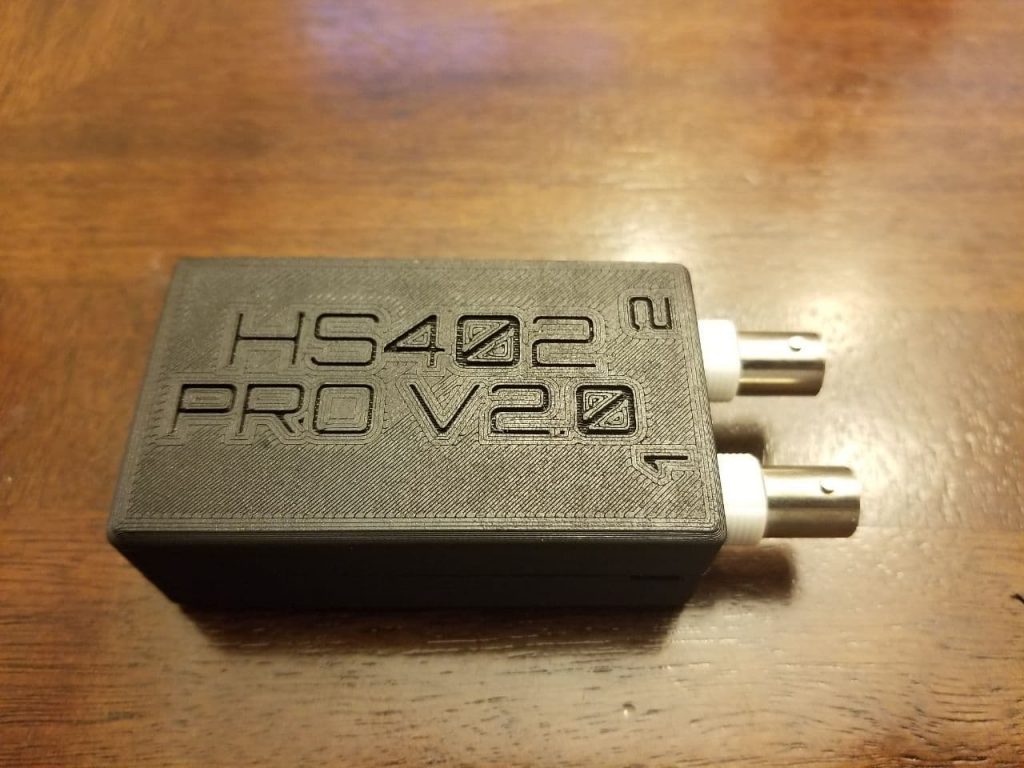
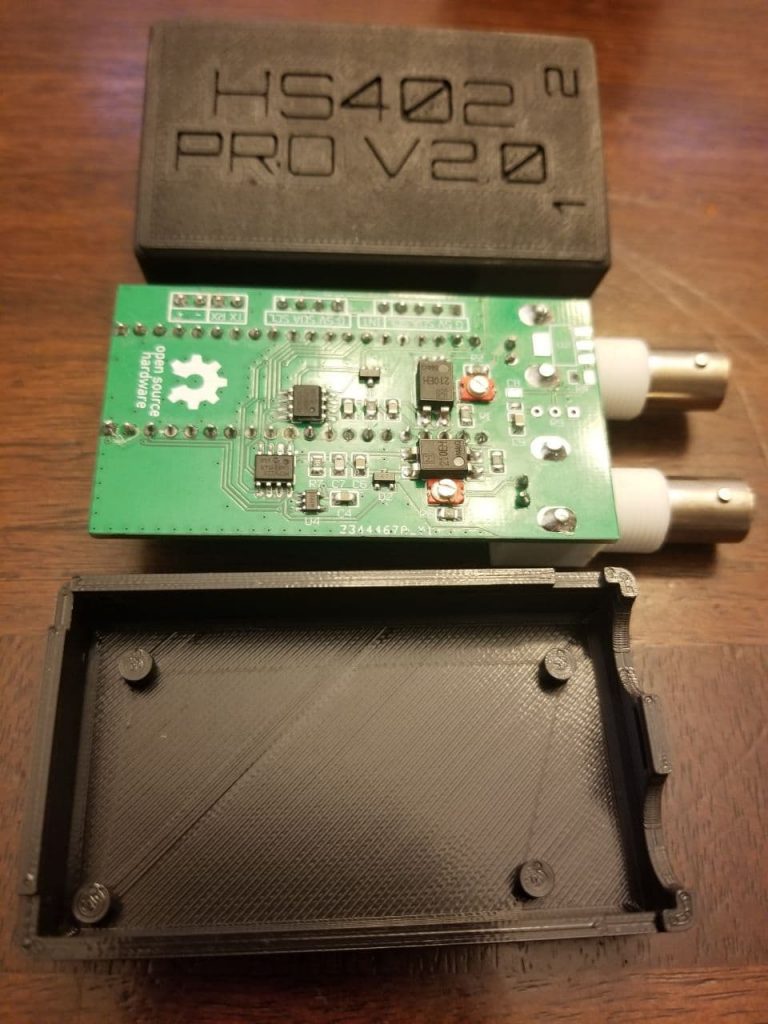
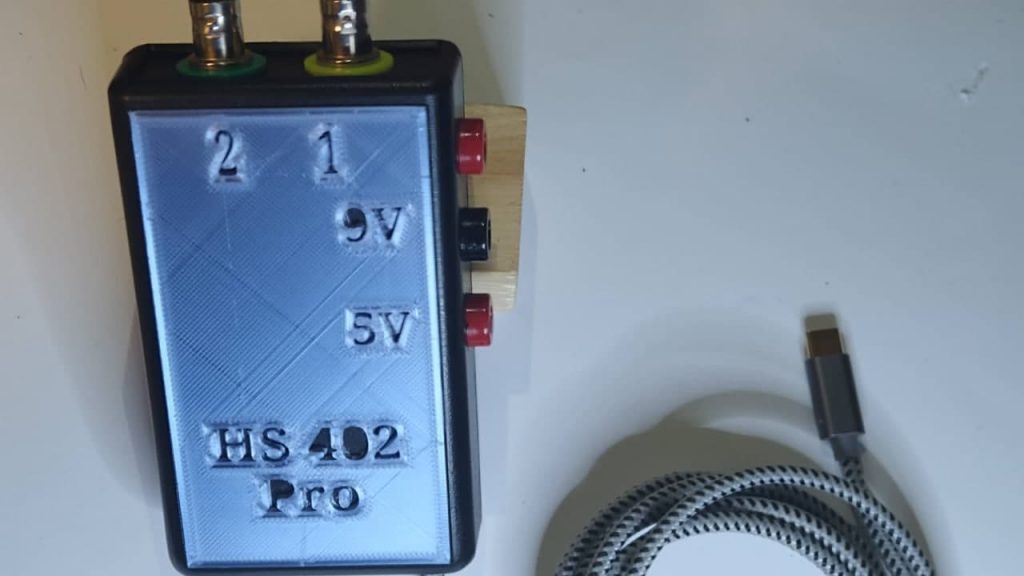
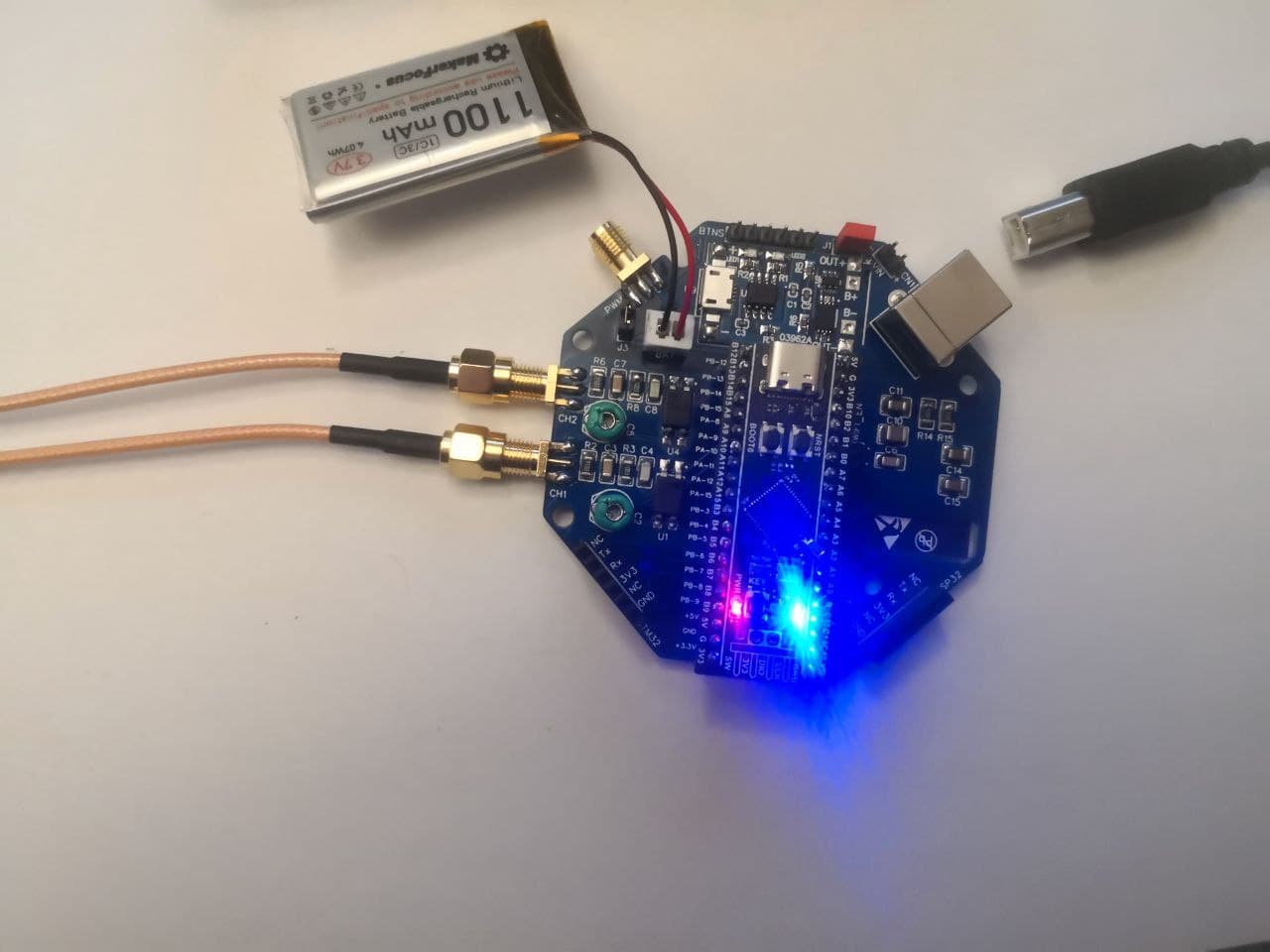
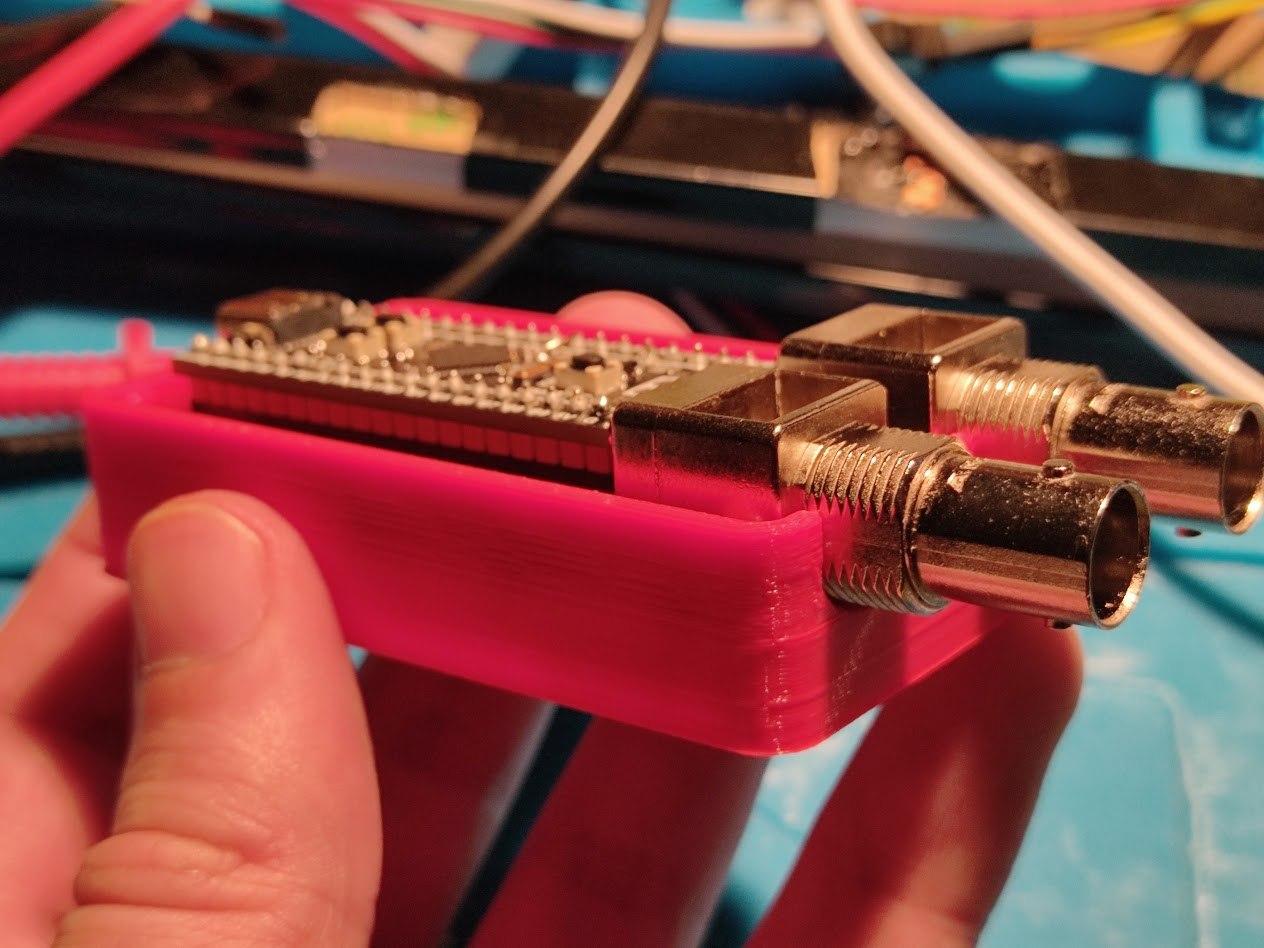
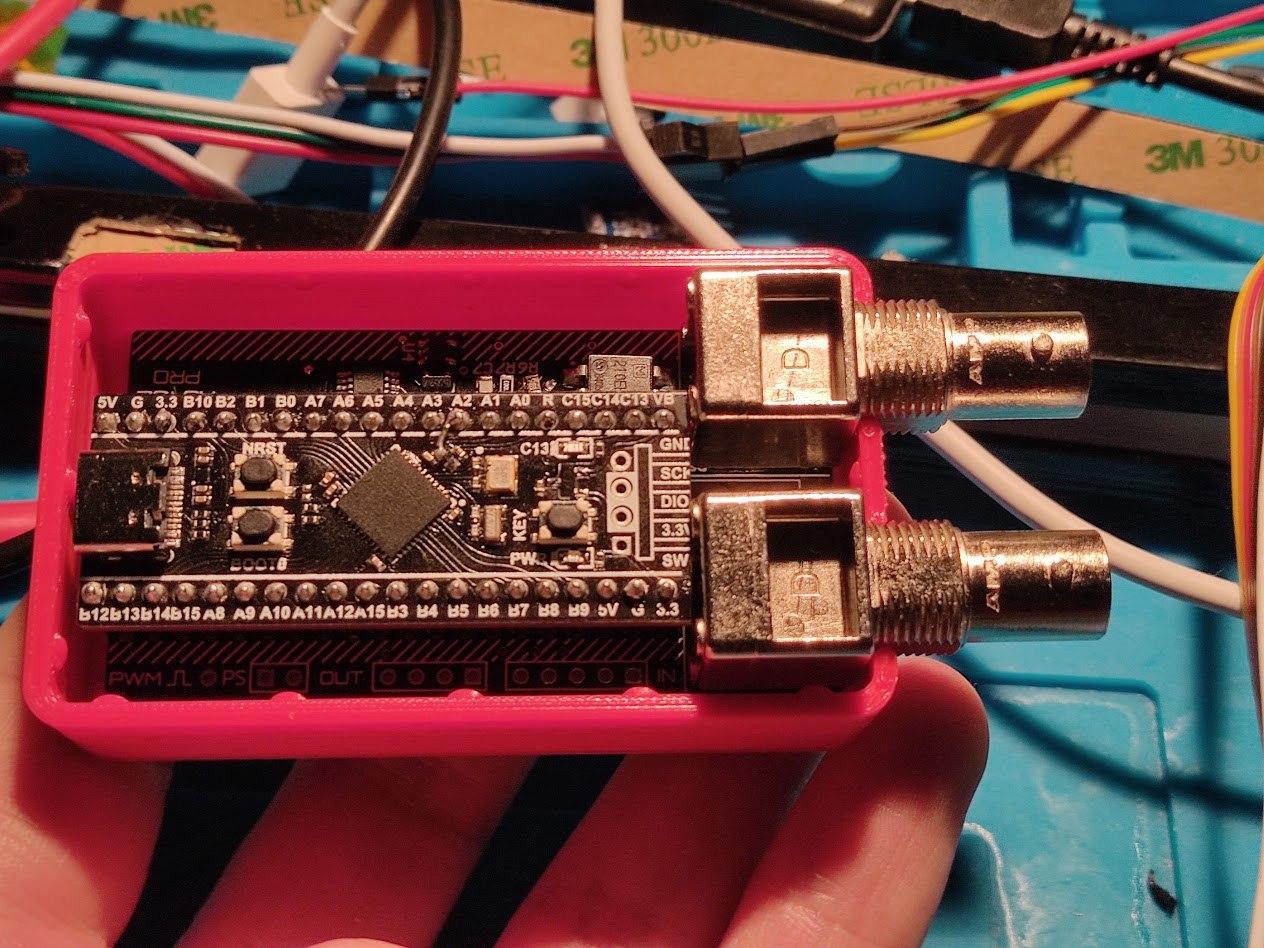
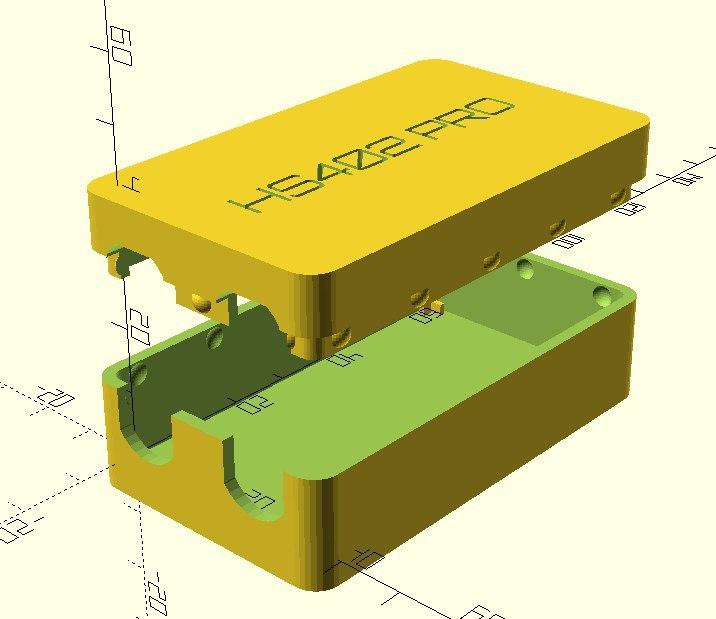
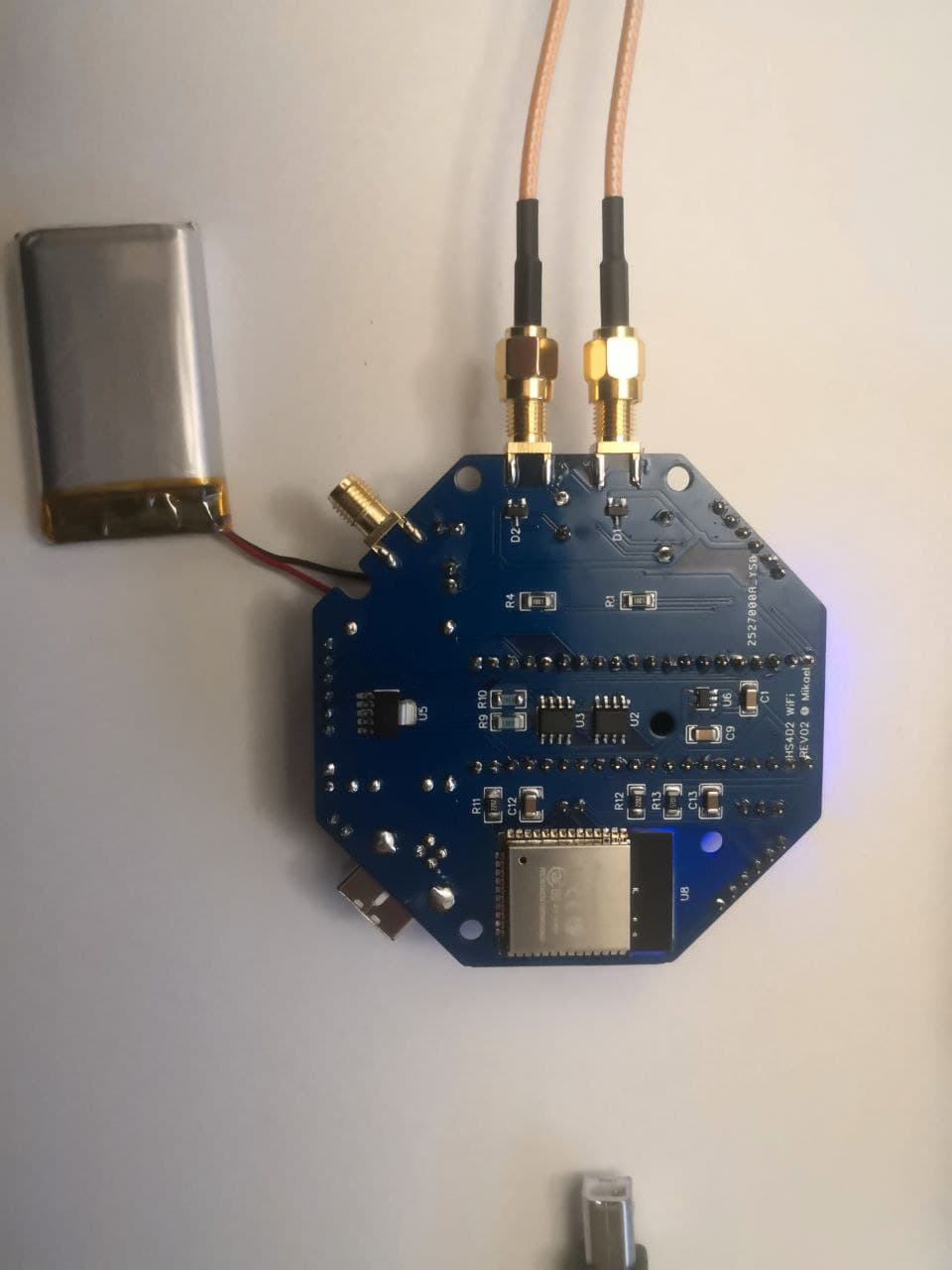
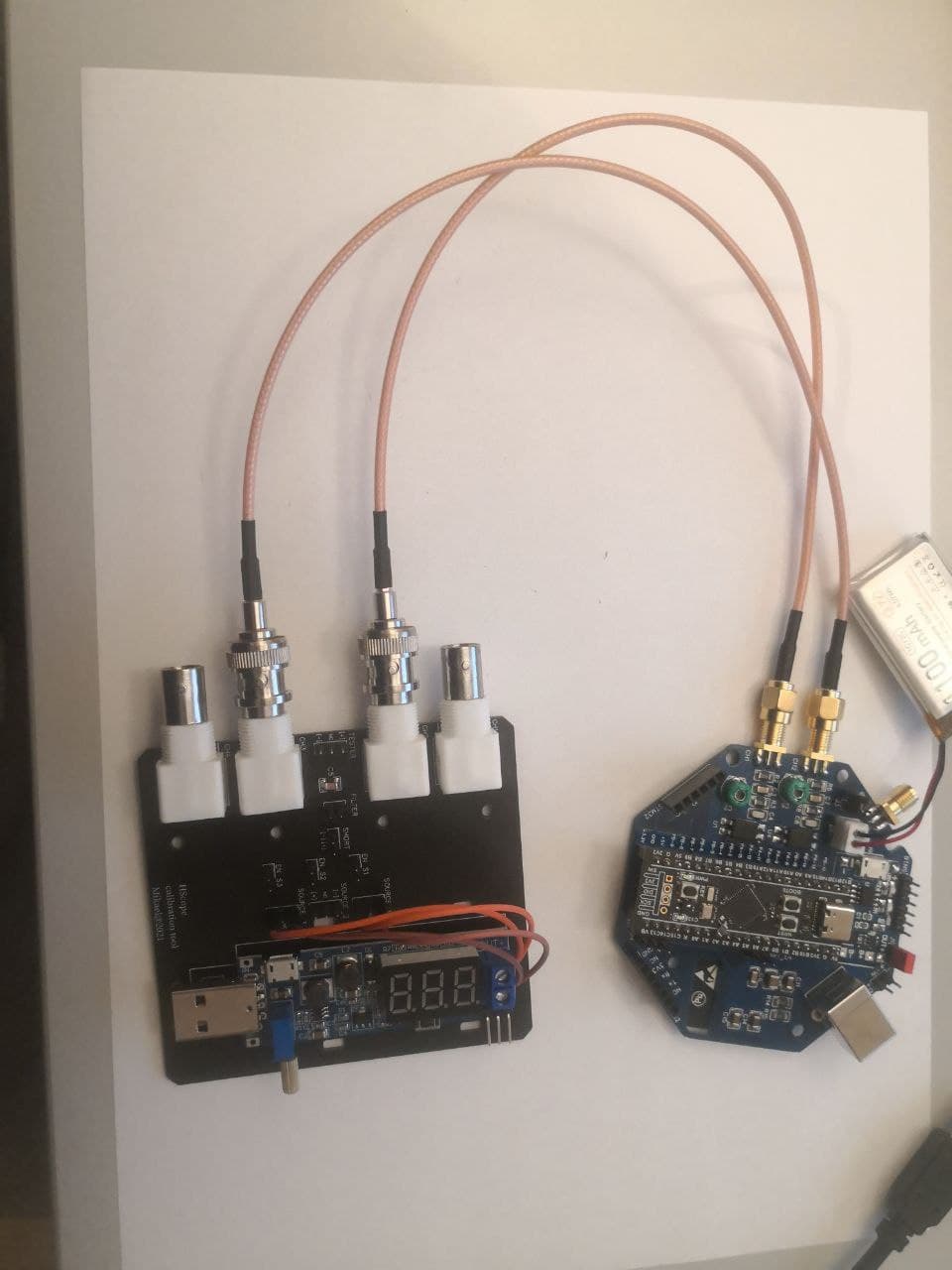
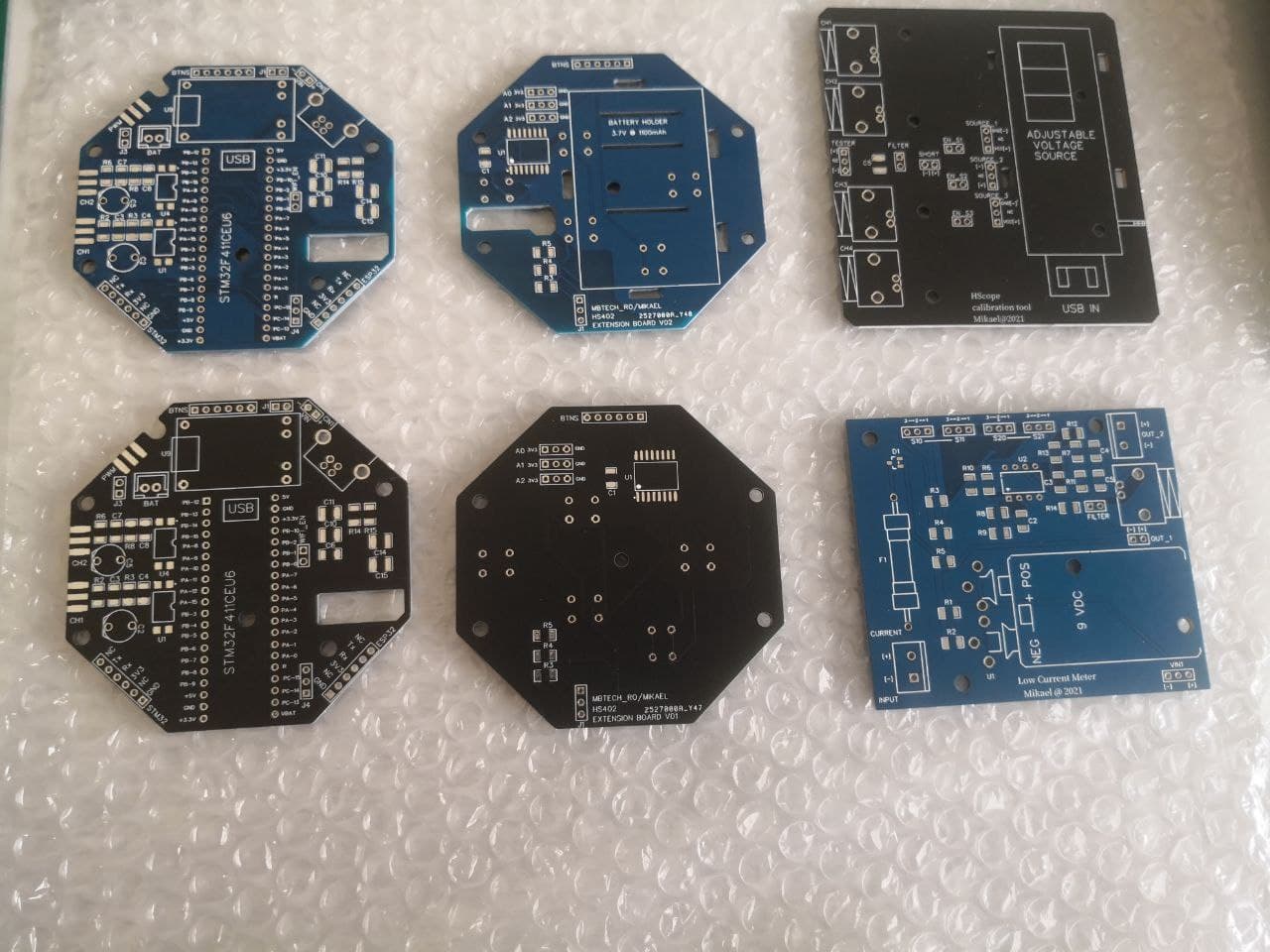
HS402 Built By The Users HS402

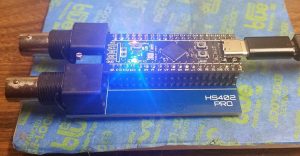
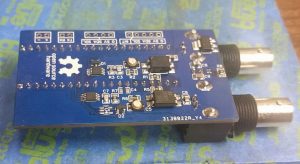
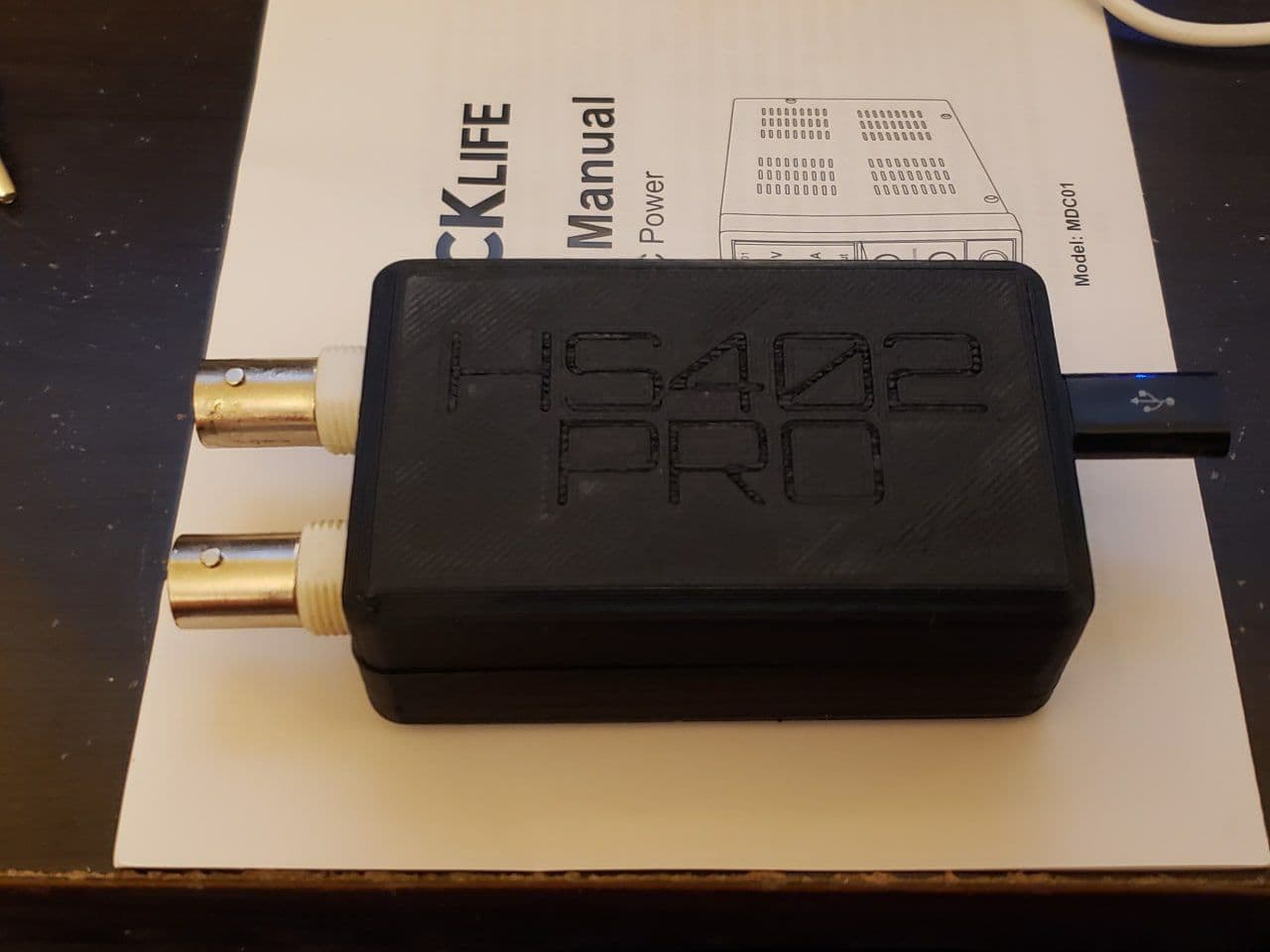
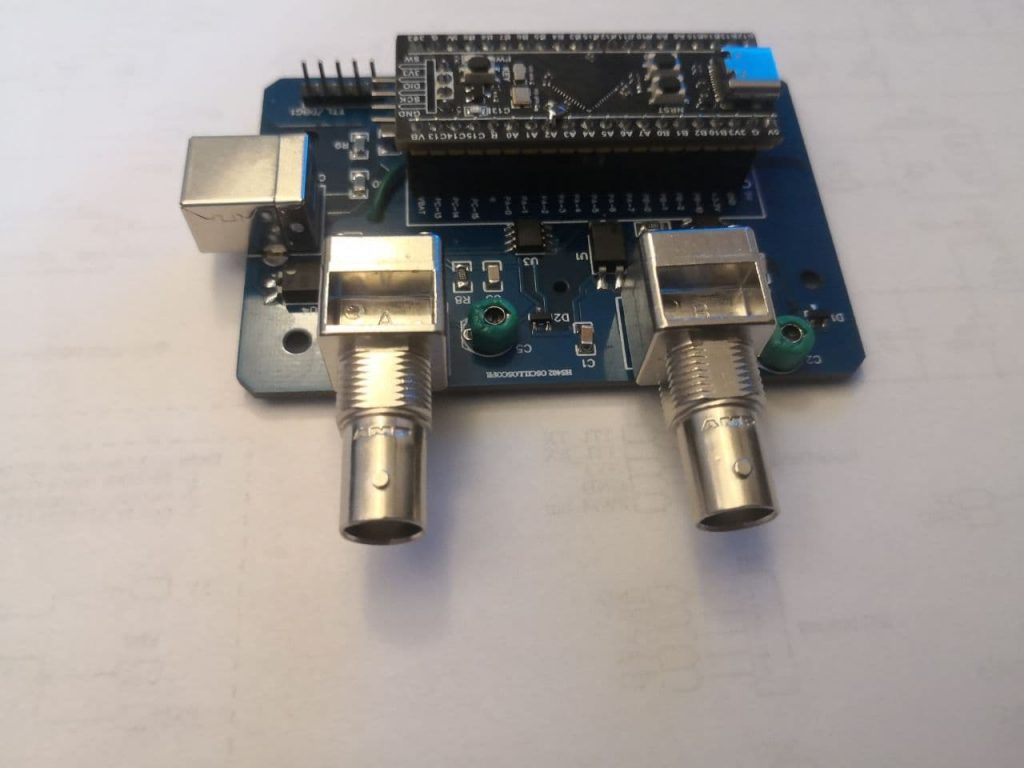
HS402 Built By The Users

If you want to have your project published just drop an email!

Change Log – Archive News

Change Log – Archive

2.4.0 (363) Dec, 2022

Implemented enhancements

  • Custom Channel Names can be imported from file
  • Channel Names and Probes are automatically imported when SET an existing working folder
  • Channels signal can be inverted with Filters (Update 2022/2023)
  • Can add pictures to the Waveform from the phone Gallery (Update 2022/2023)
  • Can delete pictures from the Waveforms (Update 2022/2023)
  • Add cursor stabilizer for 360/720 Automotive Tool
  • Possibility to set Automatic or Manual start for Automotive recording (Update 2022/2023)
  • Auto-Update Waveform list when the Document Folder is modified outside HScope (Update 2022/2023)
  • Digital Module can convert result of the Math Module to digital signal and process (i.e. for CAN)
  • Digital Module: improved analog to digital conversion
  • Improved PDF Report
  • Better control of 720/360 graph (measurement cursor has the priority over the side cursors)

Fixed bugs

  • Problems when using a device without Google Play
  • Crash for HS-ACC in some case
  • Filter let signal disappear in roll mode
  • Crash on set app folder
  • Waveform preview image did not refresh when overwrite waveform
  • Digital signals could not be loaded from saved waveform
  • Cloud ID could not be copied automatically from clipboard in some case
  • Bluetooth permissions on Android 12
  • Crash if selected the wrong documents folder
  • Overvoltage was not shown correctly
  • Crash with several dialogs
  • Bugs on Digital Module
  • PWM window could not resize correctly according menu width
  • Re-save waveform did not keep the photos

2.3.9 (346) Ago, 2022

Implemented enhancements

  • Automotive Module: is it possible to set the allocated RAM up to 2GB (Update 2021/22)
  • Enhanced Automotive Module performances.
  • Correct visualization of FPS statistic.
  • Enhanced freq function (Automotive module)
  • Automotive Module auto-zoom consider the actual data range (relative range for a better zoom)
  • Waveform explorer can load single files (HScope .zip format)
  • Enhanced white theme in Data Logger page
  • Normal Trigger allowed in Roll Mode (HS402 and Hantek 6074) (Update 2021/22)
  • Enhanced XY module: better auto-viewport, point measure, possibility to set V/div (Update 2021/22)
  • Avoid Labels overlap in Vertical Cursors
  • Labels on vertical cursors can be hidden in 100/360/720 deg. Tool
  • Automotive Module can export PDF Report (Update 2021/22)
  • Possibility to change Probes order (Update 2021/22)
  • Can open HScope ZIP files from other apps to HScope (Update 2021/22)
  • Improved DataLogger
  • Improved PDF Report with probes information and waveform author, channel coupling, filters, notes
  • Can import digital data from saved waveforms
  • Improved Probes Cloud Downloader to work also Offline
  • Improved Performances / Memory usage
  • Can add photos to the Waveforms files
  • Added support for Android 12
  • Added CAN Decoder (Digital Module)
  • Supported latest OWON 1022 hardware
  • Improve Math Demodulator to adapt automatically to the signal
  • Improved PDF Report
  • Added possibility to rename Channels
  • Automotive Channels can hide if not used
  • Channels can be hidden when load a waveform
  • Can trigger on Channel-3 & 4 in case Channels-1 and 2 are OFF

Fixed bugs

  • Fixed crashes on Automotive module due to lack of memory.
  • Fixed rates for Hantek 6074, crashes with roll mode trigger
  • Crash on too much memory allocated for Automotive Module
  • PDF Report export is not recognized in Google Drive
  • Load waveform button did not work in Data Logger page
  • Bug on XY Module – frequency relation data wrong in some case, graph Y unit wrong in some case, wrong data export, wrong thumbnail image
  • Wrong voltage selection on Channel 2 – Automotive Module
  • Crash in phones with limited RAM when they import waveforms generated with phones with larger RAM
  • XY Module: Delay computation run indefinitely also after module close
  • Wrong Labels position in Vertical Cursors with 2 channels
  • Imported waveform could not be filtered in Oscilloscope screen
  • Crash for Hantek iDSO1070
  • Voltmeter color error (stays always red after first time)
  • Fixed crash on Freq function (Automotive Module)
  • Fixed trigger on Channel-2
  • Flags could not be removed on new acquisition or file loading

2.3.8 (305) Apr, 2022

Implemented enhancements

  • New driver for Hantek DSO-2xx0 Oscilloscopes (DSO-2090, DSO-2150, DSO-2250)
  • Added Flag tool during Automotive recording (Update 2021/22, see guide for usage)
  • Notes content can be changed
  • Flags can be saved/loaded
  • 720 Degree Tool cursors can be moved also on the top part of the screen
  • Scroller Window is hidden during Automotive recording and then restored
  • Waveform position and zoom is saved and can be loaded
  • Turned OFF Channels get reduced in Oscilloscope mode
  • Voltage ranges for each channel is more “user friendly”
  • Voltmeter show Duty Cycle
  • White color scheme for Voltmeter
  • Enhanced 720 degrees graph
  • Enhanced Phosphor effect
  • Enhanced Cloud waveform sharing
  • Enhanced contrast in White UI for AC/DC/OFF buttons
  • New report created on screenshot for Oscilloscope screen (update 2021/22)
  • Enhanced notes tool (update 2021/22)

Fixed bugs

  • Issue on ON/OFF button for Math panel in Automotive module
  • Automotive Labels tool graph outside graph area
  • Horizonal Cursor values was not referred to the axis unit (did not scale)
  • Wrong visualization of Channel 4 panel in Automotive screen
  • Normal/Single Trigger did not work on ISDS205.
  • THD Processor remove DC component for more accurate result.

2.3.7 (291) Oct, 2021

Implemented enhancements

  • Possibility to set Waveform name upon Save
  • Audio Module can import WAV files (Update 2021)
  • Added the THD calculator in the Audio Module (Update 2021)
  • Added 0-100% vertical cursors
  • Math Module output display some known units as result of the operation (Watt, Ohm)
  • Added Time column in CVS Export
  • Added BandPass and BandStop Filters
  • Better text input dialog (for file names and other)
  • Hantek 6022 (BE/BL) added hardware option for AC Coupling
  • Waveform scroller can be zoomed with fingers. Added position of cursors and tools.
  • Improved digital module
  • Digital data can be saved / loaded together with analog data
  • CSV can exports up to 4 channels data
  • Added dialog to confirm file deletion
  • Automotive module can record digital data
  • Audio module allow to use microphone to acquire data
  • Hantek 6074 real-time rate up to 125KSa/s with 4 channels
  • Hantek 6074 supports Audio Output
  • Improved Auto Voltage function
  • Optimized freq() function (Math Module)
  • Better arrangement for Probes on Cloud

Fixed bugs

  • Crash on file export in other formats (XML, CSV, WAV)
  • Crash on folder import on Android 8
  • White color for PWM Module
  • Font size in logger graph
  • Crash in case load a waveform just with second channel
  • Crash on save waveform after loading
  • AUTO Voltage did not work with FX2 Experimental Mode
  • Hantek 6074 input voltage wrong when enable channel
  • Channel 4 voltage selector did not show correctly
  • Autoscroll in Automotive Module

2.3.6 (274) Sep, 2021

Implemented enhancements

  • 360′ Tool show also RPM information
  • Added 1 decimal to Duty Cycle value
  • iDSO1070 added lower rates (slow rates, 1, 2, 5KSa/s)
  • Waveform Explorer can zoom the thumbnails (Update 2021)
  • Automotive Module shows units for loaded waveforms

Fixed bugs

  • Waveform loading did not remove previous tools on the screen
  • Wrong data read for old saved waveform (2019)
  • Vertical cursors cannot be used on loaded waveforms
  • Visualization error in statistic (of second type)
  • Horizontal cursors did not move in FFT
  • Crash in Automotive module (in some case)
  • Automotive module did not show Channel-4
  • Color error in 360 and 720 Tools
  • XY Plot button not enabled
  • Saved files did not show in Data Logger
  • Automotive Module saved empty files from second save
  • Data logger could not open saved CSV for some locale

2.3.6 (269) Aug, 2021

Implemented enhancements

  • Added Math computation to Automotive Module (Update 2021)
  • Automotive Module allow to set zero offset before recording starts (Update 2021)
  • Added 4 Channels support for Hantek 6074
  • Added support for new HS-ACC WiFi Accellerometer
  • Added 360° Automotive Tool
  • Enhanced Automotive Label Tool
  • Improved Automotive Fire Order Tool
  • Menu size can be configured (both Oscilloscope and Automotive screens)
  • White UI (both Oscilloscope and Automotive screens) (Update 2021)
  • Added filter buttons in Automotive menu
  • Show distance among 3 horizontal cursors
  • Interface buttons hidden when take screenshot
  • Improved load/save data speed
  • Channels can have arbitrary names (according hardware)
  • Added info on the memory available for the app (in Settings->System. Device dependant)
  • Don’t need DEMO mode to open and process saved waveforms
  • File explored detect correct file versioning

Fixed bugs

  • Document folder link loose on phone reboot
  • DSP Filter error at the beginning of the Waveform
  • Save calibration data crash on Android < 10
  • Waveform align buttons didn’t work when Math module is enabled with just 1 channel
  • Filters and Math operations can be applied just 1 time in Automotive Module
  • Crash due to lack of memory in Automotive Module
  • PSO2020 wrong hardware settings when connected the device
  • Crash on Automotive module new Zero Offset feature
  • Cloud Download did not save file in Public Folder

2.3.5 (245) Jun, 2021

Implemented enhancements

  • HS402-Wifi DIY Oscilloscope driver – faster WiFi connection
  • Added support for Android 11 (new file management)
  • Screenshot on the voltmeter screen take all the controls
  • Added Gravity unit (G) for accelerometer sensors

Fixed bugs

  • Calibration Multiplier crash for OFF channels
  • Calibration error for HT1008
  • Wrong number of samples for HT1008
  • Crash on file delete (new file management Android 10+)
  • Data Logger wrong MAX and MIN values in some case

2.3.4 (235) Apr, 2021

Implemented enhancements

  • HS10X supports PWM output (it requires Firmware v10.2)
  • HS402-Wifi DIY Oscilloscope driver
  • Data can be exported also from XY Module.
  • XY Module can show also data saved.
  • Improved Labels Tool buttons
  • Improved Settings screen, added a specific section for Oscilloscope settings
  • Improved Vertical Cursors & disable Auto Vertical Cursors
  • Extended export capabilities of the CSV format up to 1ML samples (old license owners requires Update 2020)
  • Faster UI coloring for channels
  • Added Cloud sharing for saved Waveforms, improved Cloud Waveform Downloader
  • Improved visibility of values on the Vertical Cursor
  • Bigger buttons, enlarged Settings menu and texts for Tablets
  • FFT allow to select the active channel, UI updated
  • Math integrate new Demodulation function (for low frequency, eg. vibration sensor)
  • Added statistics for 2 Vertical Sensors
  • Added Harmonic Cursors for FFT Vertical Ruler

Fixed bugs

  • DUAL mode not working for HS10X
  • Bug on duty cycle
  • Bugs with Automotive Module (wrong scaling, crashes,…)
  • FPS did not show after next app openings
  • Block on HS402 WiFi if it starts with DEMO running
  • HS402 annotation for current adc resolution (HD512, HD1024,…)
  • Crash on Automotive Labels Tool if selected labels < 2
  • Crash on Automotive Tools (if opened many times)
  • Data Logger wrongly ask license when try to open files
  • Wrong event management on channels graph lead to errors
  • Wrong values for Horizontal Cursor in second scale
  • Fixed FX2 Experimental Mode for Loto OSCA02 and OSC802
  • Fixed wrong text position on the vertical cursors
  • Could not click on + button after enabling the Automotive Labels tool
  • Wrong button size in automotive tools (Labels and Fire Order tools) after change font size
  • XY Graph size issues for big screens (eg. Tablets)
  • Horizontal Cursor alarm icon disappear after click
  • FFT disappear in some case, UI issues.

2.3.2 (211) Jan, 2021

Implemented enhancements

  • Implemented 4 Channels management (Oscilloscope Mode, Automotive Module, Import/Export)
  • Updated Automotive Module UI
  • Hantek 1008 support 4 channels (old license owners requires Update 2020)
  • Improved 720 Degree Automotive tool
  • Improved XY Module (old license owners requires Update 2020)
  • Improved HS402 driver (real-time rate)
  • Math module signal can be moved in the screen
  • Signals can show infinity values (due to operations with Math module)
  • Increase channel modification timeout to 3secs.
  • Improved axis labels

Fixed bugs

  • Fixed bug on crash when probe deleted
  • Fixed wrong scaled when resize channel
  • Fixed Math module doesn’t show
  • Fixed crash on Math module if used with other 4 channels active
  • Fixed voltage spinner on probe change
  • Fixed bug on Hantek 1008 crash

2.3.1 (201) Dec, 2020

Implemented enhancements

  • Shadow behind horizontal cursors differential value (when have 2 cursors)
  • Set maximum Automotive Module recording length according Android device memory.

Fixed bugs

  • Fixed bug on statistics for Channel 1
  • Fixed bug on user statistics option
  • Fixed wrong signal visualization when channel 2 is not 1:1 ratio with channel 1.
  • Fixed alarm for horizontal cursor.
  • Fixed bug on voltage selector for HS402 PRO
  • Fixed crash on tap 3 fingers on the screen

2.3.0 (197) Oct, 2020

Implemented enhancements

  • Added handle also for Channel 1
  • New Instrustar ISDS210 Driver
  • New PWM Module for HS402, Hantek 6022, Loto 482, Instrustar ISDS205
  • DSP Filters works also in Automotive Module
  • Automotive labels tool repeat the first label again at the end of the sequence, improved visibility
  • Settings shows Bluetooth paired and discovered devices
  • Calibration panel shows the actual voltage ranges for the oscilloscope
  • It is possible to save/load calibration data on/from file.
  • Disabled Automotive Tools in FFT graph (not usable)
  • Redesigned cut function in vertical cursors (automotive module)
  • Horizontal cursor can be moved also on second scale
  • Channel-2 signal can be scaled independently from channel-1
  • Added Alarm Cursor (for horizontal cursors, available in 2020 Update)
  • Supported new Loto OSCA02 and Loto OSC802 (input range up to 10Vp).

Fixed bugs

  • Fixed crash in License page and FFT peak-hold
  • Fixed bug on FFT peak-hold switch
  • Fixed bug on HS101 AC/DC selector for some phone
  • Fixed bug on HS10X / HS402 for AC/DC selector if related hardware was not implemented
  • Fixed bug on system crash
  • Fixed wrong measure on 2V range for HS402
  • Fixed bug on HS101-BLT not recognized in some model of phones with Android 10
  • HS402 input button settings didn’t work (requires HS402 firmware 1.5)
  • Corrected error on vertical cursor when channel-2 scale is different from channel-1
  • Vertical cursors can now be moved when in proximity of channel-2 cursor

2.2.9 (182) Jul, 2020

Implemented enhancements

  • Added link to the change log in the Info Page
  • Horizontal Cursors works also on the Second Scale
  • Automotive Module supports Second Scale on the right
  • Duty cycle, RMS values more stable
  • Added histogram in the statistics (only from update 2020)
  • Added FFT – Max Peak mode

Fixed bugs

  • HS402 driver improved stability
  • Fixed wrong menu size in Automotive module at startup without any oscilloscope connected.
  • Fixed wrong channel 2 color in Settings
  • Fixed Second Scale visualization issue in some case
  • Probe selector could not show all probes in some case (next release)
  • Corrected FFT bug did not show in particular conditions
  • Fixed channel number in filter (wrong name only)
  • Fixed crash on load automotive files inside oscilloscope screen
  • Fixed FFT peak-hold function
  • Fixed FFT did not show on loaded files

2.2.8 (179) Jun, 2020

Implemented enhancements

  • Improved user interface (added shadows, right panels color according channel colors)
  • Second scale on the right in Oscilloscope screen
  • Added channels units information in Data Logger exported CSV
  • Added freq() function in Math Module (BETA)

Fixed bugs

  • HS402 driver works for Android SDK < 9
  • HS102 channel 2 AC/DC selector didn’t get right settings on startup
  • Fixed wrong channel names on UI channels panels

2.2.7 (177) Jun, 2020

Implemented enhancements

  • New WAV format exporter
  • Changed overscale visualization method
  • Math channel color is configurable
  • Added fullscreen mode for Data Logger
  • Data Logger can load saved or modified CSV files

Fixed bugs

  • Corrected bug on statistics on HS402 (when use only CH-2)
  • Corrected max range data in oscilloscope mode
  • Corrected wave color for Math channel
  • Corrected waves color when load a file in oscilloscope mode

2.2.7 (176) May, 2020

Implemented enhancements

  • 720° Overlay allow movable cursor to measure over the area
  • Folder structure is created as user authorize permissions
  • Automotive Label Tool allow up to 12 cylinders
  • Voltage change now disable the AUTO voltage mode
  • Scroll can go over signal end
  • New Duty Cycle calculation algorithm
  • New DSP Filters
  • New HS402 DIY Oscilloscope Driver
  • Added new probe units: kPa, mb
  • Added probes offset auto calibration option
  • UI updated in some part
  • Automotive module menu can be hidden
  • Trigger is more easy to be moved on high-resolution screens
  • New Digital Module available for tests
  • Updated calibration module, calibration multiplier reset just interested voltage ranges)
  • Avoided memory leak in Cypress FX2 Experimental mode
  • New Cylinder Sincronization Overlay (Automotive Module)
  • Added color settings and thickness for waves
  • Updated drivers: HS10X, Loto OSCA02 (support for FX2 Experimental Mode)
  • Automotive module support recording cut
  • Added WAV format exporter (next release)

Fixed bugs

  • Fixed samples error on OSCA02/OSC2002
  • Fixed crash on Data Logger – Channel 2
  • Fixed UI error on Data Logger
  • Fixed Hantek 1008 data retrieving in Normal Trigger Mode (not it read the full buffer)
  • Fixed Probes update on change
  • Fixed bug on Settings -> Samples Interpolation
  • Fixed calibration issue for Loto OSC (all) in some case
  • Fixed Overscale issue on Probes with negative multiplier
  • Fixed new Probes issue (could not use after creation)
  • Fixed crash on Loto OSC on first run
  • Corrected calibration issue on multiplier
  • Calibration forms are now visible on medium resolution devices (small screens)
  • Fixed default device OSC482 among DDS120 and OSC482

2.2.6 (166) Mar, 2020

Implemented enhancements

  • Oscilloscope allow data import/export
  • Created new folders to keep saved files: Screenshots folder and Scope folder
  • Automotive Module support auto scroll according finger swipe (just after recording finished for data analyse)
  • FFT is now among the Modules
  • Trigger design updated
  • Hantek iDSO1070 can configure IP address in the settings
  • New Horizontal Cursors & Labels Overlay
  • Improved Vertical Cursors
  • Improved Logger
  • Added Driver for Loto OSCA02 and Loto OSC2002 (2019 Edition)
  • Improved Info panel (added Device name)
  • Labels can be exported/imported
  • Improved main view / added buttons with menu
  • Double click activate screen auto resize

Fixed bugs

  • Fixed crash or freeze on Automotive Module data import
  • Fixed Normal and Single Trigger issue on HS10X for rate <=100KSa/s (not roll mode)
  • Fixed issue on the original Brightness restore
  • Fixed visualization for waveform generated by Math Module
  • Fixed first sample error on OSC802 and OSCA02

2.2.5 (157) Feb, 2020

Implemented enhancements

  • Hantek 1008 added rate: 9KS/s
  • Duty Cycle calculator allow up to 5% tollerance on the requirement to have minumum value = 0V
  • Better file manager for Automotive Module
  • File Manager export also in CSV and XML formats
  • Automotive Module allow to import and analyze waveforms without requiring the license
  • Better auto-scrolling during Automotive Module recording
  • Better design for menu in Voltmeter / Datalogger panel
  • Channel 2 indicator moved on the left in Automotive Module
  • Better colors for waveforms in Automotive Module
  • File preview in Automotive module now uses 16:9 format
  • Old DDS120 must be configured first time in the Settings. See here
  • Supported new SainSmart DS482. See here

Fixed bugs

  • Hantek 1008 Fixed single trigger for lower rates (18 and 38 KSa/s)
  • Statistics corrected in Single Trigger Mode.
  • Fixed issue while operate 1-2-3 Label Tool in Automotive Module
  • Fixed fields size in Settings -> Probe panel
  • Automotive Module show correclty data units after import.
  • Automotive Module before set the Coupling to DC, now it keep AC or DC according to oscilloscope previous settings.

2.2.4 (154) Jan, 2020

Implemented enhancements

  • New Loto OSC802 Driver
  • Added optional scroller for Oscilloscope and FFT screens
  • More stable FFT statistics
  • Added auto-resize button for FFT
  • Improved Bluetooth connections management. Now you can pair several HS101 BLT oscilloscopes, then HScope connect just to the active one.
  • Automotive Data can be exported from low memory devices (before it crashed)
  • Improved Automotive scroller
  • Automotive Module export data in a new optimized and fast format (.hxml)
  • Automotive module can load and show saved waveforms (can load old and new format files)
  • Automotive new file format support waveform preview

Fixed bugs

  • Automotive Module produced corrupter samples on start (on first chunk)
  • Automotive Module fixed incorrect view size in some cases
  • Automotive Module could not enable channel after disable for 1 Channel Oscilloscopes (ie. HS101)
  • Fixed bug on iDSO1070, just 1 IP allowed for router mode (check device guide)
  • Fixed Time/Div selector in Oscilloscope
Tools Guide
Tools

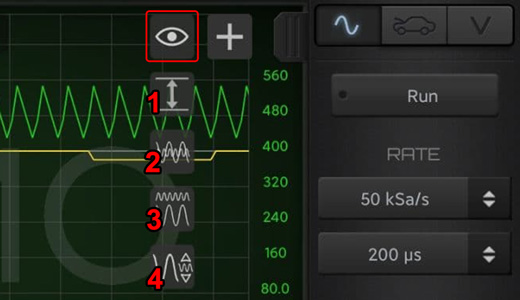
Click on the “eye” icon to open the View Tools.

View Tools
  1. Zoom the waveforms to fit the screen vertically.
  2. Align the waveforms on the same Zero Level.
  3. Align the waveform vertically keeping spacing among them.
  4. Scale the second channel signal to fit the first channel signal (so to compare the shape).

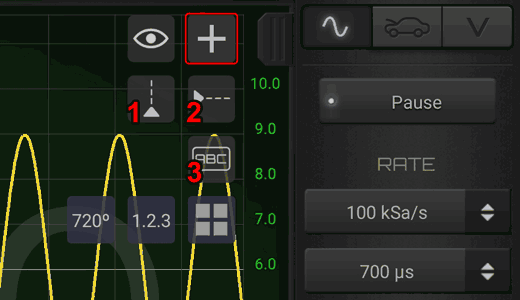
Press the “+” icon to activate the Supporting Tools.

Supporting Tools
  1. Vertical Cursors: it show vertical cursor.
  2. Horizontal Cursors: it create one horizontal cursor.
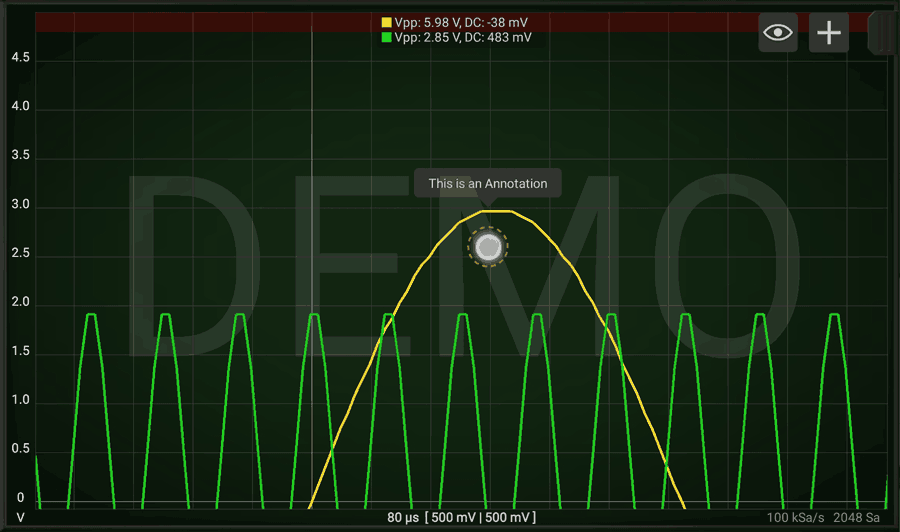
  3. Annotation Tool: you can write labels on the graph and position them on the desired location.

Additional tools may be present according the additional modules installed (ie. Automotive Tools in the picture).

1. Vertical Cursors

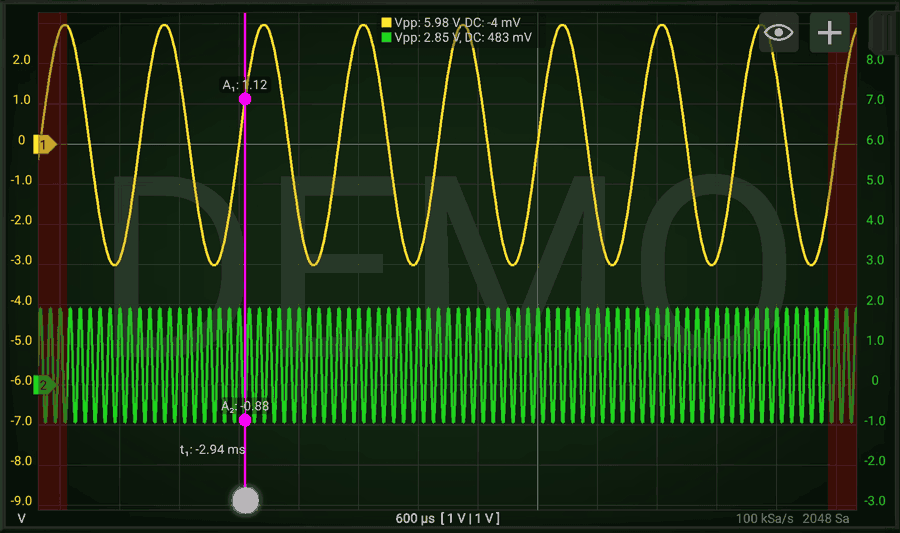
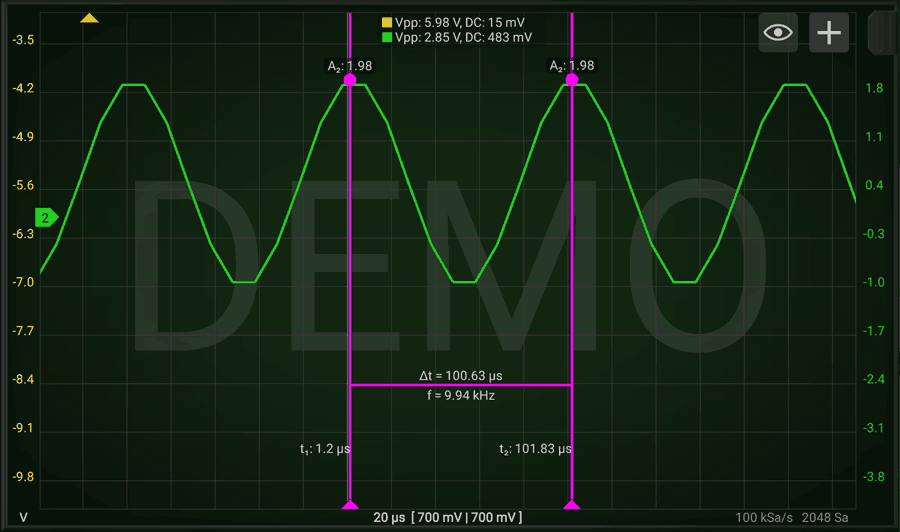
Activating one vertical cursor allows you to measure amplitude of the signals at a certain point. By pressing 2 fingers on the bottom part of the graph you can enable 2 cursors and have relative measurements. (as time and frequency associated to the selected period).

2 Vertical Cursors and relative measurement

For removing the cursors just push them out of the screen (to the left or to the right), on the red area.

Vertical Cursor when selected shows red areas for deletion

HScope allows a maximum of 2 Vertical Cursors.

2. Horizontal Cursors

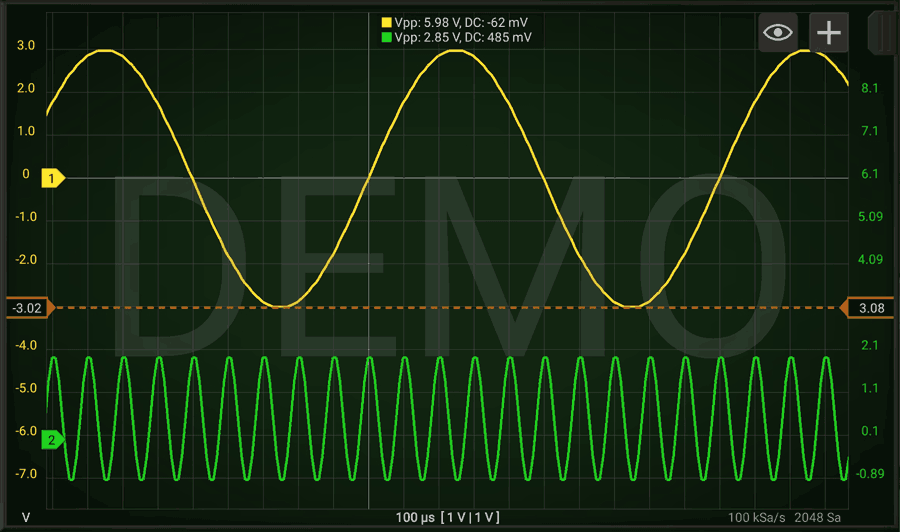
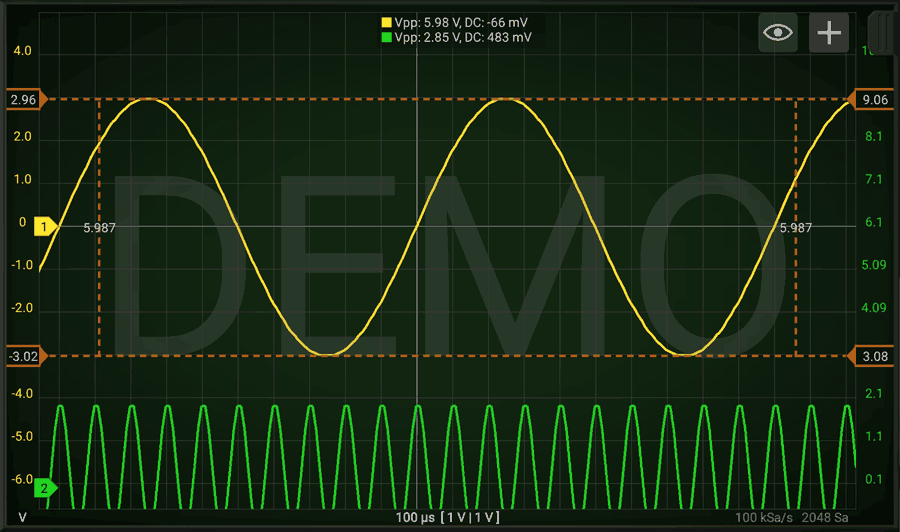
You can enable one or more Horizontal cursors. When you have 2 Horizontal cursors on the screen, you can see also the distance between the 2 cursors.

Horizontal cursors works as the Vertical ones.

Samples of Horizontal Cursors

3. Annotation Tool

When you create a new Annotation you can set the text. Later you can change the location of the annotation but not its text. You can select an Annotation by clicking on it.

To delete an Annotation just move it behind the red bar.

Setting the Trigger Guide
Setting the Trigger

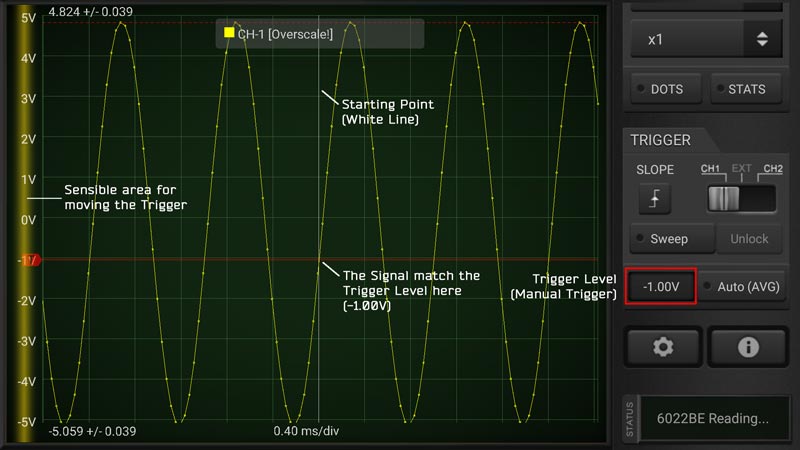
The Trigger allow you to see the signal stable on the screen since the Trigger set what is the starting point for drawing the signal. Even if the input signal can be periodic in some way, on each scan its position can be found translated since the acquisition time is random and it cannot be synchronous with the period of the input signal.
The starting point for a signal can be identified with:

  • a Voltage Level (Trigger Level);
  • a tendency (or Slope) which means if the signal is passing the Voltage Level going up or down.
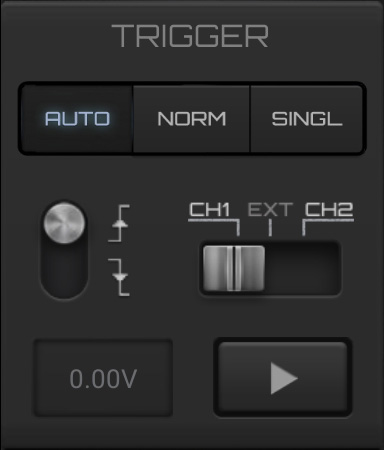
Trigger Panel

Once decided the kind of trigger (AUTO, NORMAL, SINGLE), you can set the SLOPE (arrow up or down) and the input Channel (only CH1 and CH2 are working and they are oscilloscope depending).

  • AUTO Trigger: set the Trigger Level as the middle level of the input voltage.
  • NORMAL Trigger: allow you to set the Voltage Level for the trigger. Every time the condition is met the signal is visualized on the screen.
  • SINGLE Trigger: as Normal Trigger but will show the signal just at the first occurrence of the condition, then it stops the acquisition. You can resume the acquisition by pressing the play button.
Trigger Controls
Filters Guide
Filters

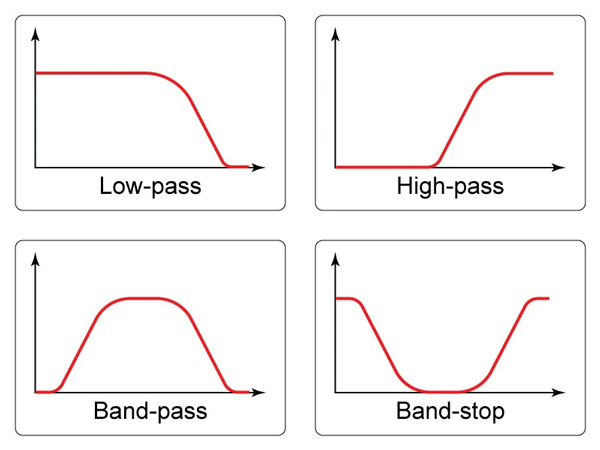
You can apply filters to each channel (button FILTER). Filtering operation may change the original signal in reversible or irreversible way. Irreversible filtering means that the operation modify the original signal in a way that later the original signal cannot be restored.

Type of FilteringDescriptionReversible
Invert (inversion)It invert the input signal (the signal will be mirrored respect the 0 level)Yes
Low PassThe frequencies over the defined frequency will be attenuated.No*
High PassThe frequencies below the defined frequency will be attenuated.No*

* In Automotive Module the filtering can be reversible until the waveform is not saved. After saving the filtered data will be saved and there is no way to reverse to the original waveform or change the filtering parameters.

Filters Response in Frequency

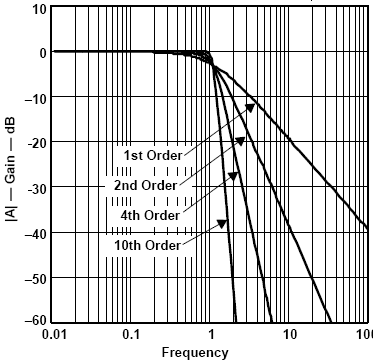
You can set the cutoff frequency of the filter. In case of low-pass and high-pass filter you just set the one frequency, while in case of band-pass and band-stop filters you must set 2 frequecies, one of start and one of end. At the cutoff frequency the signal is attenuated of 70.7% of its amplitude and keep to be attenuated more an more according the graph above.

For example if you set a low-pass filter at 100Hz it means that you will see all the components of the signal up to around 100Hz. After 100Hz they will be progressively attenuated.

The inclination of the attenuation curve depends from the filter order. Higher is the order and more rapids is the curve.

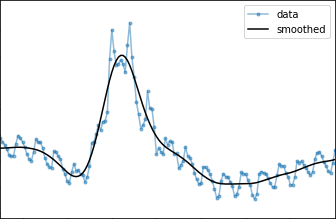
A typical usage of a low-pass filter is to filter out the noise from the signal of interest, a way to “clean” the waveform. Here an example of signal cleaning with a low-pass filter:

Setting the Channels Guide
Setting the Channels

Differently from other oscilloscopes, in HScope you can set the voltage input range for each channel. The concept of Volts/division is just reported as information but it is not really practical since the signal can be zoomed and shifted on the screen and measured with absolute scales and relative cursors.

Channel Setting Panel
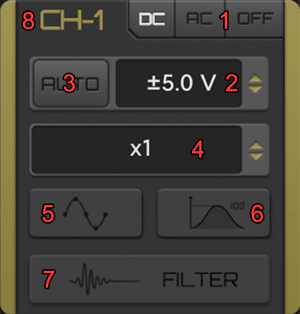
  1. DC/AC/OFF Button: can switch the input coupling mode to DC, AC or switch off the channel.
  2. Input Voltage Selector: it set the oscilloscope maximum input range.
  3. AUTO Button: automatically switch the input voltage according the input signal.
  4. Probe Selector: set the current hardware probe used by the oscilloscope on the channel.
  5. Samples Button: by enabling it you can see the actual samples by zooming in the signal on the screen.
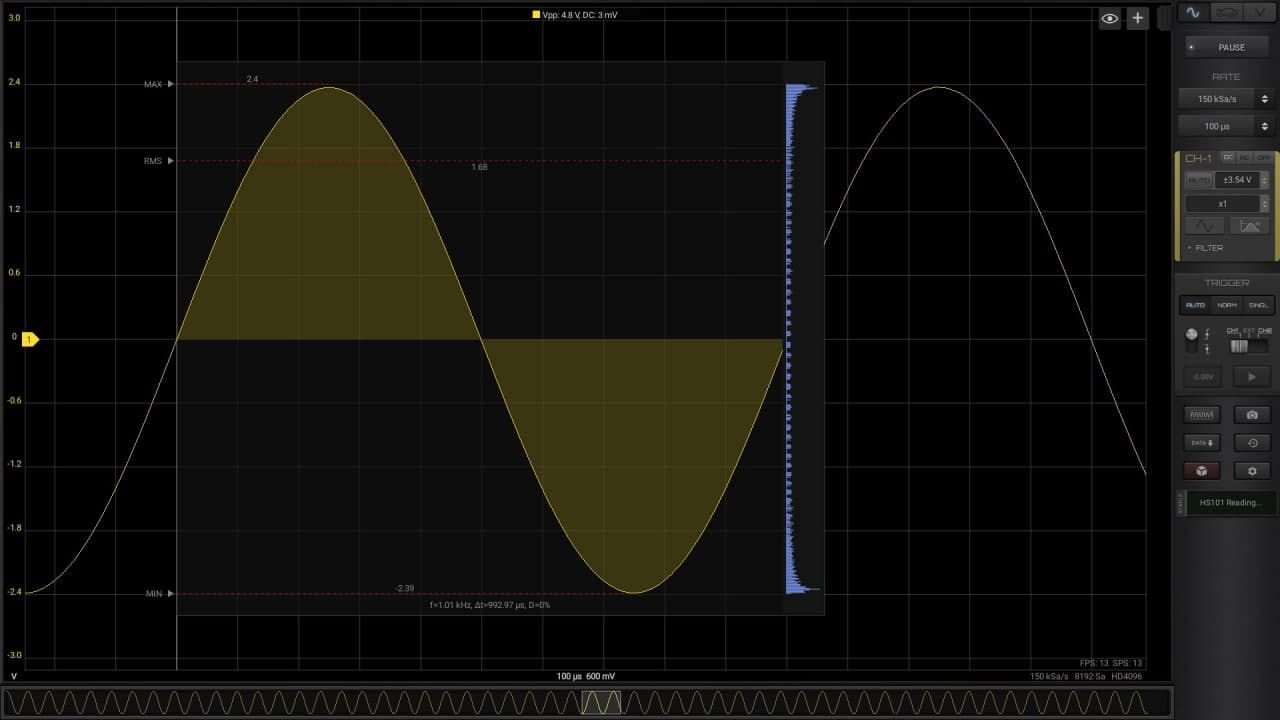
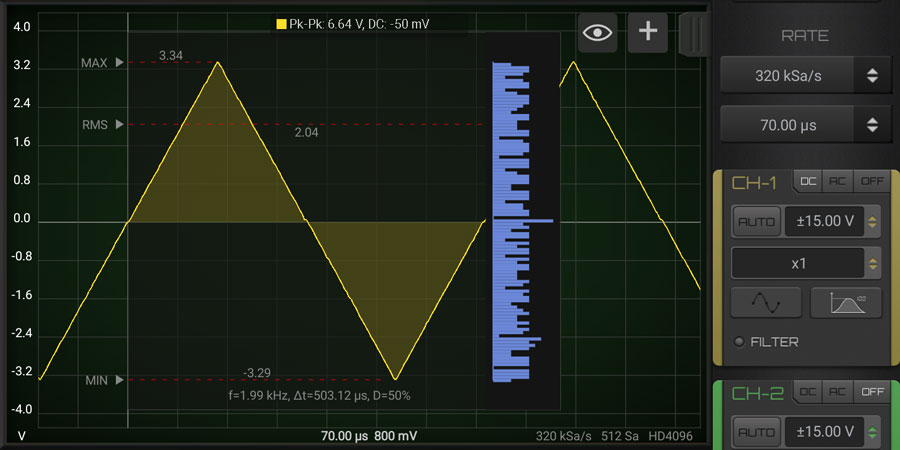
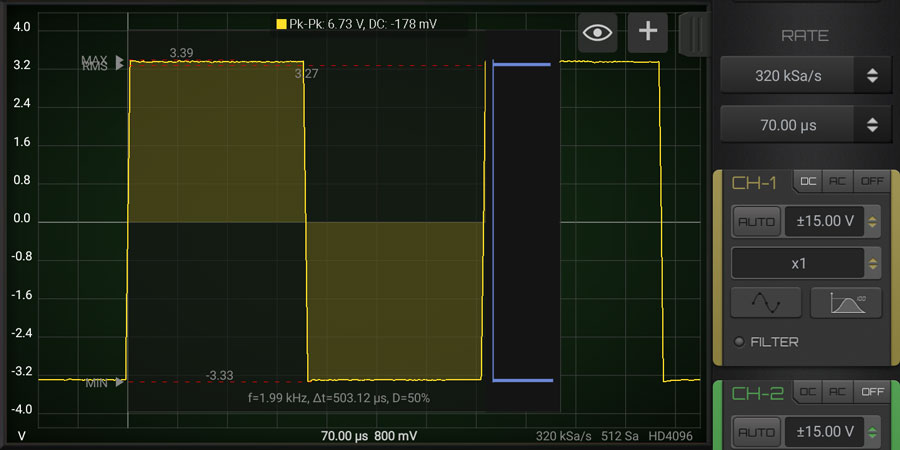
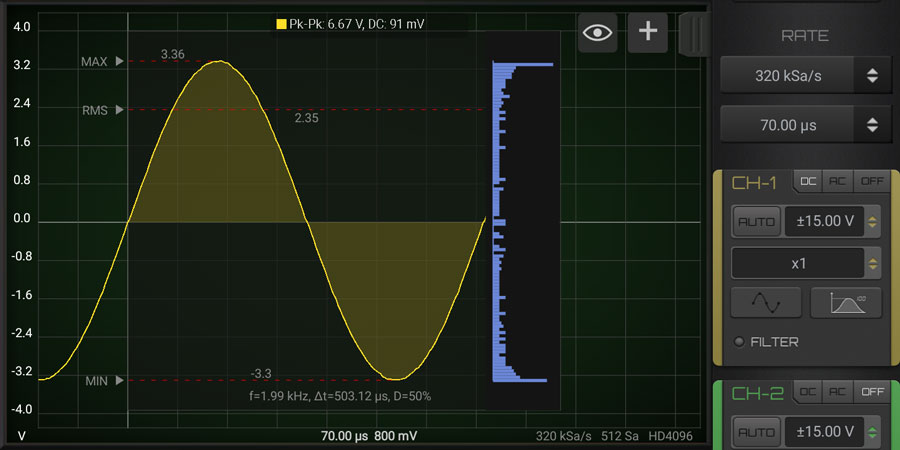
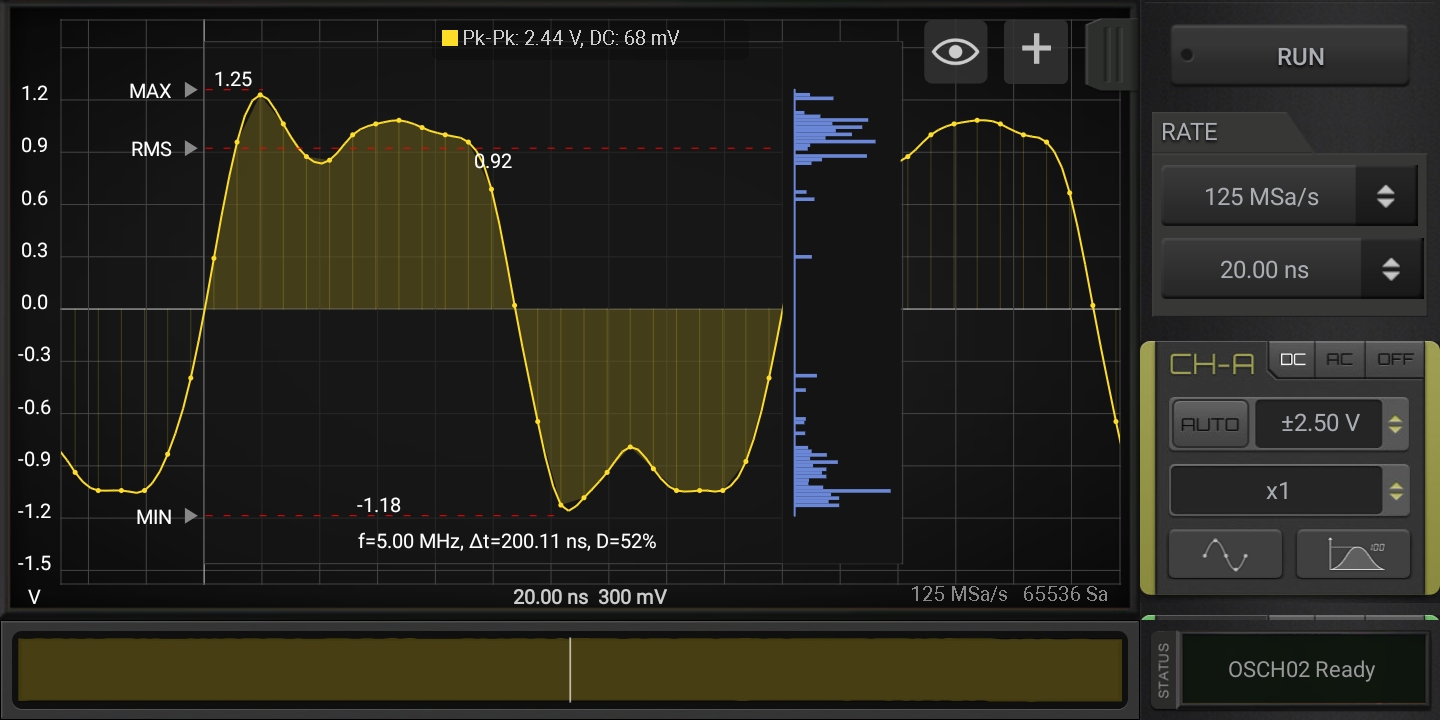
  6. Statistics Button: it show the main statistics for periodic signals by showing the details of 1 period of the main frequency. HScope support 2 kind of statistics, press 1 time for the simple one, press another time for the Histogram, a last time to turn them off.
  7. Filters: to enable filters on the channel (check the Filters section).
  8. Channel Name: you can change the channel name by clicking here. The new name will be shown on the report and saved in the waveform file.

1. DC/AC/OFF Button

Selecting DC the signal goes to screen AS-IS (with AC and DC components), selecting AC the signal pass into a filter (that can be hardware or software according the device) so that on screen and in computation is considered just the AC component.

2. Input Voltage Selector

This value is oscilloscope depending and change according the actual calibration. To benefit of the highest vertical resolution it is suggested to use the lowest range which include the measured signal.

3. AUTO Button

Selecting the button AUTO the software automatically set the input voltage selector according to the signal. It is intended to be use only for time invariant signals (like a sine wave) otherwise the input range will be changed very time the input signal change. This function is limited just to high voltage ranges. Lower voltage selection should still come manually.

4. Probes Selector

This setting won’t affect the hardware settings but it will affect the final readings since the data will be computed according the probe settings.

IMPORTANT: Probe setting MUST reflect the probe hardware to avoid damage to the device or wrong readings. (ie: you can set x10 in HScope only if the hardware probe has x10 switch selected)

In case you need to measure stronger signals the Probe should have a switch that allow to attenuate the input signal. If you change the switch of your probe to the position x10, the input signal will be attenuated by a factor 10. This means that using the Oscilloscope range ±5V with a probe x10 you can see signals up to ±50V (50V / 10 = 5V). In visualization the App already calculate this scaling factor, so if you use a probe x10 just select in the Channel configurations the factor x10 and play with the voltage ranges (it will show you the possible range you can select).

On the market are available different kind of probes (also associated to different units like Ampere,…). You can add or download new probes in the Settings → Probes panel.

VOLTAGE RANGES (SAMPLE)
  • Native Hardware Input Ranges
    (with Probe x1) ±0.5V, ±1V, ±2.5V, ±5V
  • Input Ranges after using Probe
    (with Probe x10) ±5V, ±10V, ±25V, ±50V

6. Statistics

  • First press: full statistics
  • Second press: histogram
  • Third press: statistics off
Martinloren